Account setup
Registering creates the organisation, its first Admin login and a 14-day trial in one four-step form. Everything after that is set under Settings — the organisation's timezone, the address alerts go to, the minimum wage fallback, and the other logins your team needs. Timezone is the one worth getting right first, because every shift time is read in it.
What does registering create?
One organisation, one login, one trial.
/register offers two cards, Organization and Security agency. This page covers the first; the second builds an agency tenant instead, which raises no rotas of its own.
Choosing Organization creates:
- the organisation record, holding the name, the URL slug and the timezone you pick;
- one login for you, with the role Admin — the only role that can later create other logins;
- a subscription in trialing state that runs for 14 days, with no payment taken.
Registration signs you in and lands you on the dashboard. A verification email is sent separately and its link is good for 48 hours; the account works before you click it.
What do you need before you start?
Only an email address nobody else has registered, and an organisation name nobody else has taken. Payment details are not asked for.
Two things are permanent enough to think about first.
The URL slug is generated from the organisation name — lower-cased, with every run of non-alphanumeric characters turned into a hyphen — and shown for editing. It must be 3 to 50 characters of lower-case letters, numbers and hyphens, and may not start or end with one. Nothing in the application changes it afterwards.
The timezone is auto-detected from your browser and defaults to Europe/London if detection fails. Every shift start, shift end and check-call window is interpreted in it, so the honest time to set it is before any shift exists.
How do you register?
- Open /register and choose Organization.
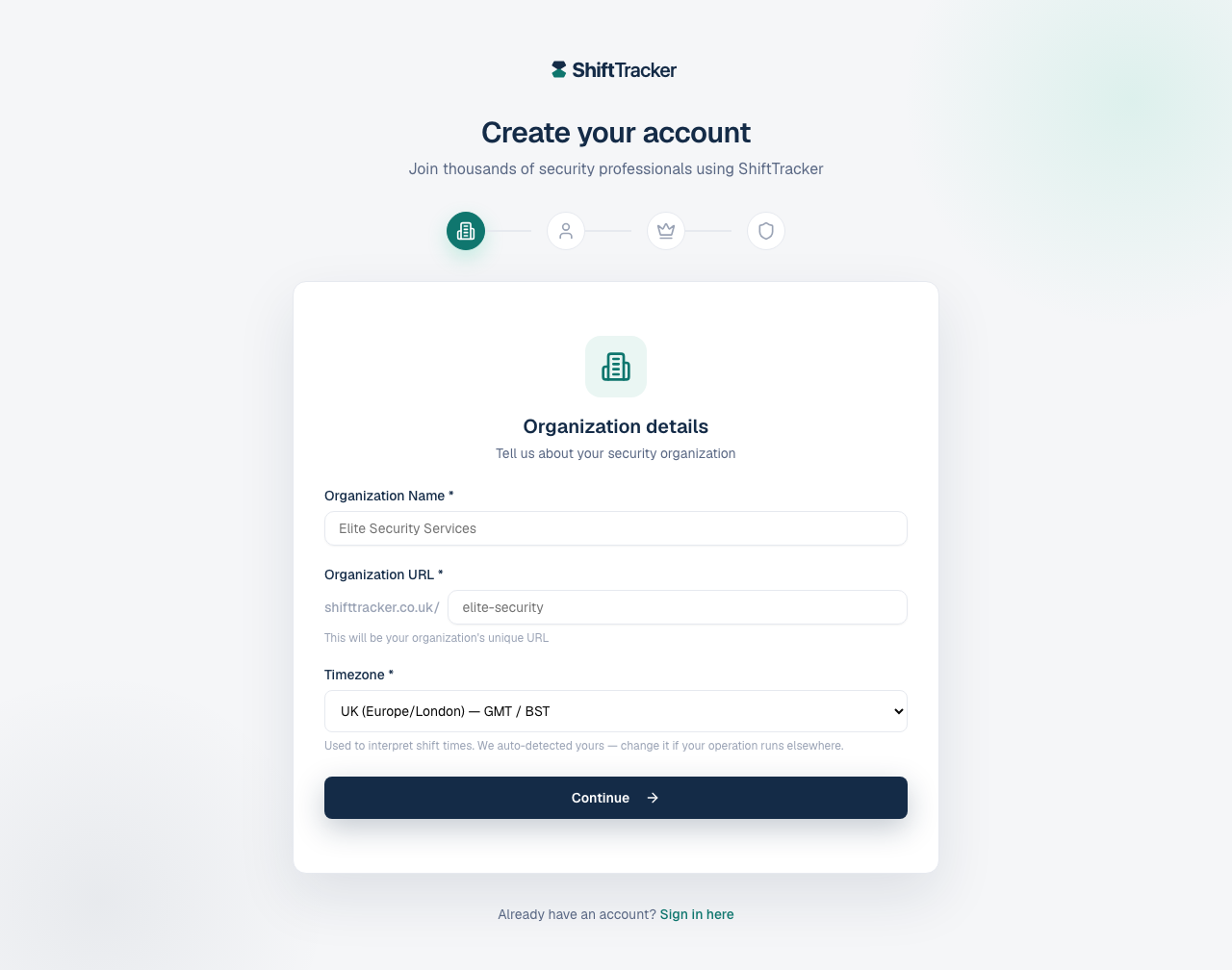
- Organization details. Fill Organization Name, check the Organization URL that was generated for you, and set Timezone. A tick or a cross appears beside the name and the URL as each is checked for availability. Press Continue.
- Admin account. Fill Full Name, Email Address, Password and Confirm Password. The strength meter lists six checks — 12+ characters, Uppercase letter, Lowercase letter, Number, Special character and Not common — and the form refuses to advance on a password it scores below 3 of 5, or on one it recognises as common. Press Continue.
- Choose your plan. Pick a tier and a billing interval. Yearly carries a Save 17% badge. Press Continue.
- Final step. Tick I agree to the Terms of Service and I agree to the Privacy Policy, then press Start Free Trial.
The three tiers set the limits written onto the organisation:
| Plan | Price | Sites | Users | Agencies | Requests / month |
|---|---|---|---|---|---|
| Organization Starter | £49/month | 5 | 50 | 2 | 500 |
| Organization Professional | £149/month | 25 | 125 | 5 | 1,999 |
| Organization Enterprise | £499/month | Unlimited | Unlimited | Unlimited | Unlimited |
Professional and Enterprise also carry advanced reporting and API access; Enterprise adds white labelling.
Those numbers are recorded and displayed, and the Usage This Month panel on Settings → General counts against them. Not all of them are enforced on the way in. Site creation, in particular, runs no plan check at all — see Create your first site.
What should you set before adding anything else?
Settings sits under your own name in the top right of the header, not in the main navigation. Open the menu and choose Settings, then General under the ORGANISATION heading in the sidebar.
| Field | What it does |
|---|---|
| Organisation Name | The name shown throughout the application. |
| Custom Domain | A domain of your own. Optional. |
| Organisation Notification Email | One address for organisation-wide alerts — new proposals on your requests, missed check-call alerts, billing alerts. Left blank, those emails go to every admin instead. Per-user emails are unaffected. |
| Organisation Timezone | The zone every shift wall-clock time is read in. |
| Leave Year Start | Month and day the holiday year resets on. Left unset, each employee's own start date is used. |
| Allow carryover of unused leave | Whether unused annual leave carries into the next leave year. |
| National Minimum Wage (£/hour) | The rate used when an employee has no personal rate. |
| Primary Colour, Secondary Colour | Brand colours. |
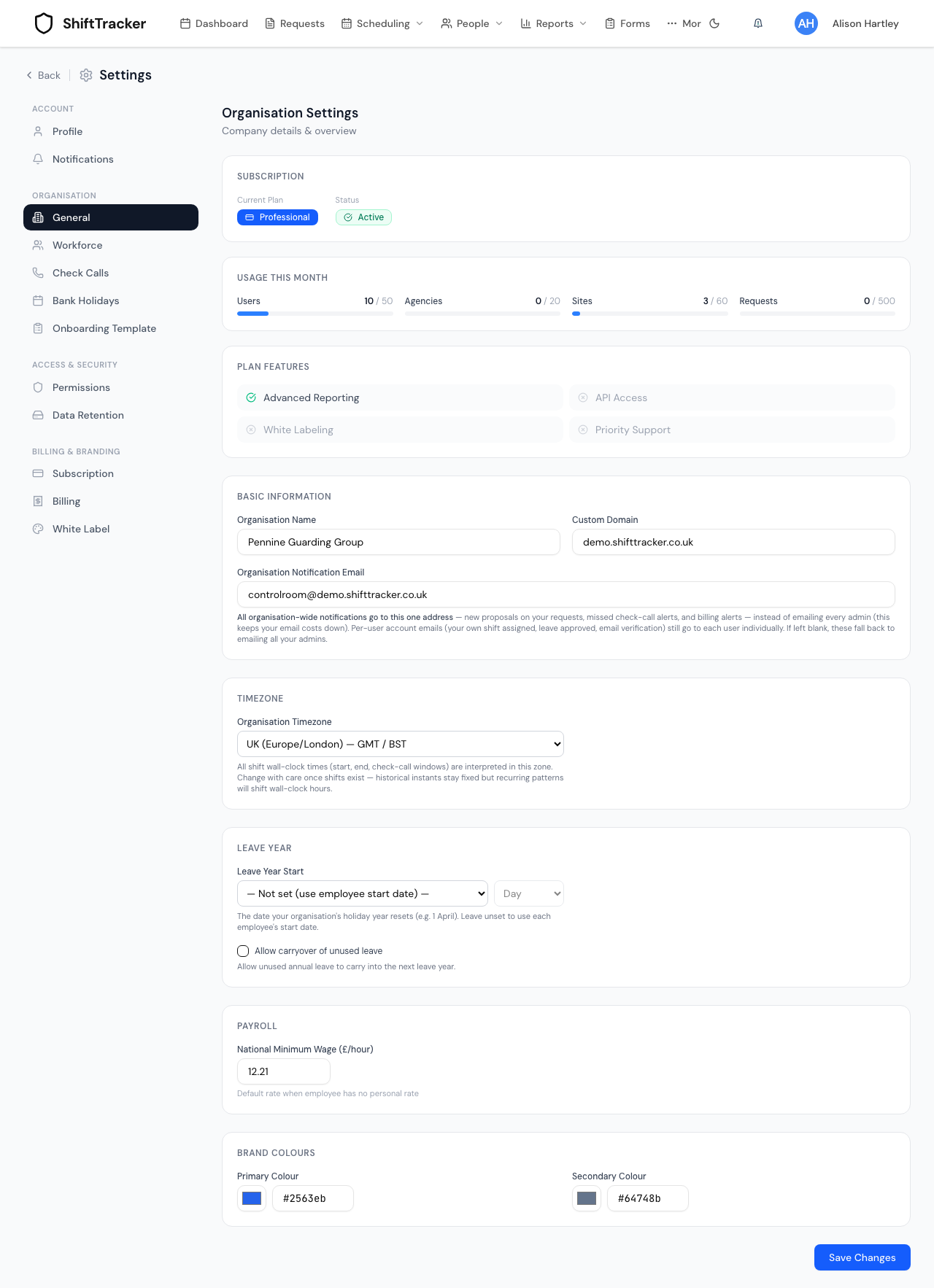
Save Changes commits the lot.
The timezone field carries its own warning on screen, and it is worth repeating: Change with care once shifts exist — historical instants stay fixed but recurring patterns will shift wall-clock hours. A shift already worked keeps the moment it was worked at; a pattern that says 07:00 will start meaning 07:00 somewhere else.
The other pages under ORGANISATION are Workforce (grades, departments and job titles), Check Calls, Bank Holidays and Onboarding Template. Permissions and Data Retention sit under ACCESS & SECURITY, and Subscription, Billing and White Label under BILLING & BRANDING. Everything except Profile and Notifications needs Admin or Manager; Onboarding Template, Permissions, Data Retention and all three billing pages need Admin.
How do you add the rest of your team?
Logins are managed at /users, reached from People → Users. Both the menu entry and the page itself are Admin-only on the organisation side — a Manager who types the URL gets Access Denied rather than the list.
- Press Add User. The dialog is titled Add New Organization User.
- Fill Name, Email, Password and, optionally, Phone.
- Choose Role. An organisation Admin can create Employee, Admin, Manager and Control. Agency roles are not offered.
- Press Create User.
Two things about this that are easy to assume wrongly. There is no invitation: you type the person's first password yourself and the application sends them nothing, so you have to pass it on. And the role you pick here is what the login is — it is not a set of tick boxes. What each role may do is the subject of Roles and permissions; per-user exceptions are set separately under Settings → Permissions.
An Employee login is a portal account, not a roster record. The person still needs an employee record before they can be put on a shift.
If it goes wrong
"Email already registered". The address already has a login somewhere on the platform, in any organisation. Registration will not attach a second one to it.
"That organization URL or email is already taken. Please try another." Someone else claimed the slug between your availability check and your submit. Change the URL and submit again.
The Continue button will not advance on step 2. The password scored below 3 of 5, or matched the common-password list. Both show as a red message under the field.
The availability ticks never appear. The check is skipped when the name or the URL is under 3 characters, and it deliberately gives up quietly if the probe itself fails, so as not to block a legitimate registration. Uniqueness is still enforced on submit.
"User with this email already exists". Same rule as registration, applied to the Add User dialog.
A user you created cannot sign in. Check you passed on the password you typed — nothing was emailed to them.
The usage counters do not stop you. Users, Agencies, Sites and Requests on Settings → General are reported against your plan's limits, but the user-creation and site-creation routes do not consult them. Treat the counters as information, not as a gate.
Related
Last updated 2026-08-13