Upload employee documents
Documents hang off a person's login, not their roster row, and live on the Documents tab of an employee record. An Admin or Manager picks a file, a document type and an optional expiry date; verifying it afterwards copies what the document says onto the roster's own compliance fields.
What do I need before I start?
An Admin or Manager account. Uploading needs UPLOAD_DOCUMENT, which is Admin and Manager. Control can open the tab and download what is there — that is VIEW_DOCUMENTS, which covers Admin, Manager and Control — but sees no Verify or archive buttons. Verifying is a third permission again, VERIFY_DOCUMENT, also Admin and Manager. An employee can always see their own documents without holding VIEW_DOCUMENTS.
A person with a login. Documents are keyed to the platform user account, not to the roster row, which is what lets internal staff who have no roster record hold documents too. The flip side is that a roster entry created without a linked user account has nowhere to put them: opening its Documents tab fails and raises a Failed to load documents message instead of that person's list.
At least one document type. The type dropdown is filled from the organisation-visible catalogue — the built-in system types plus any your organisation has added. If that list comes back empty, the Upload document button stays disabled and there is no way in.
Object storage, in production. The file itself goes to S3 before the metadata row is written. A production deployment with the storage bucket variables missing refuses the upload rather than writing to disk that will not survive a restart.
How do I upload one?
- Open the person from Employees and choose the Documents tab, labelled IDs, licences, contracts.
- Click Upload document. The dialog says JPG / PNG / WebP / PDF up to 25 MB. Verification happens after upload.
- Choose the File.
- Choose a Document type. The menu is grouped by category, and anything your organisation added itself is marked · custom.
- Set Expiry date (optional) if the document expires. This is the field that later drives expiry alerts, so a licence with no date here is a licence nothing will chase.
- If you picked SIA Licence, two extra boxes appear: SIA number and SIA type. Both are optional, and both are read later by the roster mirror.
- Add Notes (optional) if you want something recorded alongside it.
- Click Upload. The button stays disabled until both a file and a type are chosen. On success a Document uploaded toast appears and the list refreshes.
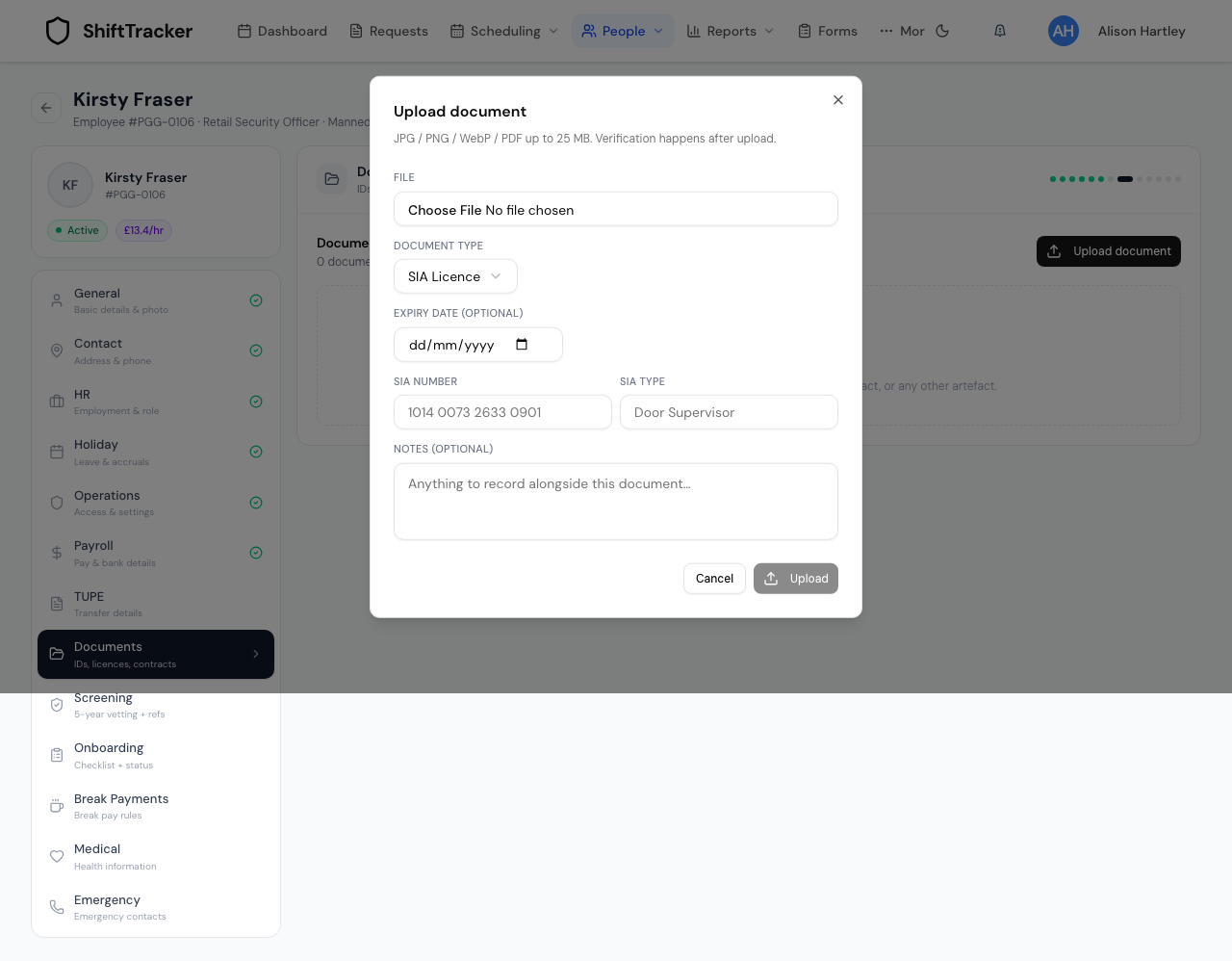
The document arrives unverified. Verification is a second, deliberate step.
What can I upload?
| Rule | Value |
|---|---|
| Formats | JPG, PNG, WebP, PDF |
| Maximum size | 25 MB |
| Content check | The first bytes of the file must match the type it claims to be |
| Filename | Anything outside letters, digits, dot, underscore and hyphen is replaced with _, and the name is cut to 120 characters |
Images and PDFs are both stored byte-for-byte. Nothing is resized or re-encoded, because the point of the file is that it is the exact document.
What does the list show?
Documents are grouped into sections by the category their type belongs to, in a fixed order: Identity, Right to Work, Address Verification, Licences, Employment History, Contracts & Handbook, References, Training & Certifications, then Other. A category the platform does not recognise is appended at the end rather than dropped.
Each row carries the filename, its size, a Verified or Pending badge, an expiry badge where an expiry date is set, and the upload date with the type label. On the right sit View, Verify and an archive button.
View does not stream the file through the app. It asks for a signed link that is valid for five minutes and redirects the browser to it — except on a deployment with no S3 configured, where the file is streamed through the storage proxy instead.
The header line above the sections counts what is on file, and adds · N expiring soon when any document is inside 30 days of its expiry date or already past it.
What does verifying actually do?
It records who verified it and when — and then copies what the document says onto the roster record, so the older compliance fields stay correct without anyone typing them twice.
| Document type | Roster fields it fills |
|---|---|
| SIA Licence | Licence number and type from the two SIA boxes, expiry from the expiry date |
| DBS Certificate | DBS check date — the recorded certificate date if there is one, otherwise the date you verified it |
| Visa, Work Permit | Right to work, but only if the document has not already expired |
| Passport, Driving Licence, Birth Certificate | Identity verified |
| Training Certificate | Training completed |
Every other type mirrors nothing. The platform also remembers which document filled each field, so un-verifying clears those fields again — but only when the document being un-verified is still the one on record. A newer document that has since taken over is left alone.
Pressing Unverify on a verified row reverses the whole thing. Editing the expiry date or the SIA details of an already-verified document re-copies the new values without changing which document is on record.
What happens when I archive one?
Archiving is a soft delete. The confirmation says so: Archive "…"? This hides the document but keeps it in the audit history. The row is stamped with who archived it and when, and it drops out of the list — the list only ever shows documents that have not been archived. The file itself is not deleted.
Archiving also clears any roster field this document was the source for, so a compliance report cannot keep reading a licence number off a document nobody can see any more. Archiving needs UPLOAD_DOCUMENT, the same permission as uploading, not the verify one.
If it goes wrong
| What you see | What it means |
|---|---|
| Upload document is greyed out | Either you are viewing read-only, the tab is still loading, or the document-type catalogue came back empty. An empty catalogue is the common one, and it needs the type list seeded before anyone can upload. |
| Unsupported MIME type … | The file is not a JPG, PNG, WebP or PDF. |
| File exceeds 25MB limit | Split it or compress it; the cap is fixed. |
| File content doesn't match declared type (…) | The extension and the actual bytes disagree — usually a file renamed rather than converted. |
| Unknown document type for this organisation | The type was deactivated, or it belongs to another organisation. Pick another. |
| Upload failed with nothing else | The storage layer refused the file. In production that usually means object storage is not configured. |
| Verify returns a version conflict | Somebody else changed the same document while your page was open. Reload and try again. |
| Failed to load documents | The record you opened has no linked user account, so there is nowhere for documents to hang. |
Related
Last updated 2026-08-13