Recurring shift patterns
A shift pattern is standing cover at one site — a start and end time, the days it runs, and how many people it needs. Patterns are built one site at a time in the pattern builder; the catalogue under Scheduling is read-only. A pattern does not create shifts by itself. It draws empty seats on the roster that somebody still has to fill, or that a rotation fills for you.
Where are patterns created?
Inside a site, always.
The header has Scheduling → Patterns, and it is tempting to start there, but /patterns is a Pattern catalog — a read-only list of every pattern across your sites, with Preview and Copy to site… as its only row actions. There is no "new pattern" button on it.
Creating and editing happens in the Shift Pattern Builder, at /sites/{id}/shift-patterns. These lead there:
- Manage on the Patterns tile of the site's Overview tab, or add a shift pattern in its setup checklist;
- Change per service in the site's Check-call settings;
- the coverage step of the create-site wizard, which writes patterns for you.
What do you need first?
The permission shifts.edit.pattern_days, which Admin and Manager hold and Control does not. Control can see patterns but not change them.
You also need an active subscription (or a trial that has not ended). It is checked when patterns are saved, not when the site itself is created. There is no limit on how many patterns you hold.
Before you start, know what the numbers mean. Staff is how many people the pattern needs per day it runs, and each of those is a seat on the roster. A pattern of 2 staff running 7 days draws 14 seats a week. Active Days is Monday through Sunday; the presets are All, M-F, S-S and Clear.
How do you add one?
Open the site's pattern builder. The heading reads Shift Pattern Builder with the site name beneath it. On a site with no patterns, Quick Templates — 84, 108 and 168 hours a week — fill the form for you.
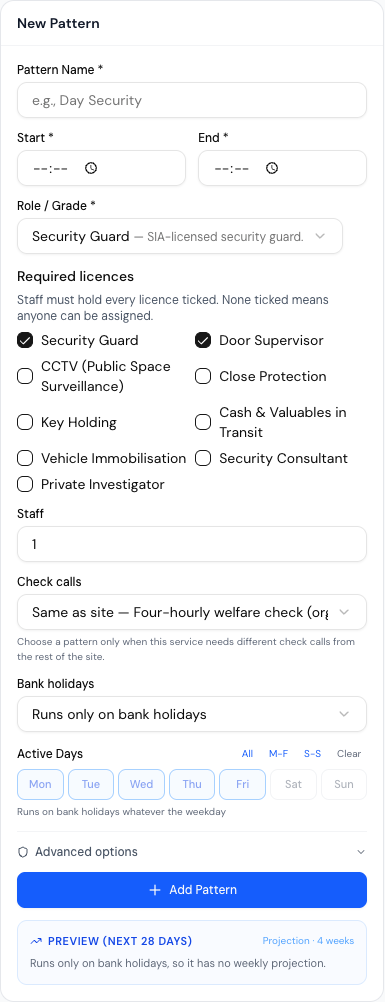
In the New Pattern panel, fill Pattern Name *.
Choose how the hours work:
- Same times every day — one Start * and End * for every active day.
- Varies by day — a grid, Hours by day, with its own start and end for each day, for example Monday–Tuesday 07:00–12:30 and Wednesday–Friday 12:30–18:00. Each different set of hours is saved as a band of the same pattern.
An end earlier than the start is an overnight shift and is allowed — you get the amber note Overnight shift — ends next day.
Check Role / Grade *. It starts on the grade this site's patterns use most. The list is your organisation's grades from Settings → Workforce, or a built-in list of common security roles if you have none.
Under Required licences, tick every licence staff on this pattern must hold, or leave it empty (see below).
Set Staff, which must be at least 1.
Leave Check calls on Same as site — …, or pick a check-call pattern for this service only — see Configure check-call patterns.
Bank holidays says what the pattern does on one: Runs as normal, Does not run or Runs only on bank holidays. See below.
Pick the days under Active Days — All, M-F, S-S or Clear help.
Optionally open Advanced options for Priority, Required Skills, Notes, Automatic book off and Bounded coverage window.
Press Add Pattern. Anything missing is pointed out then — the form stays quiet until you have typed in a field or tried to save.
The pattern saves there and then — the builder writes on every add and every update, and Enter in a text box submits the form. Done, top right, simply goes back to the site; View on roster opens that site's roster. A pattern someone else changed while you had the page open is not overwritten: you are told These patterns were changed by someone else. Reload and try again.
To change a pattern, press the pencil on its card. The panel becomes Edit Pattern and the button Update Pattern. The copy icon duplicates a pattern. Opening a pattern from its name on the roster comes here too, and returns you to the same week after you save.
Quick Templates ask first — Add N patterns?, listing the names and times, They are added to this site's patterns and saved. Existing patterns are kept. — and the confirm button is Add and save. The message that follows has an Undo that takes out only the template's own patterns, for ten seconds. If another save is still running, Undo says A save is still running. Remove the template patterns once it has finished.
Apply days to all, above the list, sets the same active days on every pattern at once.

Preview (next 28 days) beside the form projects what you have typed: shifts, hours and people over four weeks. It is arithmetic on the numbers in the form, not a promise that rows exist.
What do Required licences do?
Staff must hold every licence ticked. An empty list means no licence check at all: None ticked means anyone can be assigned. Several ticked means a person must hold all of them, each valid on the shift's date. Only licence types are listed, such as Security Guard or Door Supervisor.
What happens when someone lacks one depends on who they are:
| Who | Result |
|---|---|
| Your own employee, put on the roster | A warning only: Assigned, but missing: …, and a note beside their name in the pickers, with an Add licence link to their HR tab. Nothing is refused |
| An agency officer, proposed against a request raised from this pattern | Refused when proposed, when confirmed and when swapped. See Create and manage requests |
The list is copied into an agency request when you raise one from the pattern's seat, and you can change it there. The pattern's own Role / Grade is a grade name, not a licence, so the roster's licence warning reads only this list.
What does Bank holidays do?
The roster, the month view, Fill gaps, the copy-week actions and rotations all follow it.
| Choice | The pattern on a bank holiday |
|---|---|
| Runs as normal | Runs on its active days, whether or not the date is a bank holiday |
| Does not run | Draws no seats that day. The card says Not on bank holidays |
| Runs only on bank holidays | Draws seats on bank holidays only, on whatever weekday they fall, and never otherwise. Active Days is greyed out (Runs on bank holidays whatever the weekday), the pattern has a single set of hours, and the card says Bank holidays only |
If no bank holiday is dated today or later, a note says No upcoming bank holidays are set and links to Settings → Bank holidays.
What do the advanced fields do?
| Field | Effect |
|---|---|
| Priority | Low, Normal or High. Colours the badge on the pattern card and the bar on the 24-hour coverage strip. Nothing in scheduling reads it. |
| Required Skills | Recorded against the pattern and shown in the catalogue. Advisory — no assignment is refused for missing a skill. |
| Notes | Free text. Deliberately excluded from version forking, so a notes-only edit updates the pattern in place rather than creating a new version. |
| Automatic book off | Auto book off a booked-on officer at the scheduled end time once the shift end passes, and mark the shift completed. Off by default. |
| Bounded coverage window | Adds Start date and End date. The pattern draws no seats outside them. Either date may be left empty, but not both (Set a start date, an end date, or both). This is the only way to stop a pattern without deleting it. |
There is no Active toggle for a shift pattern, and nothing in the application writes one — a pattern you finish with is either retired by removing it from its site's builder, or deleted outright. Include inactive on the catalogue widens the list to include any paused pattern rather than replacing it, so ticking it always shows at least what was already there. A row that only appears when it is ticked is badged Paused.
How do I change a pattern from a future date?
Edit a saved pattern that has one set of hours and Applies from appears below Active Days. Pick a date after today and the change starts then, so, for example, one more guard from next Monday leaves this week alone. Leave it empty to change the pattern from today. The date must be after today, and inside the coverage window if you set one.
If the save leaves some days with more people rostered than the new Staff, the save still goes through and a note lists them (… is saved, but 2 days have more people rostered than the new headcount: …) with Open the roster for that week. If a rotation uses the pattern, a message says it will stop at that date and needs updating.
What happens to shifts when I change a pattern's hours?
A shift already written keeps the hours it was made with. After a save that changes a pattern's hours, Shifts still on the old hours counts the future shifts — dated today or later, not started or finished — and asks whether to move them. Move shifts to the new hours first checks every one; it shows how many can move now, how many only with a reason (Reason, for Working Time warnings), and how many cannot move and why. Shifts tied to an agency request, already started, or edited by hand stay on the old hours. Keep old hours leaves them all. The result reads Moved N shifts. with a count of those left behind.
Whichever you choose, a shift left on the old hours still fills its seat: the seat guard, the roster and Fill gaps all count it against the new pattern, so a day cannot be over-staffed. In the month view such a shift is read-only.
How does a pattern become a shift?
It does not, on its own. A pattern generates no rows. A rotation does: it puts crews on a repeating cycle across a site's patterns and writes their shifts.
A pattern is expanded on read, every time a roster is loaded: for each date in the range being viewed, if the weekday is in Active Days, the date is inside the coverage window and its Bank holidays choice allows the date, the pattern offers Staff seats. Seats already covered by a real shift row are subtracted, so a filled seat stops being offered.
Rows are written only when a person acts on a cell:
| Action | What it writes |
|---|---|
| Picking a name in the roster cell's popover | A shift assigned to that person |
| Assign for the week, the icon beside a pattern's name | A shift for that person on every open seat this week |
| Create Open Shift in the same popover | An unassigned shift, marked available for application |
| Save Changes on the month grid | Assigned shifts for every cell you filled. It removes only the people you took out of cells it showed you, never open seats or rows it did not show |
| All open … seats in the month view | The selected person on every open seat of that pattern for the month |
| Roll out on a rotation | A crew's shifts, up to 12 weeks ahead |
That is why the roster shows next month even though nothing has been generated. Without a rotation, copying a week forward is how you get ahead.
Because there is no lookahead, a pattern edited today changes what every future roster view offers, including weeks you have already looked at. Shifts already written are untouched.
What about overnight patterns?
They work, and the shipped 24/7 template uses one. A 19:00–07:00 block is treated as 12 hours, the coverage strip splits it into two segments with the second labelled (cont.), and the resulting shift is stored against its start date with no end-date column — the next day is implied by the end time being earlier than the start.
One caution: the builder's overlaps badge only compares patterns that share a day, and compares their times as plain numbers with no wrap at midnight, so it will not flag a genuine clash between an overnight pattern and a day pattern. Do not rely on it for night cover.
How do you remove one?
Two controls, two different outcomes.
The bin icon on a pattern card opens Delete pattern "{name}"?, which counts the shifts that use the pattern — on every date and every version of it — under N shifts in total, on all dates, use this pattern., with scheduled, in progress, completed and cancelled beneath, and asks what to do with the open ones: What to do with the N open shifts from today on (not started, finished or locked)?
| Choice | Effect |
|---|---|
| Leave them as they are | Stay on the roster as upcoming shifts, with no pattern behind them. The default |
| Reassign to another pattern | Shifts at the same hours move to the pattern you pick on the same site. Chosen for you only when the site has another pattern running the same hours; picking one with different hours warns Different hours: only shifts at … move. The rest are left without a pattern. |
| Delete them too | Removes shifts + assignments. Completed shifts stay. Only shifts nobody is on and no request is linked to can go; if any has an employee or an agency request the whole delete is refused, with the counts, and you cancel those first |
Press Delete pattern to go ahead. Completed and cancelled shifts are kept whichever you choose, so pay history and audit trails survive. A pattern with several time bands is deleted whole — This deletes all N time bands of the pattern. If a rotation uses the pattern the dialog says so: Used by rotation …. Its cycle days that name this pattern will stop producing shifts.
Scheduled counts every shift still marked scheduled, on any date, including past ones that were never confirmed or completed.
Changing a pattern's times in a way that forks a new version retires the old one by stamping an end date on it rather than deleting it, so shifts already written keep their link.
If it goes wrong
"Access denied. You do not have permission to manage shift patterns." Your role is Control, or a permission override has removed shifts.edit.pattern_days.
The copy did not appear on the target site. Check you picked the right site — the copy is added to whatever the dialog names, alongside that site's existing patterns rather than replacing them. It arrives as a new pattern with its own dates cleared, so it will not carry the original's date range. It does keep the original's Required licences.
A coverage end date is refused. The server rejects a Bounded coverage window whose end is before its start, and one whose end is earlier than today.
Reassigning a day refuses with a locked-arbitration message. Saving a single day from the site schedule replaces every shift on that date for that site, and it will not do so if any of them have arbitration locked because they have already been exported to payroll or an invoice. Unlock via arbitration force-edit first.
You want to pause a pattern for a fortnight. There is no way to. Set a Bounded coverage window end date, or delete the pattern and rebuild it — those are the only two options.
Related
Last updated 2026-11-17