Broadcast open shifts and approve applications
Two ways to let your own staff pick up open shifts. A broadcast offers shifts to employees you choose, and the first to accept is assigned straight away. Applications come from employees who find an open shift themselves; an Admin or Manager approves one. Both start from the roster, and a broadcast cannot be withdrawn once sent.
Which should I use?
| Broadcast | Application | |
|---|---|---|
| Who starts it | You, offering chosen shifts to chosen employees | The employee, finding an open shift |
| Who decides | The first employee to accept | An Admin or Manager approves one applicant |
| Can be withdrawn | No | The employee can withdraw a pending application |
Both are compared with agency requests and direct assignment on Four ways to fill an open shift.
Who can do what?
| Action | Admin | Manager | Control |
|---|---|---|---|
| Send a broadcast | Yes | Yes | Yes |
Approve or reject applications (shifts.approve.application, shifts.reject.application) |
Yes | Yes | No |
Applications on the roster is shown to Admins and Managers only.
How do I send a broadcast?
- Go to Scheduling → Roster, and press Broadcast under the title (it is also in More). The page is headed Broadcast Shifts, with Back to Roster.
- Choose the Site, and the Date Range: Next 7 Days, Next 14 Days or Next 30 Days.
- Under Available Shifts, tick the shifts to offer, or Select All.
- Under Eligible Employees, tick who should get the offer.
- Add a Message (Optional) — E.g., Urgent coverage needed. Premium pay rate applies. It is added to the notification.
- Check the summary — how many shifts, Will be sent to how many employees — and press Send Broadcast.
There is no confirmation and no undo: the offer goes out at once.
Which shifts and people are listed?
Shifts — scheduled, unassigned (or already open for application), and starting between today and the end of the range. The range always starts today, so nothing in the past and nothing more than 30 days ahead can be broadcast.
Employees — active employees whose primary site is the site chosen. Nobody is filtered by licence, skill or availability. An employee with no login is recorded as a recipient but receives nothing.
If you change the site or range, anything you had ticked that is no longer listed is unticked, so nothing is sent that you cannot see.
What happens when I send it?
- Each shift gets its own broadcast, and is marked open for application.
- Each offer lasts 24 hours — an organisation setting with no screen to change it.
- Each recipient is notified New shift available — A shift is open for application, with the site, date and times and your message. The notification opens Shift Offers in the employee portal; in the mobile app the offers are under More → Broadcast Offers.
A shift that already has a live broadcast is skipped, and the confirmation says so: 1 already had a live broadcast and was skipped. Once a broadcast has lapsed, the shift can be broadcast again.
What happens when someone accepts?
The first employee to accept is assigned to the shift there and then, and it becomes Confirmed — no approval step. Everyone else's offer closes; anyone who tries to accept afterwards is told the shift has gone.
You are told too, if you sent it: Broadcast shift filled — name accepted the shift at …. If every recipient declines instead, you get Broadcast shift still open — Everyone you offered the shift at … has declined.
While the shift is still unfilled, its panel on the roster shows how the broadcast is going under Filling: Broadcast: Sent · Accepted · Declined · No response.
How do I approve an application?
Employees apply for open shifts from Available Shifts in their portal or app. Each application is scored against the shift's requirements.
- Go to Scheduling → Roster and press Applications, or open the shift's panel on the roster.
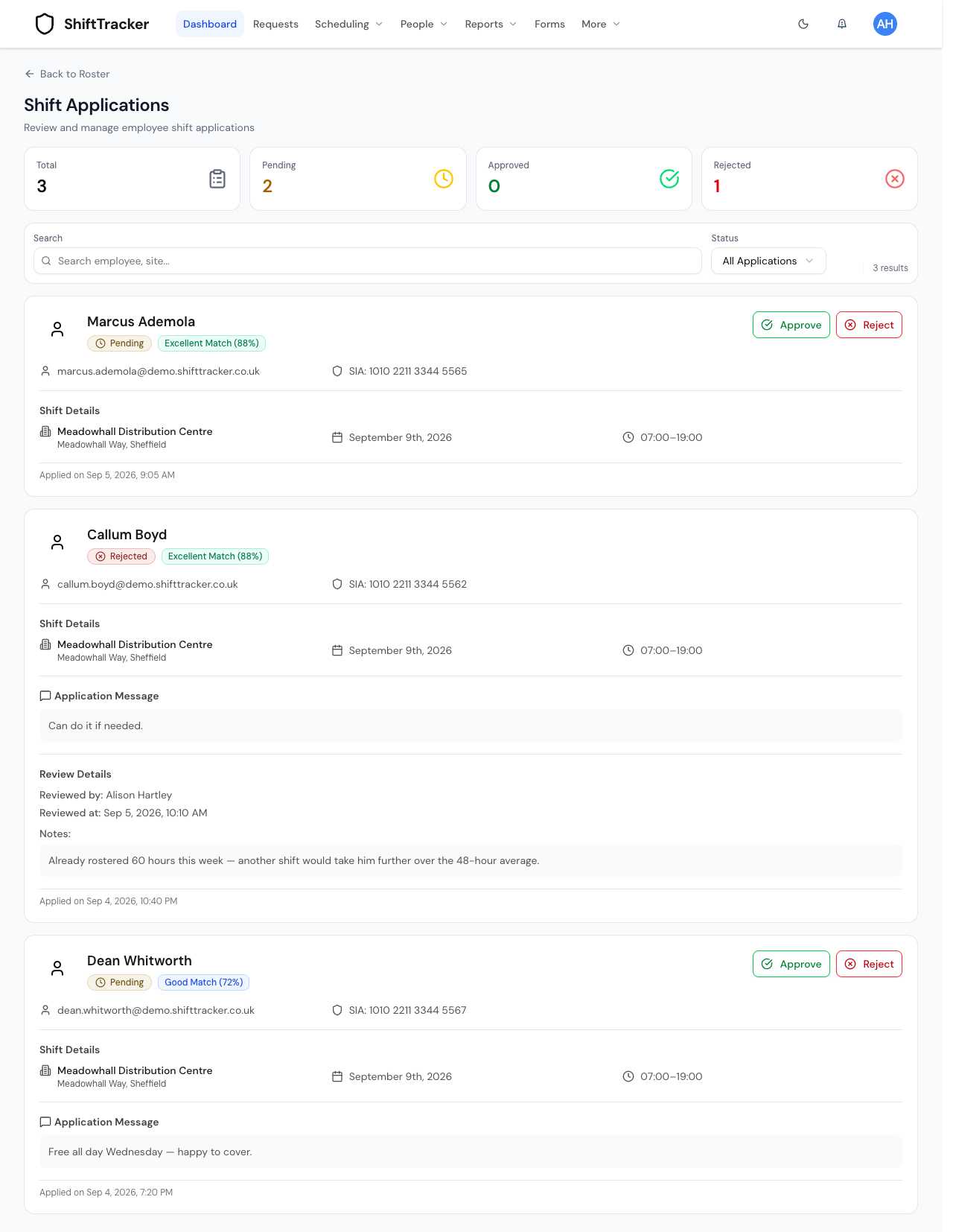
- On Shift Applications, each application shows the employee, their match — Excellent, Good, Fair or Low — the shift (day and times without seconds), any message, and when they applied. Narrow it with Search employee, site... and the status menu: All Applications, Pending, Approved, Rejected or Expired. The status on each row is a badge, so one the employee withdrew reads Withdrawn and a lapsed one reads Expired, rather than Pending.
- Press Approve or Reject. Rejecting needs Review Notes — the reason — which the employee is sent.
- Confirm with Approve or Reject in the dialog.
In the shift's panel, the Filling block lists the pending applicants with Assign beside each.
Approving assigns the employee to the shift, closes the other pending applications as Expired — those employees are told — and ends any live broadcast for it. The approve dialog says so: Other pending applications for this shift will be closed as expired. If approving would breach the Working Time rules you are shown the warnings: a hard limit cannot be approved, and a warning can be approved through with a reason — Override and approve. See Overtime and the Working Time Directive.
If it goes wrong
| What you see | What it means |
|---|---|
| Available Shifts is empty | The range starts today: the shifts you want are further out, or past. Or they are assigned, or not scheduled. |
| An employee is missing from Eligible Employees | Their primary site is another one, or they are not active. |
| You sent a broadcast to the wrong people | It cannot be withdrawn. Fill the shift another way and tell them. |
| You assigned someone yourself while a broadcast was live | The person you assigned keeps the shift. Assigning by hand does not end the broadcast at once: the first person to accept is told This shift has already been filled, and the broadcast then ends for everyone. |
| A recipient got nothing | They have no login. |
| A reason is required when rejecting an application | Fill in Review Notes. |
| An application you approved shows as rejected | Someone else's approval won the race for the same shift. |
Related
Last updated 2026-11-17