SIA licence verification
ShiftTracker records SIA licences; it does not check them. Nothing in the platform contacts the Security Industry Authority — the compliance report links out to the public register for you to cross-reference by hand. Two separate stores matter: the licence typed onto the officer record, and a verified licence document. Only the second one blocks deployment.
Does ShiftTracker check a licence against the SIA?
No. There is no call to any SIA service anywhere in the platform, and no field that records the result of one.
What the platform gives you is a link. The SIA Compliance Report carries a panel headed Verify SIA Licenses, reading Cross-reference officer license numbers with the official SIA public register to verify validity and status, with an Open SIA Public Register button that opens services.sia.homeoffice.gov.uk/rolh/ in a new tab. Checking is yours to do, in that tab, by eye.
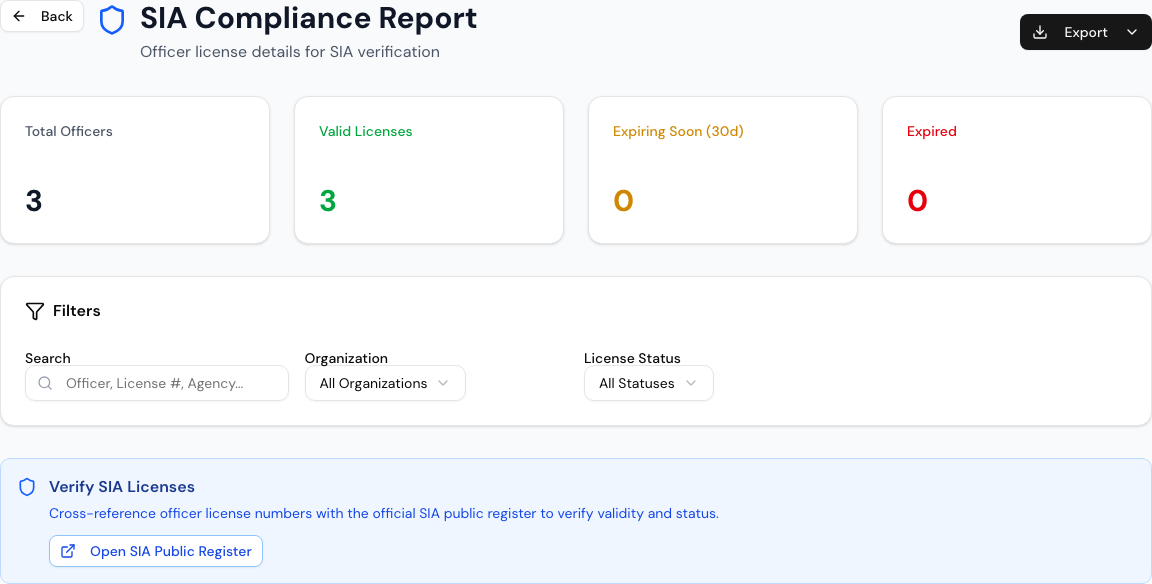
So "valid" on any ShiftTracker screen means one thing only: the expiry date somebody typed in has not yet passed. It does not mean the licence exists, that it belongs to that officer, or that the SIA has not suspended or revoked it.
Where does a licence actually live?
In two places, kept by two different actions, feeding two different screens. This is the part that catches people out.
| Officer record | Verified document | |
|---|---|---|
| How it gets there | Typed into Add Officer, or into the Officer Details tab after pressing Edit Officer | A file uploaded on the officer's Compliance tab, then marked Verify |
| Who can do it | Agency Admin, Agency Coordinator | Upload: either. Verify: Agency Admin only |
| Feeds | Officers list, officer profile badge, SIA Compliance Report | Officer Compliance rollup, expiry alerts, the deploy-block |
| Blocks a deployment | No | Yes |
The two never sync in that direction. Typing a licence number onto the officer record leaves the compliance rollup reading No data for that officer, and leaves the deploy-block disarmed. Verifying a document goes the other way: it copies the number, type and expiry onto the officer's roster record and rebuilds the compliance summary.
You can see the split on any fresh agency. Three officers each carrying a licence number and a 2027 expiry show as Valid Licenses: 3 on the SIA Compliance Report, and as three rows of No data on the Compliance tab of the same officers list at the same moment.
Before you start
- An Agency Admin login. A Coordinator can add officers and upload documents but cannot press Verify, which is the step that counts.
- The officer already on your roster, with an email address. Email is required on Add Officer, and the officer must accept the invitation before they can be put on any shift.
- For the document route, a scan or photo of the licence as JPEG, PNG, WebP or PDF, 25 MB or smaller.
How do I record a licence on the officer record?
- Go to Officers. The page is headed Personnel Management.
- Press Add Officer, or open an existing officer and press Edit Officer.
- Fill Full Name, Email Address and Phone Number — all three are required.
- Pick a Role Type. The card below it, SIA Licence Information, appears only for roles that need a licence — pick a non-SIA role and it disappears entirely, and no licence details are asked for or stored. On an existing officer, the same edit form says This role does not require an SIA licence in its place.
- Set Licence Type — one of Door Supervisor, Security Guard, CCTV PSS, NASDU Level 2.
- Type the Licence Number. It must be exactly 16 digits. The box formats them into four groups of four as you type, and stores them without spaces.
- Set Licence Expiry Date. It cannot be in the past.
- Press Create Officer.
That is the whole of it. Nothing is checked against anything external, and the officer is immediately deployable as far as licence compliance is concerned.
How do I record a verified licence document?
This is the route that arms the deploy-block and the expiry alerts.
- Open the officer and choose the Compliance tab.
- Under Upload document, pick SIA Licence from Document type.
- Set Expiry date to the date on the licence. This is the date everything downstream reads — the compliance rollup, the alerts and the deploy-block all use it, not the one on the officer record.
- Put the licence number in Reference / number, which relabels itself (SIA number) once the type is chosen, and the licence type in SIA licence type.
- Choose the File and press Upload. The row appears with a Pending status.
- Check the file against the SIA public register yourself, then press Verify. The row turns Verified.
Verifying does three things at once: it stamps the document with who verified it and when, copies the number, type and expiry onto the officer's roster record, and rebuilds that officer's compliance summary. Unverify and the archive button both reverse the copy, clearing the mirrored fields back to empty.
What does an expired licence stop?
Assignment to a roster shift, and nothing else.
When you put an officer on an agency roster shift, the platform compares the verified SIA expiry against the shift's date, not against today. An officer whose licence is valid now but lapses before the shift is refused, with SIA licence expired (YYYY-MM-DD) before the shift date — officer cannot be deployed. There is no override screen for it: unlike a working-time warning, this one cannot be reasoned past.
Two details worth knowing:
- It fails open. An officer with no compliance summary at all — nobody has verified a document for them — is allowed through. A hard block on unknown data would make every new officer unschedulable until their paperwork landed.
- Auto-assignment goes quiet instead. The schedule builder's bulk assign drops a blocked officer from that shift's candidate pool rather than reporting a refusal, so the shift can come back unfilled with no error against anyone's name.
Right to Work is checked in exactly the same way, with the same message shape and the same fail-open rule.
What warns me before it lapses?
A daily sweep reads the compliance summaries and notifies each agency's Agency Admin and Agency Coordinator users about the officer's soonest-expiring credential, in three bands:
| Band | Notification title |
|---|---|
| Already expired | Officer credential expired |
| Within 7 days | Officer credential expires in ≤ 7 days |
| Within 30 days | Officer credential expires in ≤ 30 days |
The message names the credential and the officer, and says the officer cannot be deployed once expired.
Because the sweep reads the compliance summary, it only ever fires for licences recorded as verified documents. A licence that exists only on the officer record produces no alert at all — however close to expiry it gets.
The SIA Compliance Report is the other early-warning surface, and it reads the officer record instead. It counts Total Officers, Valid Licenses, Expiring Soon (30d) and Expired, filters by search text, organisation and License Status, and labels each row Valid (n d), Expiring Soon (n d), Expired or N/A for an officer with no licence at all. Its Export menu offers Excel (.xlsx) and CSV, both named sia-compliance-report- plus today's date.
If it goes wrong
The Document type menu is empty. The agency upload dropdown is fed from the platform's system document types, and the SIA Licence row is one of 18 seeded by a database migration rather than created by the app. If that migration has not been applied to your instance the list comes back empty and there is nothing to pick — the licence document cannot be uploaded at all until it is. This is the state a freshly seeded demo database is in.
"Licence number must be exactly 16 digits." The field strips anything that is not a digit and caps the result at 16, so a shorter number is what a partial paste leaves behind. Check for a missing group of four.
"An officer with this licence number already exists." That number is already on another active officer in your agency. The check ignores deactivated officers, so set the officers list's status filter to Deactivated or All statuses and search again before assuming a typo.
"Licence expiry date cannot be in the past." Both the form and the server refuse a past date outright. There is no way to record a lapsed licence on the officer record — record it as a document instead, where a past expiry is accepted and correctly reported as expired.
Officer shows Valid on the report but No data on the Compliance tab. Working as designed, and the point of this page: they have a licence typed onto their record and no verified document. Upload and verify one.
"File exceeds 25MB limit", "Unsupported MIME type …", or "File content doesn't match declared type". The last of those is a content check, not an extension check — a PDF renamed to .jpg is caught by it. Re-export the file in a genuine JPEG, PNG, WebP or PDF.
The Verify button does nothing for a Coordinator. Verifying, unverifying and archiving are Agency Admin actions; a Coordinator gets a permission error. Uploading is open to both.
Related
Last updated 2026-08-13