Audit reports
The Audit Trail is the organisation's change log — one row per change, carrying the old and new value of every field that moved, who did it and when. It covers shifts, requests and pay arbitration, and nothing else. You can filter it, export the result as CSV for an evidence pack, and re-check that nothing in it has been altered.
What do I need before I start?
A management account. The trail is open to Super Admin, Admin, Manager, Control, Agency Admin and Agency Coordinator. Employees, officers and clients get a flat refusal. There is no separate "view audit" permission to grant — it is the role that decides.
Something to look at. The trail records what the platform's own routes write to it, and nothing back-fills it. An organisation whose data was imported or seeded directly into the database has an empty Audit Trail and there is no way to reconstruct one.
An understanding of what is in scope. This matters more than it sounds, so it has its own section below.
How do I find a change?
- Open More → Audit Trail in the top navigation, or go to
/audit. - Set the filters you need. Six are available: Entity, Source, Action, Actor name, and a from and to date.
- Click Apply. Reset clears everything and reloads.
- Read the list. Each row shows the entity as a badge, a one-line summary, the actor with their role, and the time in your organisation's timezone.
- Click a row to expand it. You get a Property / Old / New grid of every field that changed, the reason if one was recorded, and the raw entity, id and action at the bottom.
- The list loads 50 at a time, newest first. Load more fetches the next 50.
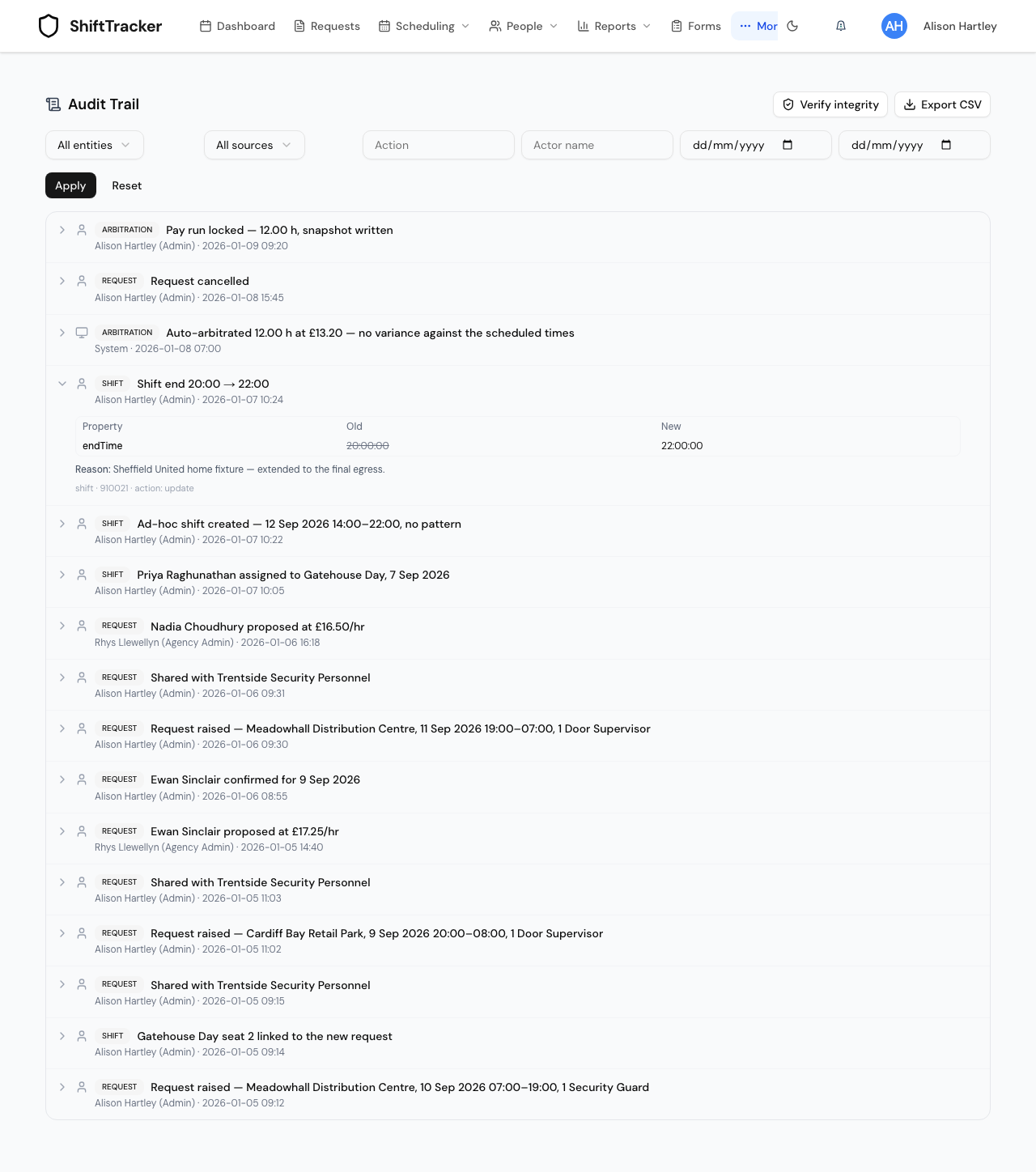
The filters behave differently from each other, which is easy to trip over:
| Filter | Behaviour |
|---|---|
| Entity | A fixed menu: All entities, Shift, Request, Arbitration |
| Source | All sources, User, System |
| Action | Free text, matched exactly — status finds nothing if the stored action is arbitration_manual |
| Actor name | Free text, partial match, case-insensitive |
| from / to | Dates, read in your organisation's timezone, with to including the whole of that day |
Arbitration is not a stored entity. Pay events are anchored to the shift they belong to, so they are stored as shifts and the filter picks them out by their action — anything beginning arbitration, plus mark_paid and mark_invoiced. The list badges those rows as ARBITRATION so the two agree.
What is actually recorded?
Eight routes write to the trail, and they cover three areas: the request lifecycle, roster shifts, and pay arbitration. Concretely, that is creating and editing requests, sharing and unsharing them with agencies, proposals being made, updated, withdrawn or deleted, officers being assigned and unassigned, shifts being created, edited and moved between statuses, the slot-linking that happens when a request claims or creates a roster shift, and every arbitration action including the mark_paid and mark_invoiced locks.
What is not in the Audit Trail is just as important:
- Logins, password changes and session activity.
- Settings changes.
- Document uploads, verifications and archives.
- Check-call actions, leave decisions and shift-pattern edits.
- Employee record edits.
Several of those do write an audit row — to a different, older table that has no screen anywhere in the product. If you need evidence of a document verification or a leave approval, the Audit Trail will not give it to you, and the honest answer is that it has to come out of the database directly.
Field values are diffed automatically, and a fixed list of field names is excluded from that diff whatever happens: anything matching password, token, secret, hash, salt, National Insurance number, sort code, account number, bank or PIN. Those never enter the trail, so an export is safe to hand over.
How do I export it for an evidence pack?
Click Export CSV in the header. The export applies the filters currently in the boxes — not the ones you last clicked Apply on, and not the page you have scrolled to — so set the filters, then export.
| Property | Value |
|---|---|
| Columns | ID, Timestamp, Entity, Entity ID, Action, Source, Actor, Actor Role, Summary, Changes, Reason, IP Address |
| Row cap | 10,000, newest first |
| Timestamps | Formatted in the organisation's timezone |
| Filename | audit-trail-YYYY-MM-DD.csv |
| Encoding | UTF-8 with a byte-order mark, so Excel opens it correctly |
Two things differ from the screen. The export carries the IP address of the actor, which the list does not show. And it is capped: at the cap you get the 10,000 most recent matching rows with no warning, so narrow the date range rather than exporting the lot.
How do I prove nothing has been tampered with?
Click Verify integrity. The answer appears beside the button as either Chain intact · N digests or Tampering detected · digest #N.
Underneath, the trail is protected twice over. The database refuses to update or delete a row in either the event table or the digest table — the attempt raises an error rather than succeeding quietly. On top of that, a scheduled job periodically seals the events written so far into a digest: a hash of those rows, chained to the previous digest. Altering, inserting or removing any past event changes its window's hash and breaks every digest after it, which is what Verify integrity re-derives and checks.
Two results are easy to misread:
- Chain intact · 0 digests means nothing has been sealed yet, not that nothing has happened. Freshly written events are not eligible until they are more than an hour old, and the sealing job has to have run at least once.
- A broken chain is reported as a successful check that found a problem, not as an error. The message names the first digest that failed and says whether the break was an altered row or a missing earlier digest.
Where else does the same trail appear?
Two screens show the trail for a single record rather than the whole organisation: the request detail page, and the shift details dialog on the roster. Both read the same events and render them the same way — collapsed to a summary, expandable to the old-and-new grid. If you know which record you care about, that is usually faster than filtering the explorer.
If it goes wrong
| What you see | What it means |
|---|---|
| You don't have permission to view the audit trail. | Your role is not one of the six management roles. |
| No audit events match these filters. on an unfiltered view | Nothing has been recorded for your organisation. Data written straight into the database never produces audit rows. |
| An Action filter returns nothing | It is an exact match. Expand a row you care about and copy the action from the line at the bottom. |
| An agency user sees fewer rows than you do | Correct. Agency roles are scoped to their own agency, organisation roles to their own organisation. |
| Verify integrity says 0 digests | The sealing job has not run yet, or has nothing older than an hour to seal. |
| A change you know happened is missing | Check the scope list above — documents, settings, logins and leave decisions are not in this trail. |
Related
Last updated 2026-08-13