Request leave
Leave is requested from Holidays & Leave in the employee portal. You pick one of seven types, a start and an end date, and the platform counts only the days inside that range you were rostered to work. Every request starts as Pending until an Admin or Manager approves or rejects it, and approval takes you off the shifts it covers.
What do you need before you start?
Holidays & Leave in the portal menu, subtitled Your holiday balance, accrual & leave requests. It has two tabs — Accrual & Details and Requests — and a Request button in the top corner.
Two things have to be true before a request will be accepted.
You must be rostered to work the days you are asking for. Leave only makes sense on days you were down to be on shift, and a range containing no scheduled shift is refused outright. Check My Schedule first.
Annual Leave has to be within your earned balance. The other six types are not balance-checked.
Your organisation also needs a Standard Daily Hours figure on your payroll record before annual leave can be checked at all. That is set by your administrator, not by you, and its absence is the one refusal on this page you can do nothing about yourself.
Which types can you request?
Seven, from the Leave Type menu.
| Type | Balance checked |
|---|---|
| Annual Leave | Yes |
| Sick Leave | No |
| Personal Leave | No |
| Maternity Leave | No |
| Paternity Leave | No |
| Bereavement | No |
| Unpaid Leave | No |
Everything else your organisation can record against you — compassionate leave, suspension, AWOL, rest days, long-term sickness, training and the rest — is booked by an administrator on the roster, not requested here.
How do you submit a request?
- Open Holidays & Leave and press Request. The form opens on the Requests tab under New Leave Request.
- Pick a Leave Type.
- Set Start Date and End Date. Days fills in on its own and cannot be typed into — it counts the days in that range you are scheduled to work, not the calendar days. A Friday-to-Monday request where you are only rostered on the Friday and the Monday counts as 2.
- For Annual Leave, check the blue line under the dates: N days requested. E earned, A available.
- Add a Reason if you want to. It is optional.
- Press Submit.
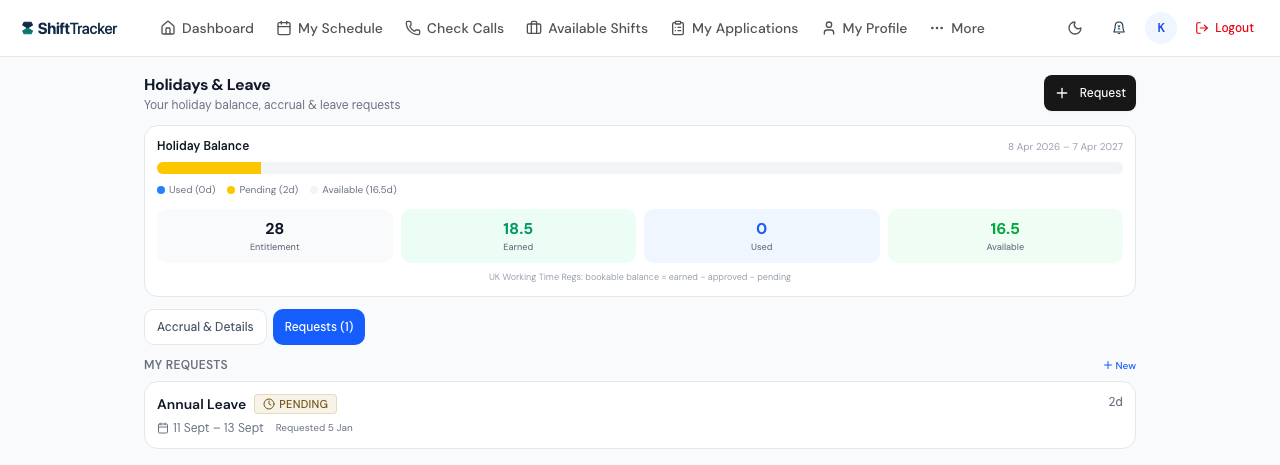
The form closes and the request appears in My Requests with an amber Pending chip. There is no confirmation message on the web — the list updating is the confirmation.
The days go against your balance straight away, while the request is still pending, so you cannot stack up several requests that would only over-allocate once they were all approved.
What happens after you submit?
An Admin or a Manager decides it — those are the only two roles granted the permission to approve or reject leave. Nobody can reject a request without typing a reason.
| State | What you see | What else happens |
|---|---|---|
| Pending | Amber Pending chip on the card | The days are already counted against your available balance |
| Approved | Green Approved chip and Approved on {date} | A Leave approved notification, and any scheduled or confirmed shift of yours inside the range is taken off you and opened up for someone else to cover. Those shifts disappear from My Schedule |
| Rejected | Red Rejected chip | A Leave rejected notification carrying the reason. Any shift that had been opened up for you and is still unfilled is put back on your schedule |
| Cancelled | Red Cancelled chip | An administrator has undone the leave. A Leave cancelled notification, and the same restoring of unfilled shifts |
Each notification links straight back to this page.
The Reason you typed, and the reason given for a rejection, are not shown back to you on the card — those two fields are only returned to Admins and Managers. The rejection reason reaches you in the Leave rejected notification instead.
You cannot withdraw your own request, on the web or in the app. Ask an Admin or Manager to cancel it. They cannot cancel one whose end date has already passed.
How is the balance worked out?
Only for Annual Leave, and only from what you have actually earned. The Holiday Balance card sets it out and says so at the foot: UK Working Time Regs: bookable balance = earned − approved − pending.
| Figure | What it is |
|---|---|
| Entitlement | Your full contractual days for the year |
| Earned | What you have accrued so far — not the whole entitlement |
| Carried Over | Unused days brought in from last leave year, if your organisation allows it |
| Used | Days on approved annual leave this leave year |
| Available | Earned, plus carried over, minus used, minus pending |
Available is the number that governs a new request. Entitlement is shown for context only — booking against days you have not yet accrued is what the check exists to stop.
The Accrual & Details tab shows the rate and method behind the earned figure, a month-by-month accrual bar, and an Absence Accrual Rules grid listing which kinds of absence keep earning holiday for you and which do not.
If your payroll record has no Standard Daily Hours set, the balance cannot be derived and the Holiday Balance card does not appear at all.
If it goes wrong
| What you see | What it means | What to do |
|---|---|---|
| You can only request leave on days you are scheduled to work. The selected range contains no scheduled shifts. | Nothing in the range is rostered to you | Check My Schedule and pick dates you are on. If the roster for those weeks has not been built yet, only an Admin can book the leave in advance of it |
| Leave must include at least one scheduled shift day in the selected range. | The same thing, caught by the form before it is sent | As above |
| Cannot validate leave balance — this employee has no payroll record. Set Standard Daily Hours in the Holiday tab of their profile, or use force=true with leaves.override permission. | Your payroll record is missing its Standard Daily Hours. The message is written for your administrator, not for you | Send it to your manager. There is nothing to do from this screen |
| Insufficient earned annual leave balance for requested booking. | The request is larger than Available | Reduce the request, wait until more has accrued, or ask an Admin to book it for you — only Admins can override the balance, and only with a recorded reason |
| Insufficient earned balance. You have N days available (E earned − U approved − P pending). | The same check, caught by the form before it is sent | As above |
| There is already a pending leave request for this period | You have an overlapping request in already | Find it under My Requests. It has to be decided or cancelled before you can request those days again |
| There is already an approved leave request for this period | Those days are already booked off | Nothing to do |
| Cannot book absence on completed or in-progress shifts | One of the days holds a shift you have already booked on to or worked | Leave cannot be applied backwards over a worked shift. Speak to your manager |
| Rate limit exceeded. Try again in N seconds. | More than 10 submissions in a minute | Wait it out |
Is the phone app the same?
The same seven types, the same balance, the same endpoint and the same refusals. Four practical differences.
- The app will not let you pick a past date. Both date pickers refuse anything before today, and the end picker refuses anything before your chosen start. The web form has no such limit.
- The day count can differ before the schedule loads. Both count scheduled shift days once your roster has arrived. While waiting, the app falls back to weekdays minus your organisation's bank holidays; the web page falls back to weekdays alone. The server recomputes either way, so the submitted figure is the same.
- The app's messages when the count comes out at zero are less helpful. It says End date must be after start date, when the real cause is usually that you are not rostered on those days. The web form says so plainly.
- The app confirms a submission and the web does not. A Leave request submitted toast appears on the phone; the web just closes the form.
The balance card on the phone shows Earned, Approved, Pending, Available and any carried-over days, but not the monthly accrual chart or the absence accrual rules. Neither one lets you cancel a request.
Related
Last updated 2026-08-13