Overtime and Working Time Directive
ShiftTracker checks two UK Working Time rules whenever a shift is assigned — a 48-hour week and 11 hours' rest between shifts. Both raise warnings you can override rather than blocks. The per-employee opt-out changes the wording of the warning and nothing else. Overtime is a separate calculation with its own threshold, and it is not 48 hours.
What is actually checked?
Six things, every time somebody is put on a shift. Three of them stop you; the rest only warn.
| Check | Outcome | What you see |
|---|---|---|
| Overlapping shift | Blocked | Employee is already scheduled for an overlapping shift |
| Approved leave over the date | Blocked | Employee is on approved {type} leave from {start} to {end}. |
| Fewer than 11 hours since the previous shift | Warning | Less than 11 hours rest between shifts (UK Working Time Regulations). Employee consent required. |
| Fewer than 11 hours before the next shift | Warning | New shift would leave less than 11 hours rest before next scheduled shift. Employee consent required. |
| Over 48 hours in the week, no opt-out | Warning | Exceeds 48 hours per week limit (UK Working Time Regulations). Employee must sign a WTD opt-out form before proceeding. |
| Over 48 hours in the week, opt-out on file | Warning | Exceeds 48h/week (UK WTD). Employee has a signed opt-out on file — override permitted. |
Two more warnings fire from the employee's own declared availability — Employee marked themselves as unavailable on this day of the week and Shift falls outside the employee's declared availability window.
One hard block anywhere in the list makes the whole attempt un-overridable. A set of warnings alone can be pushed through.
The week the 48-hour check uses runs Sunday to Saturday and counts every shift the employee holds anywhere in the organisation, not just at the site you are looking at. It counts shifts in scheduled, confirmed, in progress and completed.
It is a calendar week, not the 17-week rolling reference period the regulations describe. The code says so itself, in a TODO. If you need the statutory average you will have to work it out outside the platform.
Where do you see it before you assign?
On the roster's Employees view. Switch the toggle from Patterns to Employees and the grid grows an Hours column, one figure per person for the week on screen:
| Colour | Meaning |
|---|---|
| Grey | 40 hours or fewer |
| Amber | Over 40, up to and including 48 — approaching the limit |
| Red, with a warning icon | Over 48, with no opt-out on file |
| Blue, labelled opted out | Over 48, with an active opt-out |
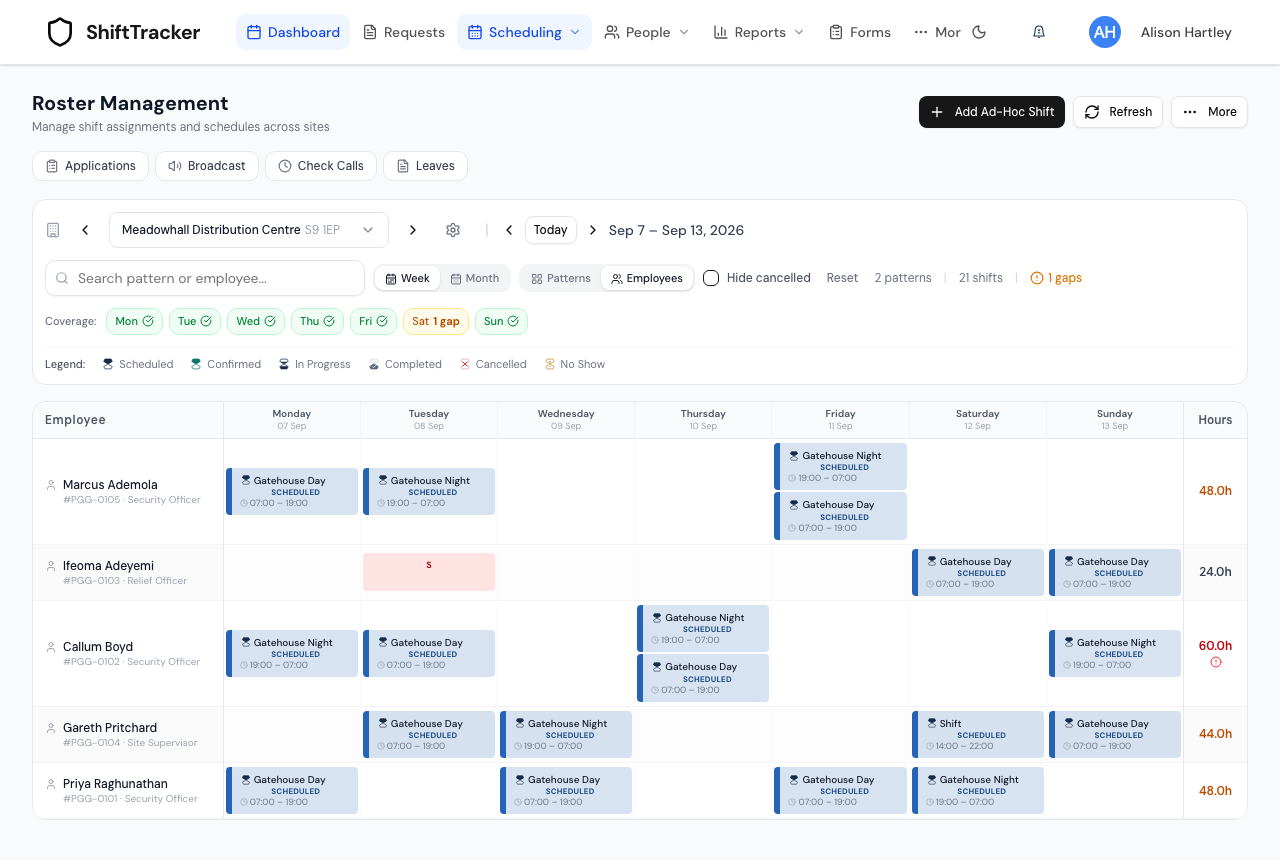
Note that 48.0h reads amber, not red. The check is more than 48, so exactly 48 is within the limit.
That column adds up only the shifts loaded into the view — the selected site, for the selected week. The check that runs when you assign counts the whole organisation, so a person showing 36 hours at one site can still trip the 48-hour warning because of shifts elsewhere.
How does the opt-out work?
It is a per-employee flag, and it changes the message rather than the rule.
- Open People → Employees and the person's record.
- Go to the HR tab and find Working Time Directive, described as UK 48-hour weekly working limit opt-out (employee must sign to opt out).
- Tick WTD 48-hour opt-out signed. Today's date is filled into Signed date automatically.
- Save Changes.
Unticking it later records a cancellation date rather than erasing the history, and the opt-out counts as active until that date has passed — a cancellation dated in the future leaves the opt-out in force until then.
Be clear about what this buys you. Both the opted-out and the not-opted-out cases are warnings, both are overridable, and the assignment can be forced either way. The opt-out changes the colour of the badge, the wording of the warning, and your paperwork. It does not unlock anything the platform would otherwise refuse.
How do you override a warning?
The conflict dialog lists each problem with a badge reading Blocked, Override allowed or Warning, and a footer note: Overrides apply to UK Working Time warnings only. If every problem is overridable, an Override and assign button appears.
Pressing it assigns the shift and appends an override note to the shift.
One caveat about the audit trail. The server requires a reason before it will accept an override, but no screen ever asks you for one — the roster sends a fixed string. Every override from the roster is therefore recorded with the same wording, and the note cannot tell you why a particular breach was accepted. Keep the real justification wherever you keep the signed opt-out.
Reassigning an existing shift is looser still. It has no override screen at all, so warning-level problems pass without a dialog and only the hard blocks are refused.
What counts as overtime?
Something different, and not tied to any of the above.
The figure you can actually see is the OT Hrs column on Reports → Payroll. It splits each employee's hours per ISO week: up to 40 hours is regular, everything above 40 is overtime. That threshold is 40, not 48 — the overtime line and the Working Time limit are unrelated numbers that happen to sit near each other.
The report defaults to the current calendar month, with This Month, Last Month and Last 3 Months as quick ranges, and Export writes the same figures to CSV.
Three things do not exist, and it is better to know now than to hunt for them.
There is no overtime rate. The arbitration records carry an overtime rate and an overtime pay column, and both are written as zero on every row. No screen sets a multiplier and no calculation applies one. Ad Hoc Overtime on the arbitration edit dialog is a flag that is stored and displayed; it feeds no pay figure.
There is no Working Time report. Nothing lists 48-hour breaches, rest violations or overrides. The Hours column on the roster and the warnings at assignment are the whole of the monitoring.
There are no configurable thresholds. 48 hours, 11 hours and the 40-hour overtime line are fixed constants. There is no setting for any of them under Settings → Workforce, Settings → General or anywhere else.
What about agency officers?
Officers are checked too, and the limit is per officer rather than fixed. An officer's roster record carries a maximum weekly hours value, defaulting to 48, and exceeding it warns Exceeds max {n}h/week limit. Officer override required.
Two differences from employees are worth holding on to. The officer's week runs Monday to Sunday, not Sunday to Saturday, so the two populations are measured against different weeks. And the officer's own cap is set by the officer in their portal, not by you.
If it goes wrong
The assignment was refused outright and there was no override button. One of the problems was a hard block — an overlapping shift, or approved leave. Neither can be overridden; move the leave or the other shift first.
You expected a 48-hour warning and did not get one. The check fires above 48, so exactly 48.0 passes. It also uses a Sunday-to-Saturday week, which will not match your pay week if yours starts on a Monday.
The roster shows a person under 48 hours but the assignment warned anyway. The roster column is scoped to one site and one week; the check is organisation-wide. Look at the person's own schedule rather than the site roster.
Bulk assignment let an officer past their weekly cap. The officer cap is only evaluated on single assignments. The batch path used by bulk assignment checks employees only.
Night-work limits and young-worker rules. Neither is implemented. There is no night-hours calculation and no age gate anywhere in the platform, including on the opt-out itself, which the regulations restrict to workers over 18. Those controls have to live in your own procedures.
Related
Last updated 2026-08-13