The reporting dashboard
Reports is the shift-and-payroll screen at the top of the Reports menu — a date range, three filters, six headline figures, and two tabs giving either one row per shift or one row per employee. Four deeper reports hang off its header. Everything on it is pay-sensitive, so although the menu offers it to Control, only Admin and Manager get data.
What do I need before I start?
Admin or Manager. Every endpoint behind this screen is restricted to Super Admin, Admin and Manager, because the rows carry hourly rates, total pay and payroll numbers.
Be aware of the Control gap. The navigation offers Reports to Control as well, and the page itself loads for them. The data does not: the request is refused, and the page has no handler for that case, so a Control user sees a fully rendered screen with every figure at zero and the message No shift data found. It looks like an empty date range. It is a permission refusal.
A date range that contains shifts. The screen opens on the current calendar month. If your rostered work is in a different month, the first thing you see is an empty table — move the range before concluding anything.
How do I run the basic report?
- Open Reports → Reports in the top navigation, or use View Reports in the dashboard's Quick Actions.
- Set the start and end dates, or use one of the Quick links: This Month, Last Month, Last 3 Months.
- Narrow with the three menus if you want: All Sites, All Employees, All Statuses. The status menu offers Scheduled, Confirmed, In Progress, Completed, Cancelled and No Show.
- The table reloads on its own whenever any of those change. Refresh re-runs it without changing anything.
- Switch between the Shifts and Payroll tabs at the right of the controls panel.
- Use the Search box to narrow what is on screen by employee name, employee number or site.
What do the two tabs show?
Shifts is one row per rostered shift: employee and number, site, date, start and end time, status, scheduled hours, actual hours, rate and pay, with a totals row across the bottom.
Payroll is one row per employee: shifts worked, regular hours, overtime hours, total hours, average rate and total pay, again with a totals row.
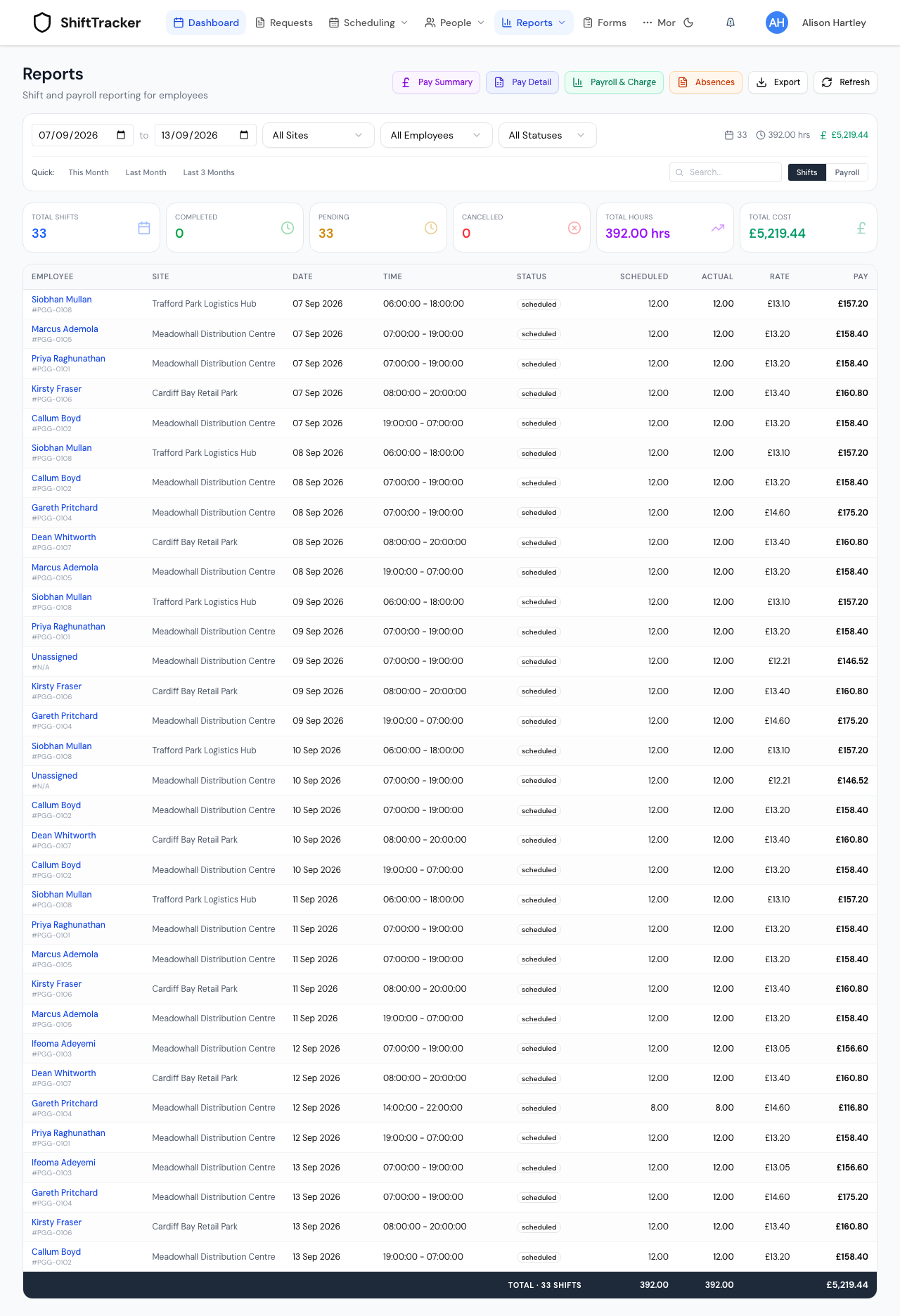
Six tiles sit above the table — Total Shifts, Completed, Pending, Cancelled, Total Hours, Total Cost — and the same three headline numbers repeat inline at the right of the filter row.
How is each number worked out?
This is where the screen surprises people, so it is worth stating plainly.
| Figure | How it is derived |
|---|---|
| Scheduled hours | Straight from the shift's start and end times. An end earlier than the start is treated as overnight and gains 24 hours. |
| Actual hours | The stored total on the shift, if there is one; otherwise the scheduled hours. |
| Pay | Payroll hours multiplied by the rate. Payroll hours are the booked-on to booked-off duration when both exist, then the stored total if it is above zero, then scheduled hours. |
| Rate | The employee's personal payroll rate, then their roster rate, then the organisation's national minimum wage, then zero. |
| Overtime | Anything above 40 hours in a single ISO week, calculated per week and then summed — not 40 hours across the whole range. |
| Pending tile | Scheduled, Confirmed and In Progress added together. |
| Cancelled tile | Cancelled and No Show added together. |
Two exclusions matter. Cancelled and no-show shifts contribute nothing to Total Hours, Total Cost or the Payroll tab, because they never ran — but they are still counted in Total Shifts, so the headline count matches the number of rows in the table. And a shift with no employee number is skipped by the Payroll tab entirely, so an open shift shows in the Shifts tab and vanishes from the payroll one.
What are the four buttons in the header?
They are separate reports, each on its own page with its own date range.
| Report | What it is for |
|---|---|
| Pay Summary | Pay grouped by employee, with each of their shifts underneath and a per-employee subtotal |
| Pay Detail | Line-by-line entries per employee, including leave and bank-holiday context and the rate multiplier applied |
| Payroll & Charge | Expected, actual, pay and charge durations side by side per location, with the variance between them |
| Absences | Leave and absence records over a window, defaulting to the last 30 days |
The first three are a different family from the main screen. They read arbitrated shift records rather than the roster — so they show what was agreed for pay, which is not always what was scheduled — and once a period has been marked paid or invoiced they read the immutable snapshot taken at that moment, so re-arbitrating an old shift cannot change an answer you have already given an auditor. All three wait for you to press Generate; until then they read Select a date range and click Generate.
Absences is different again: it reads the leave records directly, keeps approved, pending and completed ones, includes any leave that overlaps the window rather than only leave fully inside it, and warns you if there were more than 1000 to show.
What about Agency Reports?
Reports → Agency Reports is a separate screen with a separate purpose: staffing requests and assignments by agency, rather than your own employees' hours and pay. It has its own date range, its own site, agency and officer filters, a Summary or Detailed switch, and quick ranges including This Quarter and Last 30 Days. Unlike this screen, it does not load on its own — the report is generated when you set filters, and Export refuses until a report has been generated.
It also reaches a different audience: Agency Admin and Agency Coordinator can use it, scoped to their own agency, which they cannot do with the payroll screens. Control cannot — and the same trap applies here as on the main screen, because the menu offers it to Control and the refusal is only written to the browser console. A Control user gets a report that generates and stays empty.
If it goes wrong
| What you see | What it means |
|---|---|
| Every figure is zero and the table says No shift data found | Either the date range genuinely has no shifts, or you are signed in as Control and the data was refused. Check the range first, then the role. |
| Total Shifts is higher than the rows contributing hours | Expected. Cancelled and no-show shifts are counted but contribute no hours or cost. |
| Someone appears in Shifts but not in Payroll | They have no employee number, or every shift in range was cancelled or a no-show. |
| Pay looks wrong for a shift somebody booked on and off | Payroll hours come from the book-on and book-off stamps in preference to anything else, so a late book-off inflates them. Arbitration is where that is corrected. |
| The pay reports disagree with this screen | They should. These figures come from the roster; those come from arbitrated records and, once locked, from pay-run snapshots. |
| Export is greyed out | There are no rows to export. |
Related
Last updated 2026-08-13