See your agency's audit trail
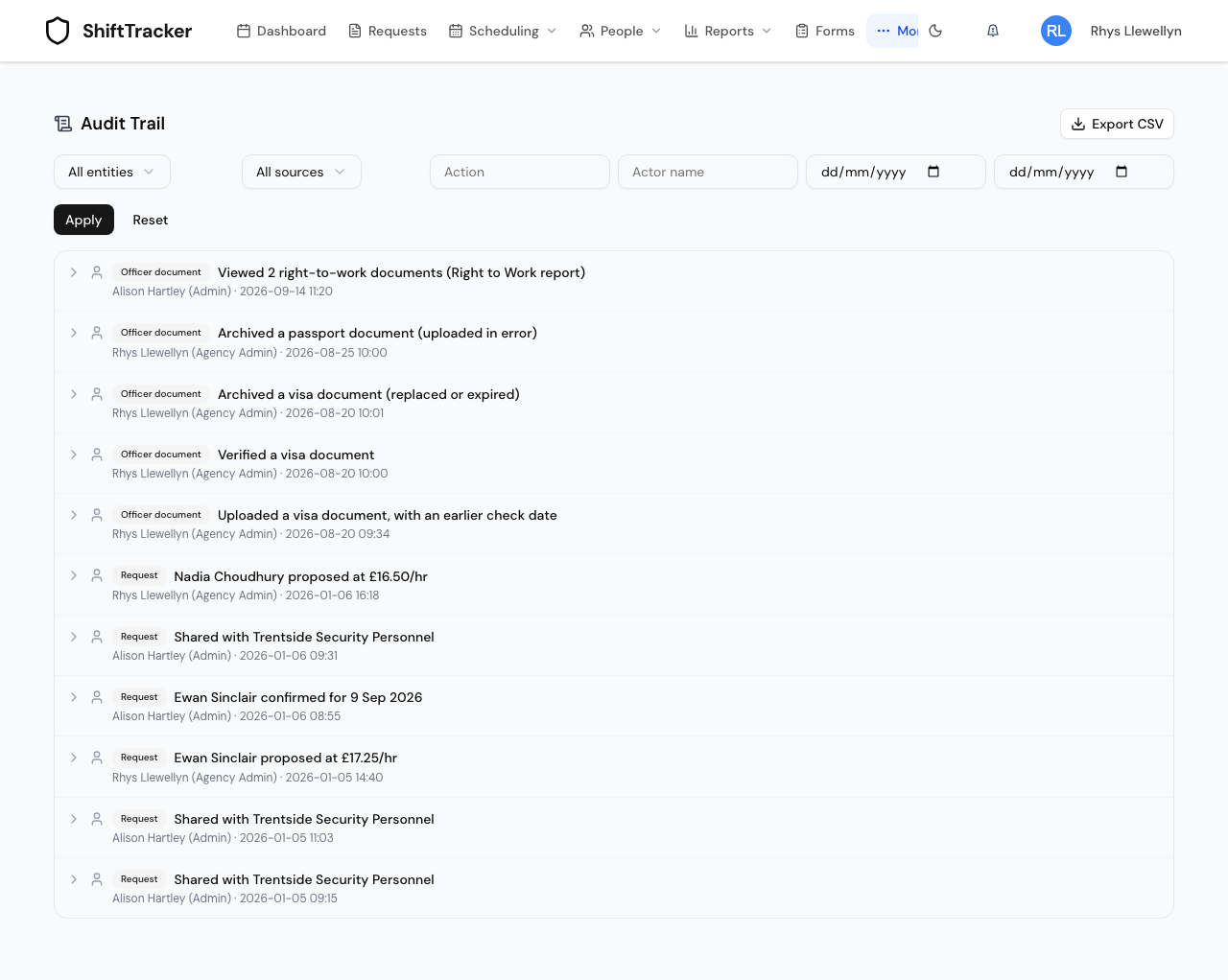
Agency Admins and Agency Coordinators have their own Audit Trail: every change your agency makes to its officers, their documents and its own settings, the requests organisations share with you and what you propose against them — and every time an organisation's staff open your officers' right-to-work or SIA documents, with their name and when. You can filter it and export it as CSV.
Who can see it?
Both agency roles, Agency Admin and Agency Coordinator, from More → Audit Trail. It shows events that concern your agency. Events about your agency alone — your officers, their documents, your users and settings — are on your trail only. Events between you and an organisation — a shared request, a proposal, a confirmation, their staff opening your officers' documents — are on both your trail and theirs. Their own shifts, pay and staff are never on yours.
What is on it?
| Area | Recorded |
|---|---|
| Your officers | Activated and deactivated, PIN reissued, compliance flags and emergency or medical details changed (field names only, never the values), BS 7858 screening overrides with the reason given |
| Officer documents | Uploaded (noting an earlier check date if you gave one), verified and un-verified, archived — with the reason, replaced or expired or uploaded in error |
| Organisations looking at your officers' documents | Every time their staff open the documents, from a request page or their Right to Work Report |
| Requests | Shared with you, your proposals, officers confirmed |
| Your agency | User accounts created, roles changed, switched on or off; the agency profile; your own external sites; Agency Reports exports |
The documents an organisation opens are yours to keep for two years after the officer stops working, and the organisation has a right to see them for the time the officer worked on its sites. This trail is how you see who used that right, and when.
None of the organisation's own shift, pay or employee events appear here, even for shifts your officers worked.
How do I find something?
- Go to More → Audit Trail.
- Set the filters: Entity (for example Officer document, Officer, Officer screening, User account, Agency details, External site or Report export), Source, Action, Actor name, and a from and to date.
- Press Apply. Reset clears them.
- Press a row to expand it onto the Property / Old / New grid of what changed, and any reason recorded.
The list loads 50 rows at a time, newest first; Load more fetches the next 50. Rows are badged with the entity's raw name — OFFICER_DOCUMENT, REQUEST — rather than the menu's wording. The organisation's audit trail page explains each filter in detail.
How do I export it?
Press Export CSV. You get the rows that match the filters in the boxes, up to 10,000, newest first.
Unlike an organisation's export, yours has no IP Address column. Some of your rows were written by another party — an organisation's staff opening your officers' documents — and their addresses are theirs, not yours.
Can an agency verify the trail's integrity?
No — there is no Verify integrity button for an agency. The sealed chain of digests that proves nothing was altered is kept per organisation, and your agency's entries are sealed into the chain of the organisation each one concerns, which that organisation can verify. The database refuses to change or delete any row either way.
If it goes wrong
| What you see | What it means |
|---|---|
| A change by an organisation to its own shifts is missing | Correct — that is on the organisation's trail, not yours. |
Related
Last updated 2026-10-09