Create and manage requests
A request asks your partner agencies to cover a shift. Admins create them — from calendar dates, from an open seat on the roster, or as a one-off slot — and share them with agencies. Admins and Managers can edit, share and delete them. Once an agency has responded, a request can no longer be deleted, only cancelled, with a reason the agency is told.
Who can do what?
| Action | Admin | Manager | Control |
|---|---|---|---|
| See requests | Yes | Yes | Yes |
| Create a request | Yes | Yes | Yes |
| Share, edit, delete or cancel a request | Yes | Yes | No |
How do I create a request?
Go to Requests and press Create Request.
Location — choose the site, then Next: Date & Time.
Date & Time — choose one of three ways to say when:
Choice Use it for Calendar dates One or more dates at the same times. Pick a Shift Template — day, night or short — or type the Start Time * and End Time *. Tick Create 24-hour coverage to add the opposite shift as well, so the day and night are both covered. Pick existing slot Open seats on the site's roster. Each seat you pick becomes one request. See Patterns, seats and ad-hoc shifts. New ad-hoc slot A one-off date and time that belongs to no pattern. Requirements — choose the Role Type *. Each request is for one officer — Always 1 — each request is a single assignment — so five officers on a night is five requests. Add Special Instructions and Additional Notes if you need to.
Agencies — tick Share immediately with agencies and choose them, or Select all. Leave it unticked to share later.
Review — check the summary and press Create Request, or Create 5 Requests when there are several.
Requests shared now go straight to those agencies' inboxes.
For a single shift already on the roster, right-click it and choose Request agency cover instead — that raises the request from the roster, in its own dialog, and is also for Admins only. What happens next is in How a request becomes a rostered shift.
How do I find a request?
The Requests list opens on today and later. Change the date range, narrow by All sites and All statuses, sort it, or search the site, role and notes. The Quick buttons — Open, Today & Future, Next 2 Days, Confirmed — set common filters in one go. Export CSV downloads what the list shows.
Press View on a request to open it. A request with proposals waiting shows how many candidates there are, and a Review button — see Review proposals and confirm officers.
How do I share a request with more agencies?
- Open the request and press Share.
- In Share with Partner Agencies, the agencies it already goes to are under Currently Shared With. Tick the others you want.
- Press Share Now.
If every partner agency already has it, the dialog says All partner agencies are already sharing this request.
How do I change a request?
- Open the request and press Edit.
- Change the Date *, Shift Start *, Shift End *, Site *, Officer Role * or Additional Notes. Number of Officers reads 1: a request is for one officer, so for more, create another request.
- Press Save Changes.
Editing a Confirmed request first warns you, under Edit Confirmed Request, that it has active assignments and that the change will affect the officers already scheduled and is recorded in the audit log. Press Proceed to Edit to carry on.
Delete or cancel?
| Delete | Cancel | |
|---|---|---|
| Possible when | No agency has proposed anyone, nobody is assigned, and it is not confirmed | An agency has responded, or it is confirmed |
| The record | Removed, with its agency shares | Kept, marked Cancelled, with what was proposed and assigned |
| Needs a reason | No | Yes, and the agency is told it |
To cancel a request an agency has answered, press Cancel Request under Danger Zone at the foot of the request, type the Reason * — Why is this being cancelled? The agency will be told this. — and press Cancel request. Keep request leaves it as it is.
To delete one nobody has answered, press Delete and confirm with Delete Request — This action cannot be undone. If an agency has responded after all, it is not deleted: Cancel Request opens in its place, saying why.
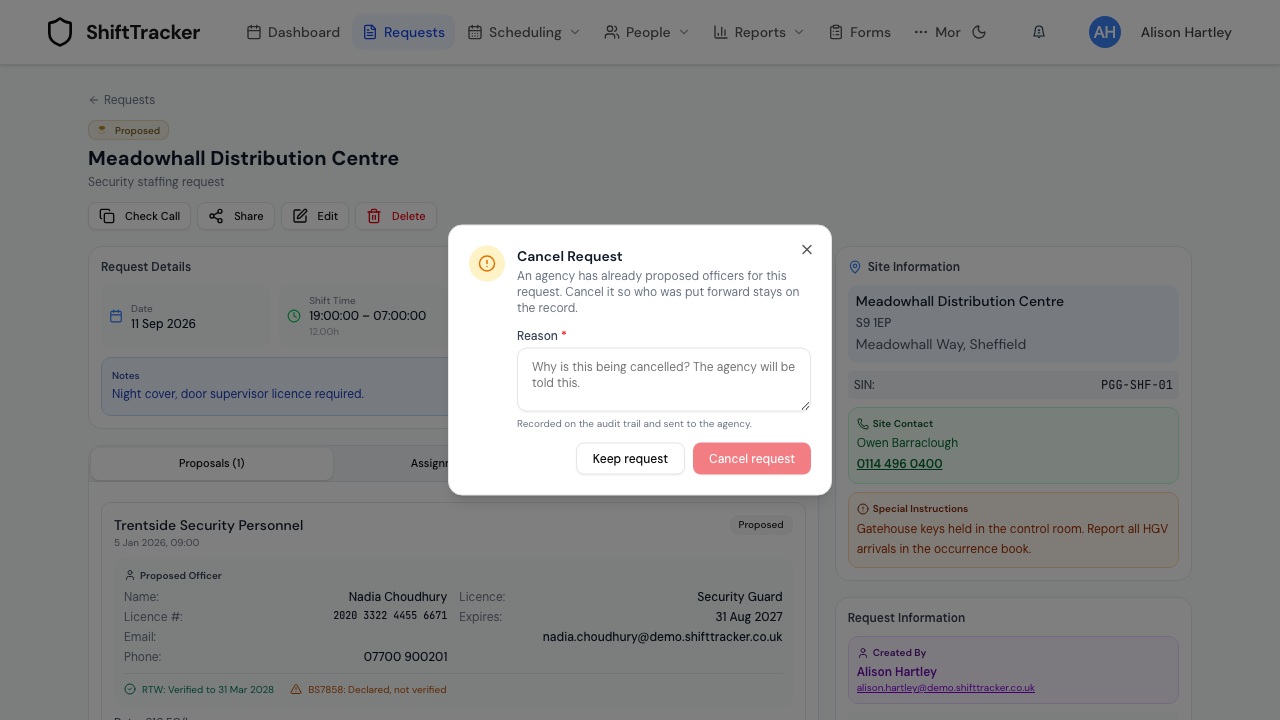
The reasons you may see:
| Message | Why |
|---|---|
| An agency has already proposed officers for this request. | So who was put forward stays on the record |
| Officers are confirmed on this request. | The assignment record must survive for the agency's records |
| This request is confirmed. | A confirmed request is cancelled, never deleted |
| This request is already cancelled. | Nothing more to do |
What happens to the roster shift?
If the request was raised for a shift on the roster, both dialogs ask under Roster shift what should happen to it:
| Choice | Effect |
|---|---|
| Keep the shift open | It stays on the rota, unfilled, for someone else to cover. The default. |
| Cancel the shift too | It is marked cancelled. You can restore it from the roster. |
If someone is already on that shift, or it has started, there is no choice: it stays as it is.
Can I delete several at once?
Yes — tick the requests on the list and delete them together. Each one is checked on its own: any an agency has responded to are refused and stay on the list, to be cancelled one at a time.
If it goes wrong
| What you see | What it means |
|---|---|
| You don't have permission to create requests. | Your role cannot create requests — Admins, Managers and Control can. |
| Cancel Request opened when you pressed Delete | An agency has responded. Cancel it with a reason. |
| Insufficient permissions to delete requests | Your role cannot delete or cancel requests. |
| Cancel request is greyed out | Type a reason first. |
Related
Last updated 2026-10-09