Notifications and your preferences
The bell in the header holds your notifications; Notifications lists them all. Settings → Notifications lets each person choose which channels they are told on — in the app, by email, or by push to the mobile app — for each kind of notification, and whether to get them straight away, in batches or as a digest, with optional quiet hours. Everyone has these settings, organisation and agency staff alike. SMS is shown but cannot be switched on.
Where do notifications appear?
The bell in the header shows your latest notifications and how many are unread. View all opens the full list; Preferences opens your settings. If your browser has not yet been asked, the bell offers Enable, which lets this browser pop up an alert when a notification arrives while ShiftTracker is open.
Notifications — Stay updated with important activity — lists them all:
- Total, Unread and, when there are any, Urgent counts.
- All, Unread and Urgent tabs, and Search by title, message, or type….
- Click a notification to open what it is about. Each can be marked read or deleted.
- Mark all read clears the unread count; Refresh reloads the list.
With nothing to show, it reads No notifications yet.
How do I choose what I'm told about?
Go to Settings → Notifications, or Notification Preferences in your account menu. Every role has it. Change what you like, then press Save Changes.
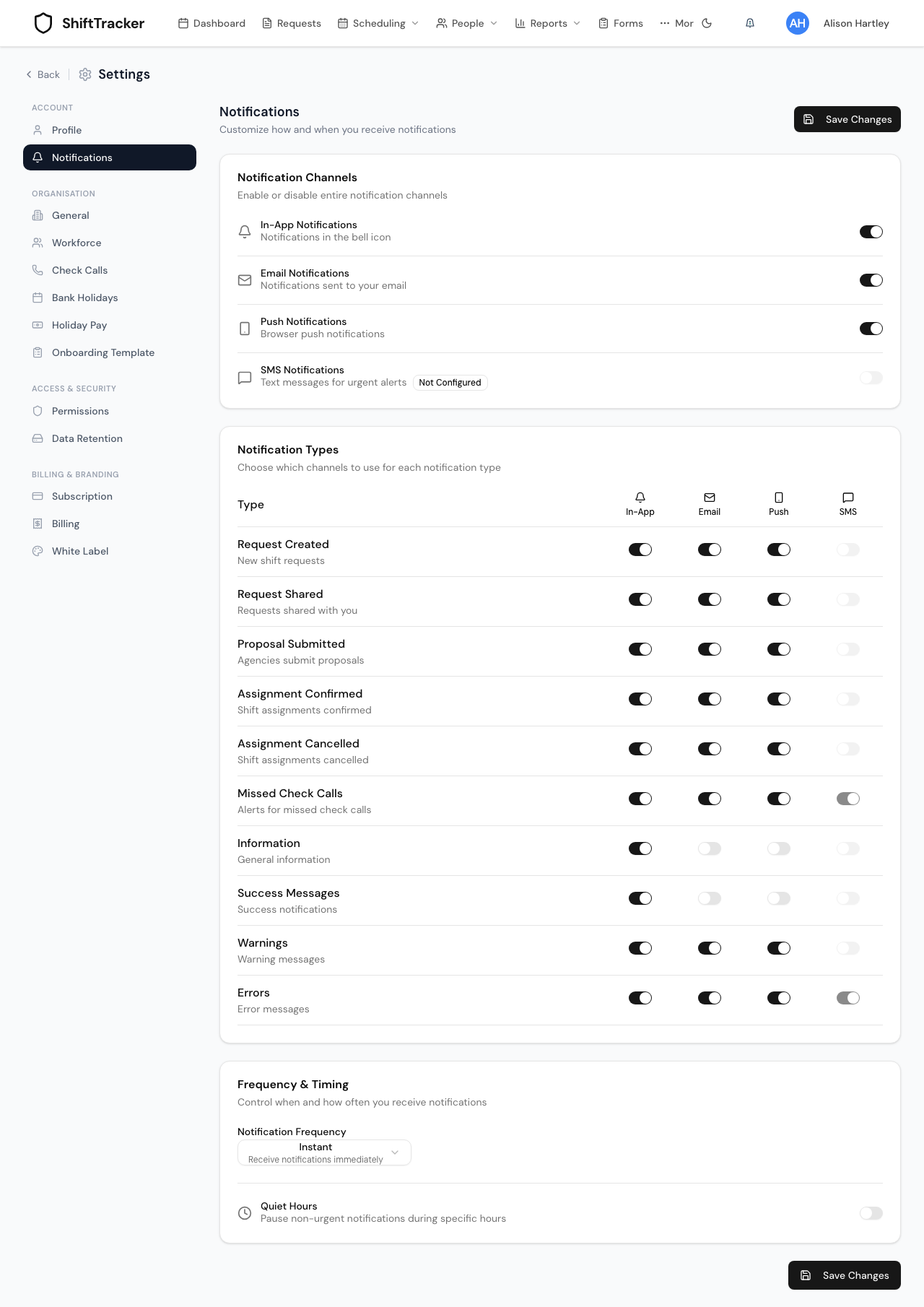
Channels
| Channel | Goes to |
|---|---|
| In-App Notifications | The bell and the Notifications page |
| Email Notifications | Your account's email address |
| Push Notifications | The ShiftTracker mobile app, on each device you have signed in to. The screen calls it browser push, but nothing is sent to a browser on this channel |
| SMS Notifications | Nothing. It is marked Not Configured and cannot be switched on |
Switching a channel off stops everything on it, whatever the types below say.
Types
Notification Types has a switch per channel for each kind of notification. Which types are listed depends on your role:
| Type | Listed for |
|---|---|
| Request Created, Proposal Submitted | Admin, Manager, Control |
| Request Shared | Admin, Manager, Control, Agency Admin |
| Missed Check Calls | Admin, Manager, Control, Employee |
| Shift Broadcasts | Employee, Agency Coordinator |
| Check Call Reminders | Employee |
| Assignment Confirmed, Assignment Cancelled, Information, Success Messages, Warnings, Errors | Everyone |
A type that is not listed for you is still sent, on the channels' defaults — you just cannot change it here.
If your organisation publishes its roster as drafts, staff are told about a shift when it is published, not when it is written. Each person gets one message per publish. See Publish the roster.
Frequency and quiet hours
Notification Frequency:
| Choice | Means |
|---|---|
| Instant — the default | Each notification as it happens |
| Hourly Batch, Daily Batch | Grouped, and sent together every hour or once a day |
| Daily Digest, Weekly Digest | A summary email once a day, at the Digest Time you set, or once a week on the Digest Day |
Urgent notifications are always sent straight away, whatever you choose.
Quiet Hours sets a Start Time and End Time in the Timezone you give. Allow high priority during quiet hours lets urgent ones through.
Quiet hours do not hold notifications until morning. A non-urgent notification raised during them is not delivered at all — not by email or push, and not to the bell either. Keep that in mind before switching them on for a role that has to act on what it is told.
Related
- Monitor check calls — what raises a missed check-call alert
- Broadcast open shifts and approve applications
- Publish the roster
- Document expiry alerts
Last updated 2026-11-05