Invoice a client
Invoices bill a client for the hours worked at its sites over a period, built from the charge side of Payroll Arbitration. Generate a draft, check it, then issue it: issuing numbers the invoice, fixes its lines and marks the shifts it covers as invoiced so they can never be billed twice. You then record payments against it, or void it. Admins and Managers do this from People → Invoices.
What do I need before I start?
An Admin or Manager login. Invoices is under People for those two roles. Anyone else reads You don't have permission to view invoices.
A client with sites. An invoice is for one client, and covers the sites linked to it. Set that up under People → Clients and on each site.
Arbitrated shifts. The lines come from Payroll Arbitration's charge figures — the hours, charge rate and charge amount on each record. A shift that has not been arbitrated is not billed, nor is one that was dropped, or one with Include In Invoice turned off. See Arbitrate shifts for payroll.
Every organisation sees Invoices, whether or not it uses the client portal.
How do I create an invoice?
- Go to People → Invoices and press New Invoice.
- Choose the Client *, the Period Start * and Period End *.
- Leave VAT Rate (%) empty to use your organisation's default, or type a different rate for this invoice.
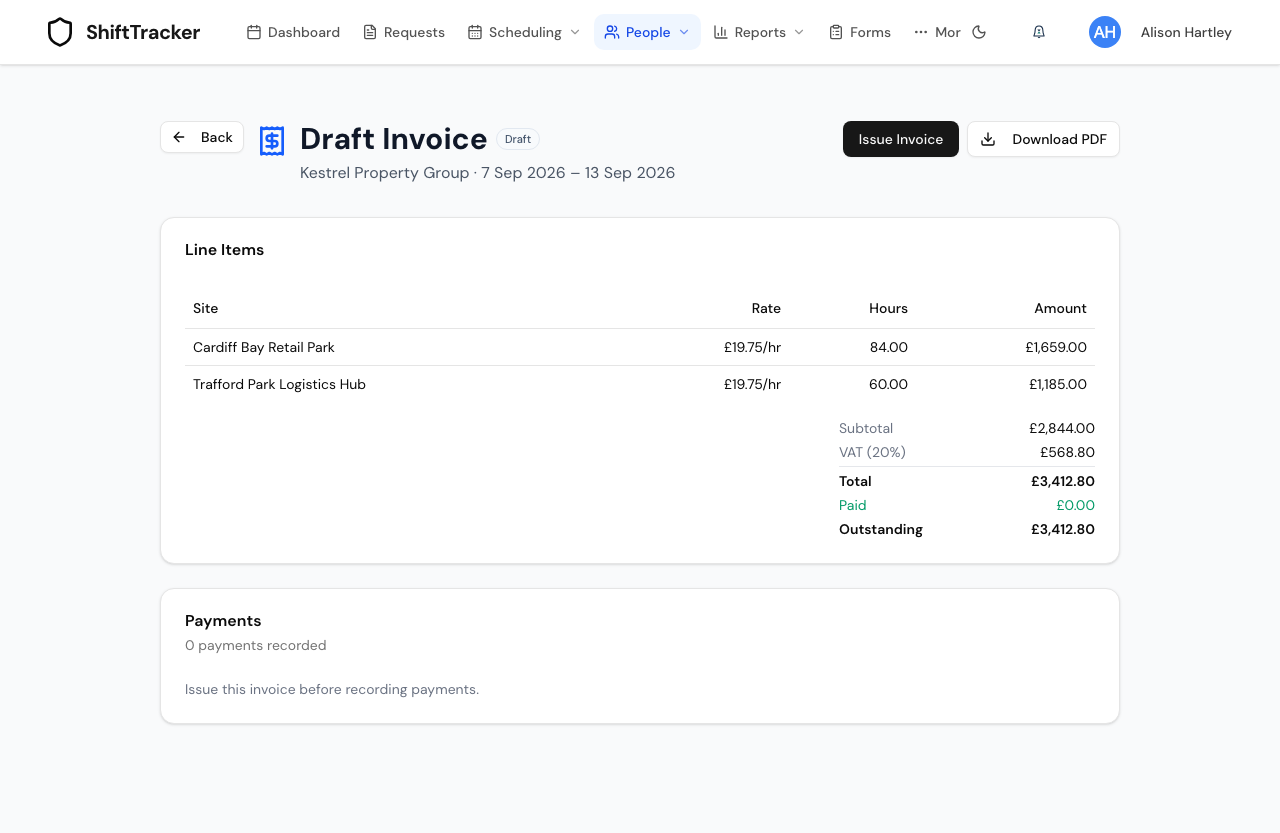
- Press Generate Draft. A Draft Preview lists one line per site and charge rate, with the hours and amount, and the Subtotal, VAT and Total.
- Check the preview. If a site had shifts in the period but they produced no charge — usually because there is no charge rate — it is left off and listed under Sites excluded from this draft. Correct the Charge Rate on those shifts in their Arbitrate Shift dialog, then generate again.
- Press Issue Invoice to issue it now, or Discard to throw the draft away. You can also leave it as a draft and come back to it from the invoice list.
A shift already on another issued invoice is never picked up again, whatever period you choose.
What does issuing do?
All of this happens together, or none of it does:
- The invoice gets the next number for your organisation — your prefix and a five-digit sequence, for example
PGG-00001. - The issue date is today, and the due date 30 days later.
- The lines are worked out again, in case anything changed since the draft, and then frozen with the client's name and address as they were.
- Every shift it covers is marked Invoiced on Payroll Arbitration — or Paid & Invoiced if it was already paid — which locks it, with a permanent snapshot of the record.
If someone else issues an invoice covering the same shift at the same moment, one of the two is refused, so a shift cannot be billed twice.
Once issued, the invoice appears in the client's portal. Drafts never do.
How do I record a payment?
- Open the invoice and use the payment form under Payments.
- Enter the Amount * and Date *, and optionally the Method (for example Bank transfer) and a Reference.
- Press Record Payment.
The invoice reads Part Paid until the payments add up to the total, then Paid. Payments can only be recorded against an issued invoice.
How do I void an invoice?
Press Void on an issued invoice and confirm — Void this invoice? This cannot be undone. Voiding releases the shifts it covered: they go back to Paid or Manual Complete on Payroll Arbitration and can be billed again on a new invoice. An invoice with payments recorded against it cannot be voided.
What do the statuses mean?
| Status | Meaning |
|---|---|
| Draft | Generated, not issued. No number; not in the client portal. |
| Issued | Numbered and sent; nothing paid yet. |
| Part Paid | Some payments recorded. |
| Paid | Payments cover the total. |
| Void | Cancelled. Its shifts can be billed again. |
Download PDF gives the invoice as a PDF at any stage.
If it goes wrong
| What you see | What it means |
|---|---|
| No chargeable shifts found for this period. | Nothing arbitrated and included in invoices at that client's sites in the period. Run arbitration first. |
| A site is under Sites excluded from this draft | Its shifts produced no charge — they were arbitrated with no charge rate. Set the Charge Rate on each in its Arbitrate Shift dialog, then generate again. For future shifts, set the employee's charge rate on their Payroll tab. |
| Issue this invoice before recording payments. | Payments need an issued invoice. |
| Cannot void an invoice with recorded payments | Voiding is only for unpaid invoices. |
| Period end must not be before period start | Swap the dates. |
Related
Last updated 2026-10-09