Screen staff to BS 7858
The Screening tab on an employee's record keeps their BS 7858 vetting in one place: a five- or ten-year window, the jobs and other periods that cover it, the gaps ShiftTracker finds between them, the applicant's consent, and the references you request and receive. When the window is covered and the references are in, you mark it complete.
Who can do what?
| Action | Admin | Manager | Control |
|---|---|---|---|
| See the Screening tab | Yes | Yes | Yes, read-only |
| Start screening, edit the window, add periods, set check dates | Yes | Yes | No |
| Send consent links and references, remind, mark received, cancel | Yes | Yes | No |
| Mark complete | Yes | Yes | No |
| Override (Admin) the consent gate, Override gaps (Admin) | Yes | No | No |
What rules does it check against?
| Rule | Default |
|---|---|
| Vetting window | 5 years (10 can be chosen per person) |
| Smallest gap that counts | 31 days |
| References needed to complete | 1 employment and 2 character |
| Consent before any reference | Required |
These are the BS 7858 defaults. Each organisation has its own copy of the settings, but there is no screen to change them today.
How do I start screening someone?
- Open the employee from People → Employees and choose Screening. A person who has never been screened reads No screening on file.
- Set Window end and Period (5 years or 10 years). The window runs back from its end date. For someone already working for you, set the end to their original hire date, so their earlier jobs fit inside it.
- Press Start.
The tab now shows the Vetting window, a status, and the sections below. Edit window changes the end date or the length later; periods that would fall outside a narrower window have to be moved first.
How do I get the applicant's consent?
References cannot be sent until the applicant has signed a digital authorisation — the tab says so under Applicant consent required.
- Press Send consent link. The applicant is e-mailed a link to sign; it works for 14 days. The tab shows when it was last sent and when the link expires. Resend sends a fresh one.
- When they sign, the box turns green: Consent signed with the date and time.
If you already hold signed paper consent, an Admin can press Override (Admin) and give a reason (at least five characters). The reason is recorded in the employee's history — not on the Audit Trail screen.
How do I record the person's history?
- Under Periods, press Add period.
- Choose the Type: Employment, Self-employed, Education, Unemployment, Travel or Other / unaccounted.
- Enter From and To, and for a job the Organisation, Role, Contact name and address.
- Save. Repeat until the window is covered.
The Coverage timeline fills in month by month — green for covered, red for a gap, grey outside the window — and lists each uncovered span of 31 days or more underneath. Periods can overlap; only time that no period covers is a gap.
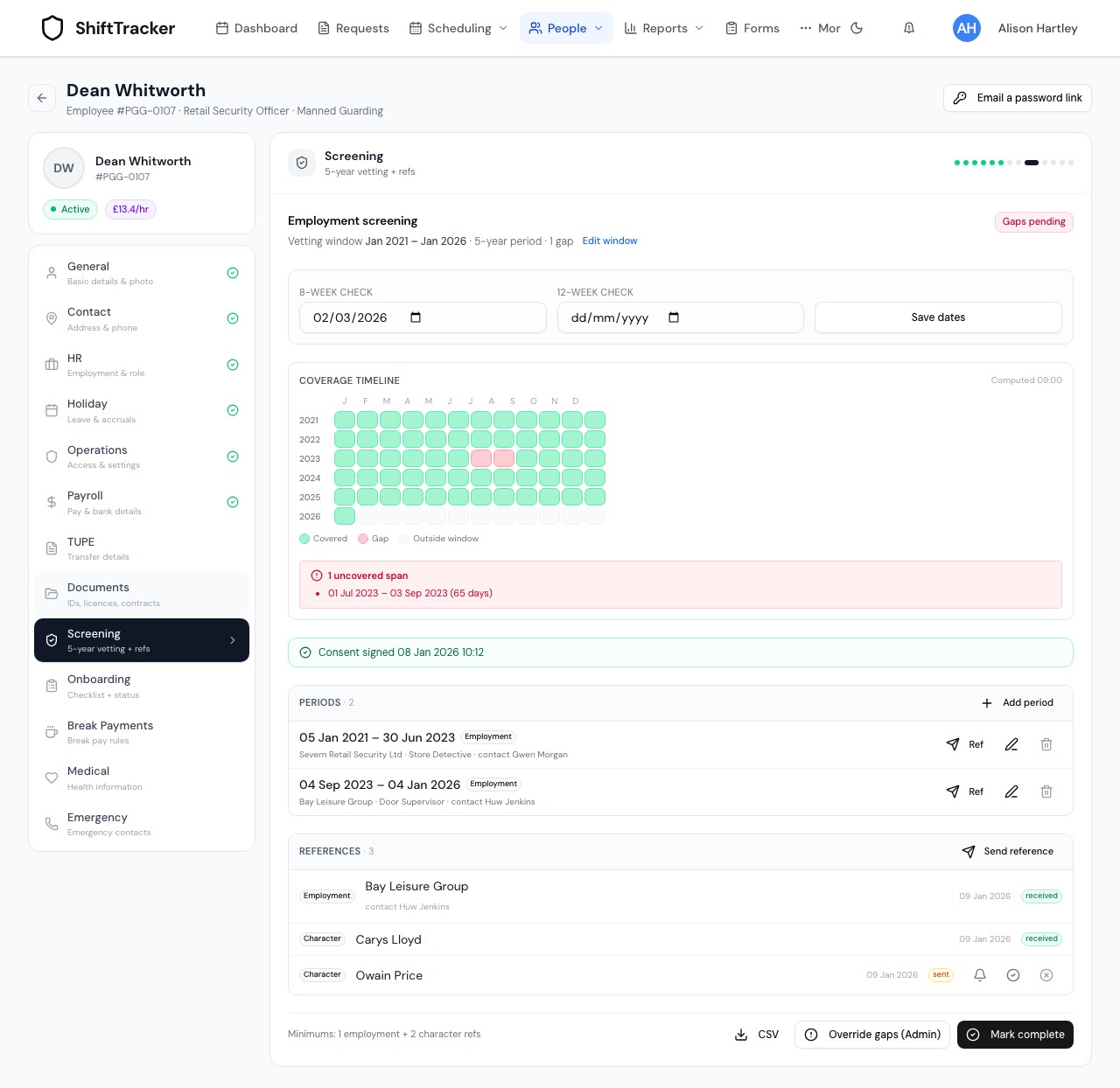
How do I request a reference?
For a job, press Ref on its period. For anything else — a character reference, a credit check, a watchlist check, DBS, a university or college — press Send reference above the references list.
- Choose the Reference type, and fill in Recipient name and Recipient email (both required), with the company, phone and a Due by date if you want them. The due date defaults to a week after sending.
- Choose the Channel:
- Send via magic link (recommended) — the referee is e-mailed a link to a short form. The link works for 7 days.
- Log only (no email) — for a reference you are collecting another way. Nothing is sent.
- Press Send link or Log reference.
Each reference then shows its type, who it went to, when, and its status.
| Button | What it does |
|---|---|
| Bell (Send reminder) | E-mails the referee again. After the third reminder no more can be sent and the reference is marked overdue. |
| Tick (Mark received (manual)) | Records a reply that came back another way, with an optional note on how. |
| Cross (Cancel request) | Stops the request; the referee's link stops working. |
A referee who completes the form marks the reference received themselves.
How do I finish?
Set the 8-week check and 12-week check dates when those reviews happen, and press Save dates.
Then press Mark complete. It works only when:
- every gap of 31 days or more is accounted for by a period, or an Admin has accepted it with Override gaps (Admin) and a reason; and
- at least 1 employment and 2 character references are received.
If something is missing, the tab says what — for example 1 gap(s) unresolved — Admin can override or 1/2 character references received. Once complete, the status reads Completed with the date, and Mark complete and Edit window disappear. Periods, check dates and references can still be changed afterwards; the record stays marked complete.
CSV downloads a report of the screening at any point.
What do the statuses mean?
| Status | Meaning |
|---|---|
| Gaps pending | There is at least one gap nobody has accounted for or accepted |
| References pending | No gaps, but not enough references received |
| In progress | Neither of the above — ready to be marked complete |
| Completed | Marked complete |
If it goes wrong
| What you see | What it means |
|---|---|
| Applicant consent required before issuing references | The applicant has not signed yet. Send or resend the consent link, or have an Admin override with a reason. |
| Cannot complete | Read the reasons listed with it: unresolved gaps, or too few received references. |
| Reminder cap reached (3); reference marked overdue | Three reminders have gone. Chase the referee another way, then mark it received by hand, or send a new reference. |
| Cannot tighten window | A period falls outside the window you are setting. Change the period's dates first. |
| This link has expired. (seen by a referee) | Magic links last 7 days. Cancel the request and send a new one. |
Related
Last updated 2026-10-09