Manage clients and their portal logins
A client is a company you bill for cover at its sites. People → Clients is where Admins and Managers add one, keep its contact details, see which sites are linked to it, and give its staff a login to the client portal. Sites are linked to a client from the site, not from here. Deleting a client hides it and switches off its logins.
Who can do this?
Admins and Managers, from People → Clients. Every organisation sees it. Other roles are refused — You don't have permission to view clients.
What a client is, and what its portal shows, is explained in Organisation, agency, client — who is who.
How do I add a client?
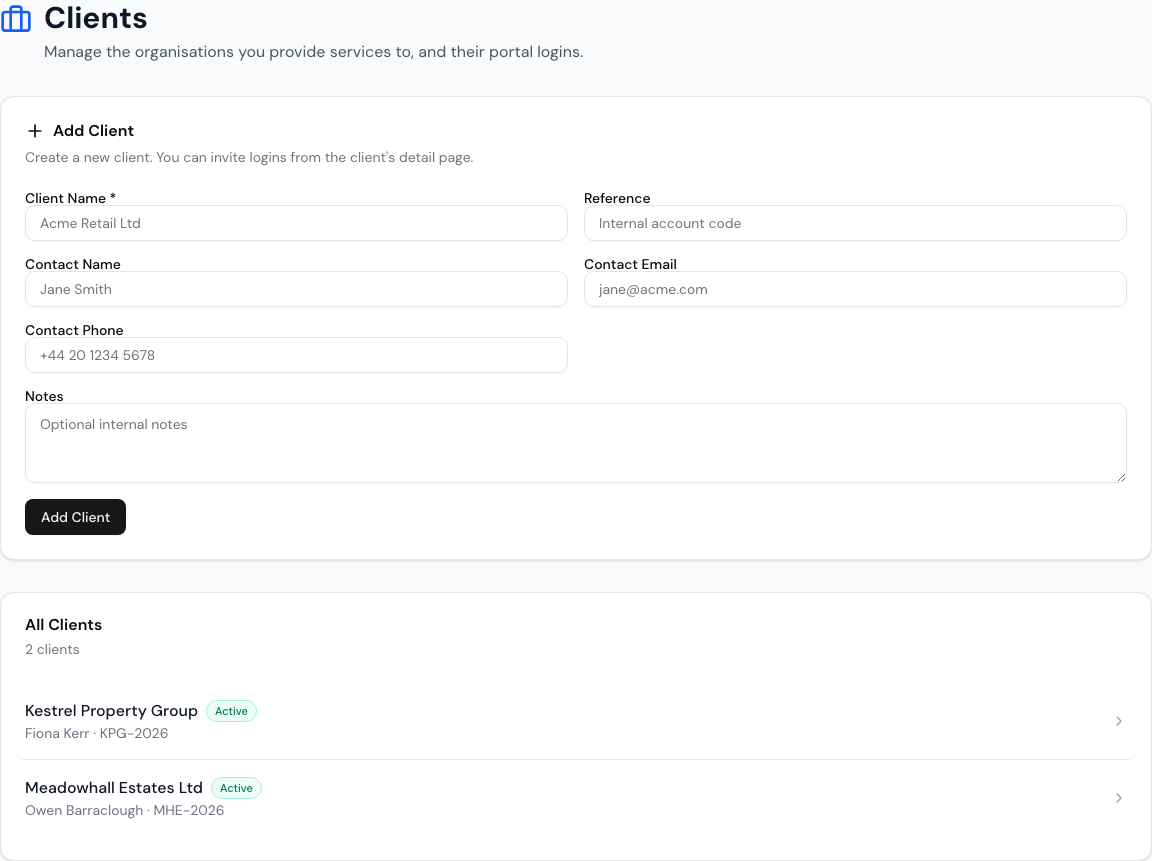
- Go to People → Clients.
- Under Add Client, fill Client Name — the only required field — and, if you like, a Reference for your own account code, a Contact Name, Contact Email, Contact Phone and Notes.
- Press Add Client — Client created. It appears under All Clients.
What is on a client's page?
Click a client in All Clients.
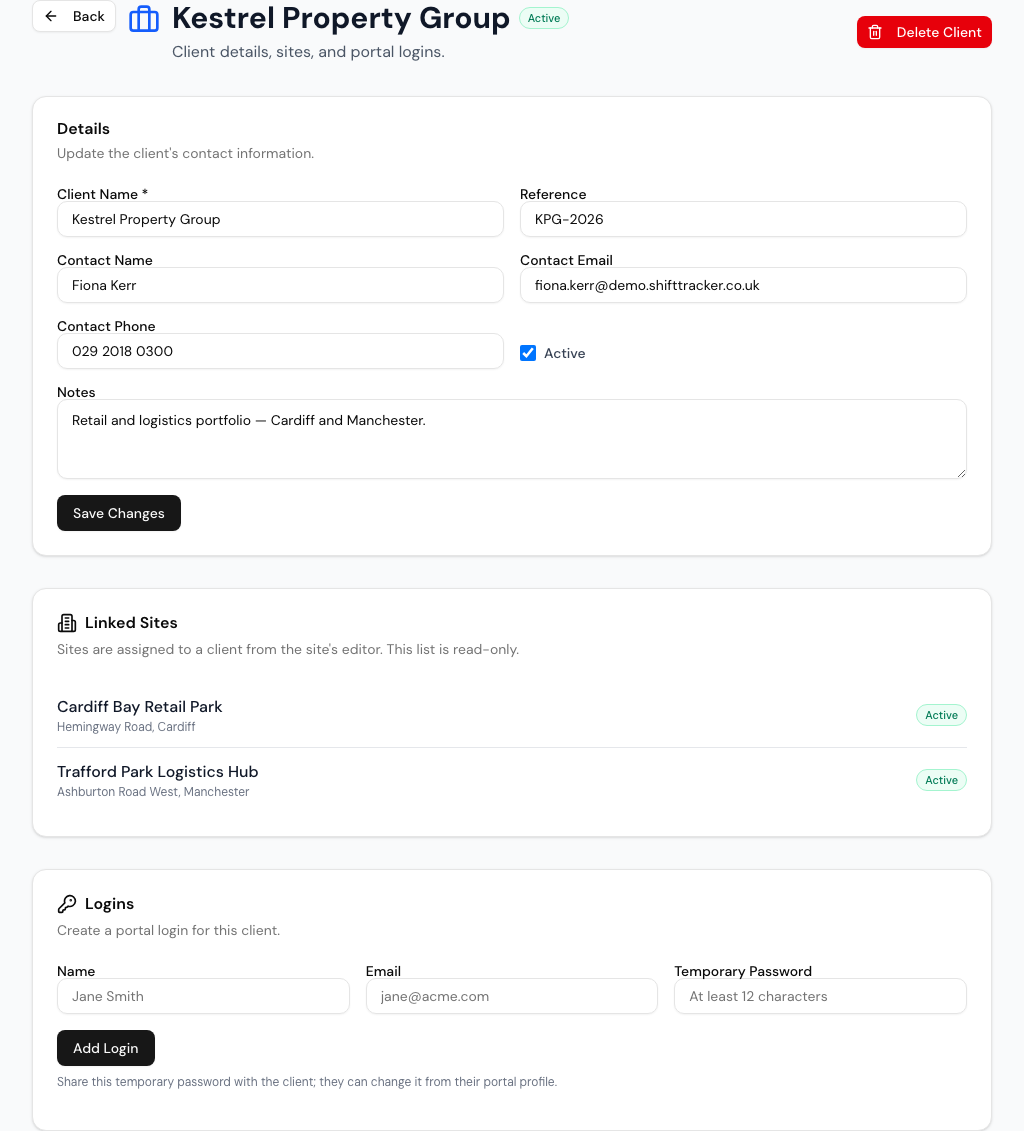
| Card | What it does |
|---|---|
| Details | Change the contact details and press Save Changes. The Active tick box is shown, but nothing in ShiftTracker acts on it |
| Linked Sites | The sites billed to this client. To link or unlink one, open the site and change Settings → Client — see Create your first site |
| Logins | Give someone at the client a login to the portal |
| Monthly scorecard | The client's monthly service scorecards: what has been filed and sent, and a way to produce last month now. See The client's service scorecard |
The sites linked here decide what the client sees in its portal and what goes on its invoices. See Invoice a client.
How do I give the client a login?
- On the client's page, under Logins, fill Name, Email and Temporary Password.
- Press Add Login — Login created — share the temporary password with the client.
- Send them the password yourself. Nothing is emailed. They can change it from their portal profile.
The password must be at least 12 characters, not a common one, and mix upper and lower case, numbers and symbols. An email already used by any account is refused — A user with that email already exists.
You can add as many logins as the client needs. They all see the same portal.
Where do I see or remove a login?
Not on the client's page — it has no list of logins. Client logins appear on People → Users with the role Client, for Admins only. Edit there changes its details or password, or switches it off; Delete removes it for good. See Manage users and permission overrides.
What does Delete Client do?
Delete Client asks Delete "…"? This can't be undone from here., then hides the client: it leaves All Clients, can no longer be chosen for a site, and cannot be invoiced.
Its logins stop working. They can no longer sign in, and anyone signed in to the portal is signed out within a minute. The logins themselves stay on People → Users until you delete them.
Sites linked to it stay linked. Unlink them from each site if you want to bill them to another client.
Related
Last updated 2026-11-03