Manage users and permission overrides
People → Users lists every login in your organisation — Admins, Managers, Control, employees and client logins — and lets an Admin add one, change its details, role or password, switch it off, or delete it. Settings → Permissions lets an Admin give one person a permission their role lacks, or take one away. Both are Admin-only. Adding a user here creates a login only; to add someone who works shifts, add them as an employee instead.
Who can do this?
Admins only. People → Users and Settings → Permissions are not shown to any other role, and their routes refuse anyone else.
What is on the Users page?
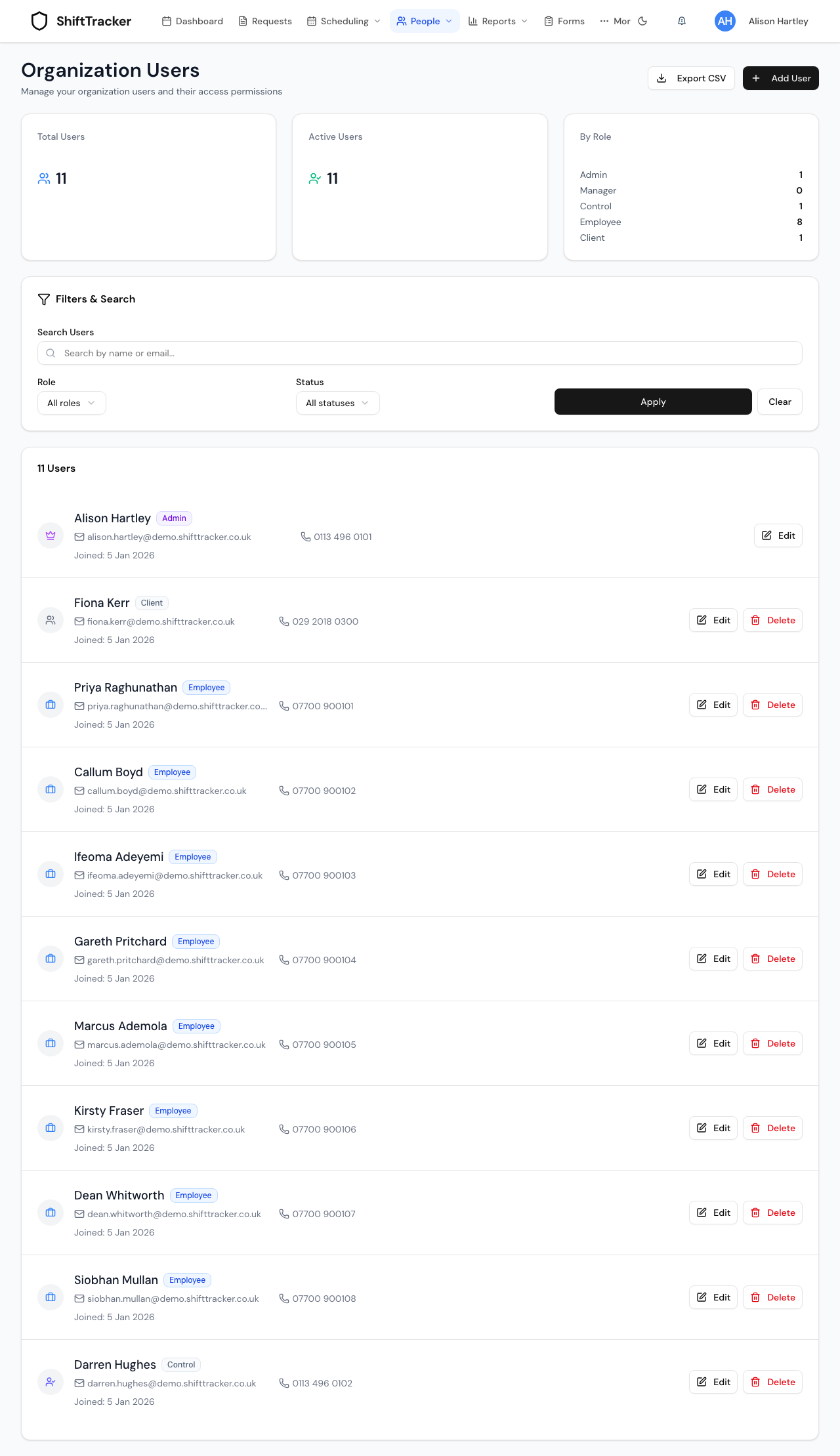
Organization Users lists every login in your organisation: Admins, Managers, Control, employees, and the client logins made from Clients. Agency staff and officers are not listed — they belong to their agency.
- Total Users and Active Users count them; By Role breaks them down.
- Search by name or email, or narrow by Role and Status, then Apply. Clear resets the filters.
- Each row shows the role, email, phone and the date the login was made, with Edit and Delete. You cannot delete your own login.
- Export CSV downloads the list as shown.
How do I add a user?
Use this for back-office staff — Admins, Managers and Control. Employees who work shifts should be added from People → Employees, which makes their employee record and their login together; see Manage employees. An Employee added here gets a login but no employee record, so they appear on no roster.
- On People → Users, press Add User.
- Fill Name, Email and Password, and optionally Phone.
- Choose the Role — Employee, Admin, Manager or Control.
- Press Create User.
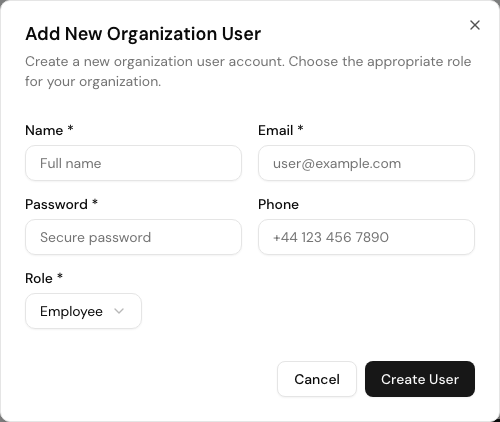
Nothing is emailed. You set the password, so pass it on to them yourself; they can change it once signed in. The password must be at least 12 characters, not a common one, and mix upper and lower case, numbers and symbols. An email already used by any account is refused — User with this email already exists.
How do I change someone's details or role?
- Press Edit on their row.
- Change Name, Email, Phone or Role. To set a new password, fill New Password; leave it blank to keep the current one.
- Press Update User.
Changing someone's role signs them out everywhere; they sign in again with the new role. Role changes are recorded in the audit trail.
- Your own email or password: fill Current Password too — it is shown only when you edit yourself.
- A client login keeps the role Client; you can change its name, email, phone and password.
How do I switch a login off?
Press Edit, turn Active off and press Update User. The login can no longer sign in, and any session it holds ends. Turn Active back on to let them in again. You cannot switch off your own login. Status on the list filters by it.
What does Delete do?
Delete — Are you sure you want to permanently delete …? This action cannot be undone — then Delete User. The login is removed for good and any session they hold stops working at once.
- An employee's login cannot be deleted — This login belongs to an employee. Terminate them from People → Employees instead; that also stops them signing in. See Manage employees.
- If other records still point at the person — documents they uploaded, for instance — the delete is refused: This login is still referenced by records in ShiftTracker, so it cannot be deleted. Deactivate it instead.
How do I give one person an extra permission?
Each role comes with a set of permissions. Settings → Permissions lets you change that set for one person — an override. Granting an override needs the Professional plan; revoking or resetting one works on any plan.
- Go to Settings → Permissions and pick the person under Select User. Search users... narrows the list.
- Permissions for … lists every permission, with their role and how many they hold. Filter by Category narrows it.
- A tick means they have it; a cross means they do not.
- Grant gives them one they lack.
- Revoke takes away one their role gives them.
- Reset removes your override, so the role's own answer applies again. It is shown on permissions you have granted, marked Override, and on ones you have revoked, marked Revoked.
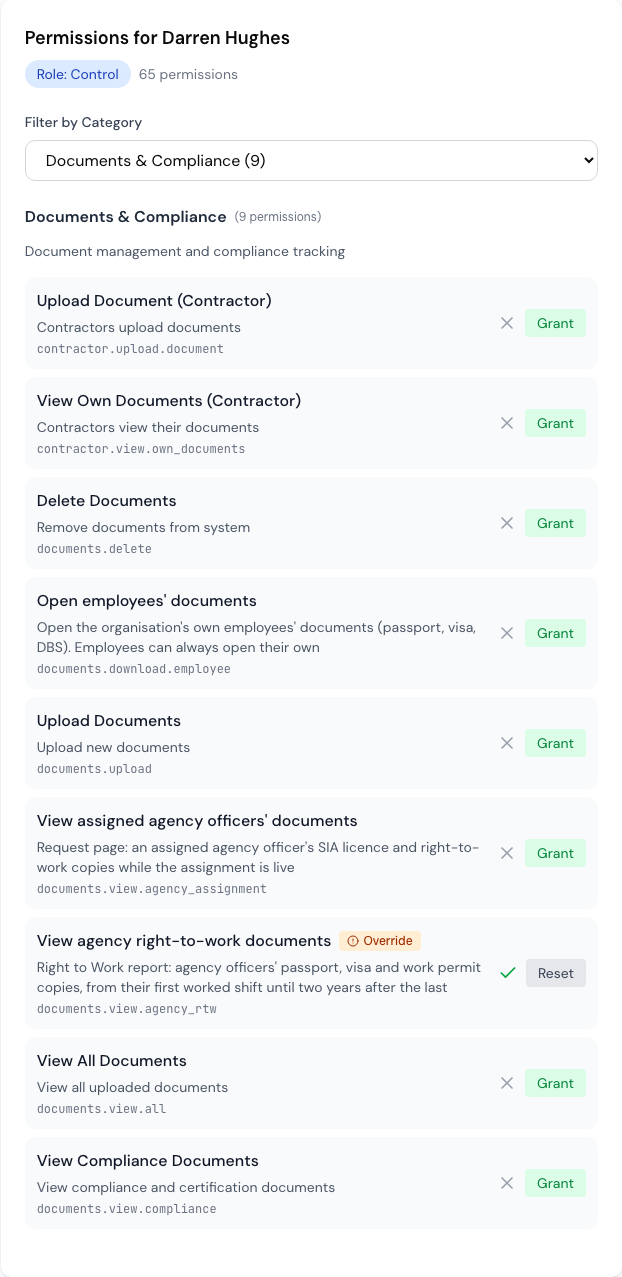
Overrides take effect straight away and are recorded. Managing them needs users.manage.permissions.
Things to know:
- A revoked permission is marked Revoked, with a cross, Reset to give the role's answer back, and Grant.
- You cannot change your own permissions, and the three document permissions —
documents.view.agency_rtw,documents.view.agency_assignmentanddocuments.download.employee— can only be given to Admins, Managers and Control. When either is refused, the page says so and nothing changes. - An override does not always change what someone sees. Many screens check the role itself, not the permission. See Does every permission in this list gate something?
- What each role gets cannot be changed here — only individual overrides.
Related
- Roles and permissions
- Manage employees
- Check agency officers' right to work — the permission in the example
- Audit trail
Last updated 2026-10-09