Put forms in front of staff
Forms reach staff through a deployment: which sites, who can open the form, and whether it is always available or sent after a shift or on a schedule. The Template Library holds ready-made forms that an Admin can add and deploy in one click, and one deploy panel sets or changes where any form is live. Managers can add library forms as drafts and deploy published ones; only an Admin can publish.
Where do forms live?
Under Forms in the main navigation. The hub links to six areas:
| Area | What it is |
|---|---|
| Library | Ready-made forms from ShiftTracker, to copy into your organisation |
| Templates | Your organisation's own forms — drafts, published and archived |
| Sub-forms | Repeating-row sections that you reuse inside forms |
| Deployments | Every form that is live, or paused, and where |
| Submissions | What staff have sent in |
| Reports | Analytics across submissions |
This page covers the library, the templates list and deployments. Building or editing a form in the builder is separate, as are submissions and reports.
Who can do what?
| Task | Who | Permission |
|---|---|---|
| Browse the library, add a form from it | Admin | — |
| Create, edit or archive a template | Admin | — |
| Add & deploy, or Go live on a draft — both publish it | Admin | — |
| Deploy, change or pause a published form | Admin, Manager | forms.deployments.create |
| Open a form to everyone when it is set for managers | Admin | — |
| See Templates and Deployments | Admin, Manager, Control | forms.templates.view, forms.deployments.view |
A Manager who presses a deploy button on a draft sees This form is still a draft. Ask an admin to publish it.
Managers deploy, change and pause forms from Templates and Deployments; the library, New Template, Create Form, Edit and Archive are not shown to them. Control can open Templates and Deployments but sees no buttons that change them.
What is in the library?
Forms → Library opens Template Library — Industry-standard forms ready to import and customise. Forms and Sub-forms switch between the two kinds. Narrow the forms by category, or with Search templates..., which matches names, descriptions and tags.
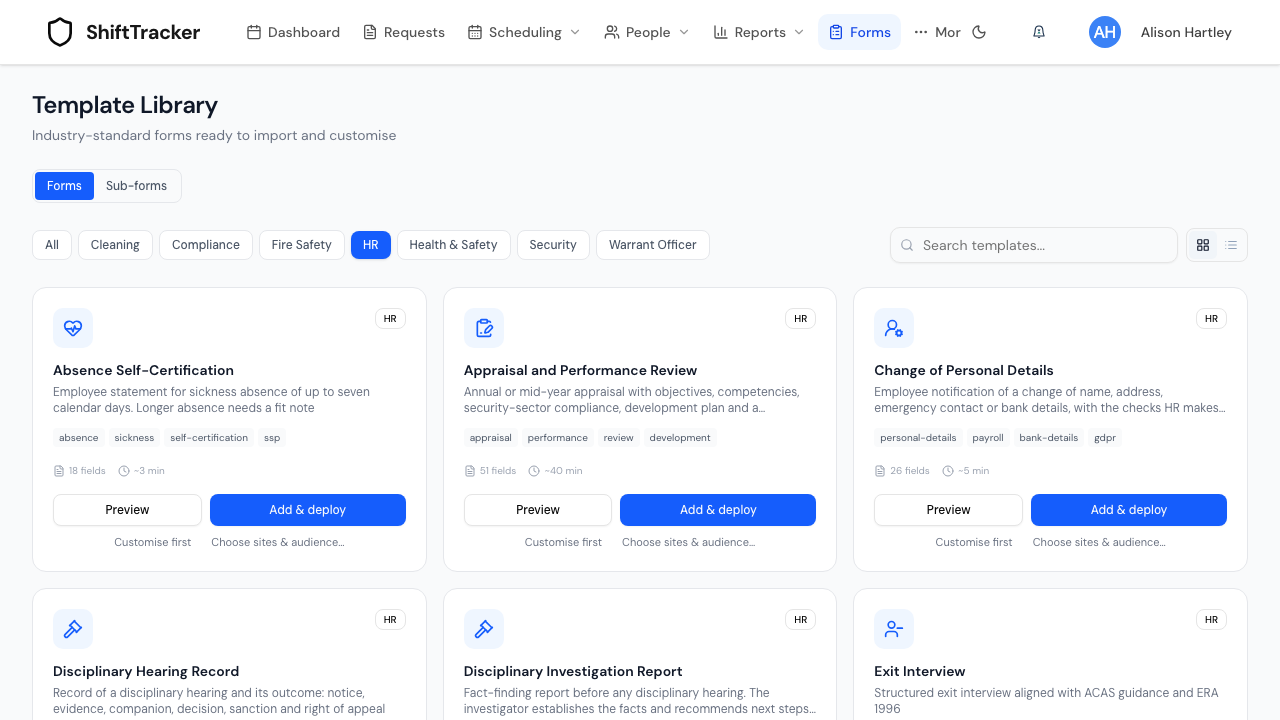
Preview lists a form's sections and fields, required ones starred, before you add it.
What the buttons do depends on your role and whether your organisation already has the form:
| You see | It does |
|---|---|
| Add & deploy (Admin) | Copies the form into your organisation, publishes it and makes it available to everyone at every site, straight away. You land on Deployments, where a banner offers Choose sites & audience to narrow it. |
| Choose sites & audience… (Admin) | Opens the deploy panel first. Nothing is copied until you press Go live. |
| Customise first | Copies it in as a draft and opens it in the builder. Staff see nothing until it is published and deployed. |
| Deploy and Open draft | Your organisation already has a draft copy. |
| Manage and Open in builder | Your organisation's copy is live. Manage opens the deploy panel. |
A form you already have says so — Live, Paused or Draft — and is never copied twice.
Some library forms are for managers or HR to complete, such as Return to Work Interview or Disciplinary Hearing Record. Add & deploy makes those available to managers and admins only.
How do I choose where a form is live?
With the deploy panel. It opens from Choose sites & audience… in the library, Deploy or Manage on Templates, and Manage on Deployments.
- Where — All sites, or pick sites. All sites Includes sites you add later; a picked list does not. Same sites as… copies another form's sites, and Filter sites… appears when you have more than eight.
- Who — Everyone, or Managers & admins.
- When —
- Always available: staff open it from Forms whenever they need it.
- After a shift: sent to whoever is on shift, At the end of each shift or At the start of each shift, with an optional Due within (minutes).
- On a schedule: sent to whoever is on shift at a time each day, or on the days you pick — None selected means every day.
- Optionally, under More options, set Expires on — the form disappears at the end of that day — or turn off Always use the latest published version to keep staff on the version they have now.
- Read the sentence at the bottom. It says what pressing the button will do.
- Press Go live — or Save changes for a form that is already live, or Save & resume for one that is paused.
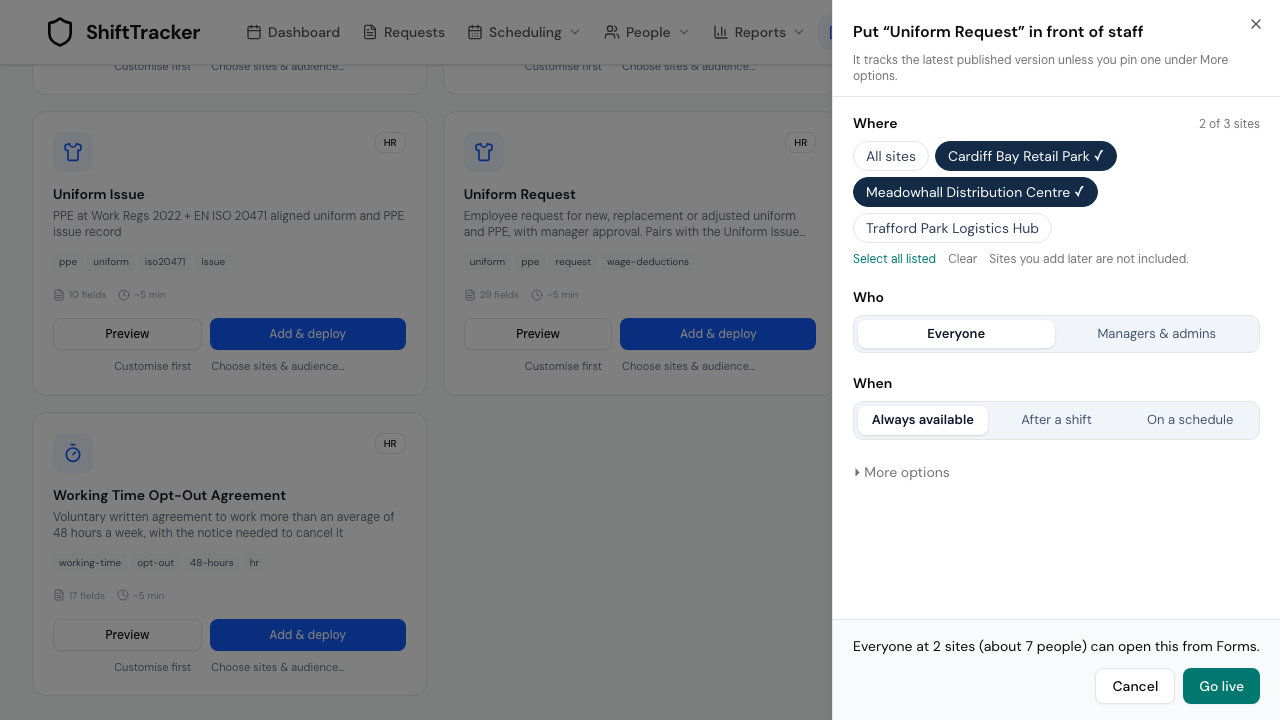
Who applies only to Always available. A form sent after a shift or on a schedule goes to whoever is on shift, so the choice is greyed out — Goes to whoever is on shift. A form for managers can only be Always available.
Who counts as a manager?
Anyone in a management role — Admin, Manager or Control. An employee who supervises others is not a manager here; a site supervisor with the Employee role does not receive a managers-only form.
Which staff see an always-available form?
- Employees see forms deployed to all sites, plus those for the sites on their roster record. Someone in a management role with no site on a roster record sees every site's.
- Agency officers see your forms for the sites they are working at.
- Expired and paused forms are not listed, and their links stop opening.
A form someone has already downloaded to the mobile app can still be sent in after it expires or moves, so nothing they filled in offline is lost.
The same holds when an agency officer's access to the site has ended by the time their report arrives. Officers can open your forms for a site only around the days they work there, so a report filled in on a shift with no signal can reach you after that access has closed. It is accepted if the officer started it no more than 7 days earlier, at a site they were working at on that day — a shift that was cancelled does not count; Completed on device on the submission shows when it was filled in. Anything older, or for a site they were not working at, is refused, and the report stays on the officer's phone marked as not sent.
How do I pause a form?
On Deployments, press Pause on its card, or Pause in the deploy panel. Staff can no longer open it, and the card reads Paused. Resume puts it back exactly where it was.
What is on the Deployments page?
Form Deployments — View deployed forms and the versions currently in use. One card per form:
- Live, Paused or Not live;
- the version, and whether it tracks the latest version or is a pinned version;
- where, who, when, and any expiry;
- Open template, Manage, and Pause or Resume.
Older forms that were sent by hand to one site keep a separate card, with Open Template and Manage deployment.
What does the Templates list show?
Forms → Templates opens Form Templates, filterable by Status — Draft, Published or Archived — Category and Search. Each row shows the form's status, where it is Live, its category, version and when it was updated, with Edit, Deploy or Manage, and Archive — Managers see only Deploy or Manage. Create Form starts a new one.
Archive asks first — It will no longer be available for new deployments. It also takes the form off staff's form lists and stops it being sent on shifts. A copy already sent to someone stays with them, and a phone that has the form can still send in what it holds.
If it goes wrong
| What you see | What it means |
|---|---|
| This form is still a draft. Ask an admin to publish it. | Only an Admin can publish. |
| Only an admin can show a form for managers to everyone. | A Manager tried to widen a managers-only form. |
| After a shift and On a schedule are greyed out | The form is for managers, so it can only be always available. |
| Access denied on the library | The library is for Admins. |
Related
Last updated 2026-10-12