Your agency's profile and back-office users
Agency Settings holds your agency's name and contact details, and the back-office staff who use ShiftTracker for you — Agency Admins and Agency Coordinators. An Agency Admin changes the details, adds staff by emailing them an invitation, changes their role and switches them off. Coordinators can look but not change. Officers are not managed here; see Add and manage officers.
Where is it?
More → Agency Settings. Agency Admins see Agency Profile, Users, Onboarding and Subscription; Agency Coordinators see Agency Profile and Users only.
| Task | Agency Admin | Agency Coordinator |
|---|---|---|
| Change the agency's details | Yes | No |
| See the back-office users | Yes | Yes |
| Add, change or switch off a user | Yes | No |
How do I change the agency's details?
- Open Agency Profile — Your agency's name and contact details.
- Change Agency Name, Contact Email, Contact Phone or Address. The name is required.
- Press Save Changes — Agency details saved.
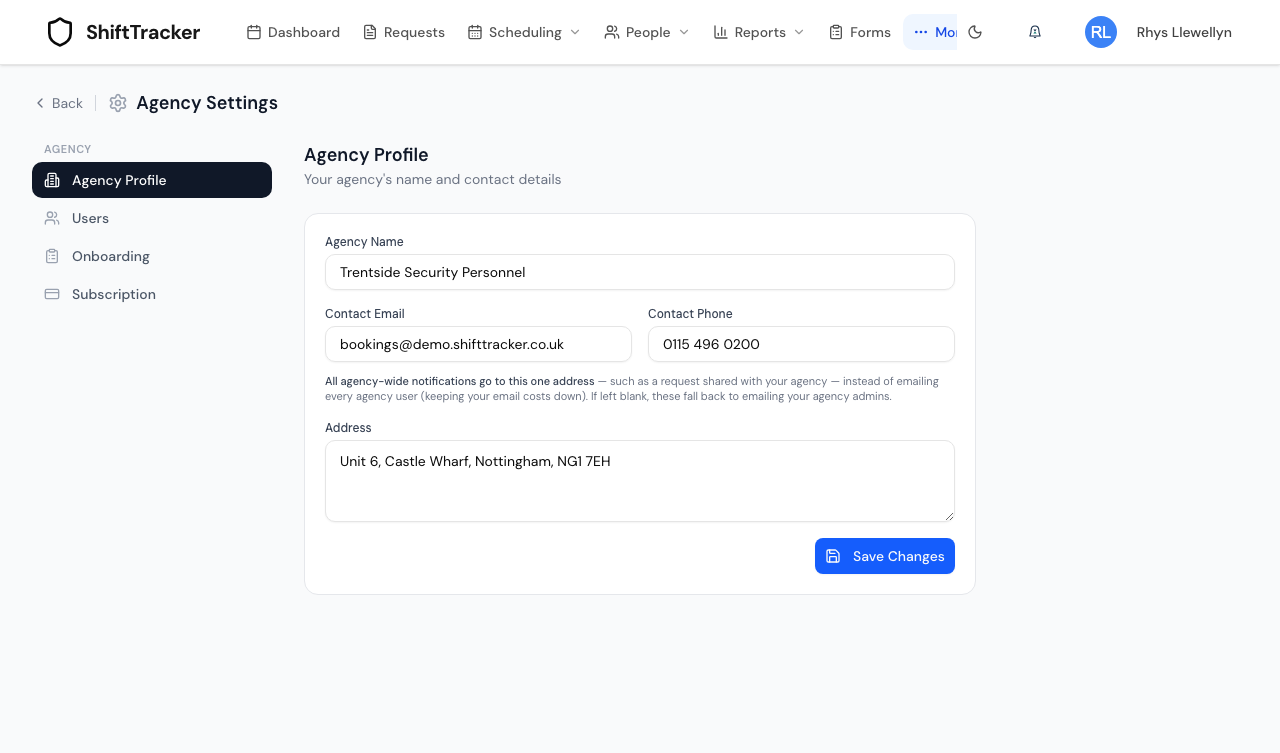
The Contact Email is where agency-wide emails go — a request shared with your agency, for instance — rather than to every user. Left blank, they go to your Agency Admins.
It does not decide which partnership invitations reach you: an invitation comes to your agency through the link in its email. See Register your agency and accept a partnership.
An Agency Coordinator sees the details read-only, with Only an Agency Admin can change these details. and no Save Changes.
How do I add a back-office user?
Back-office users are staff who run the agency's work in ShiftTracker — not officers. Officers are added under People → Officers; see Add and manage officers.
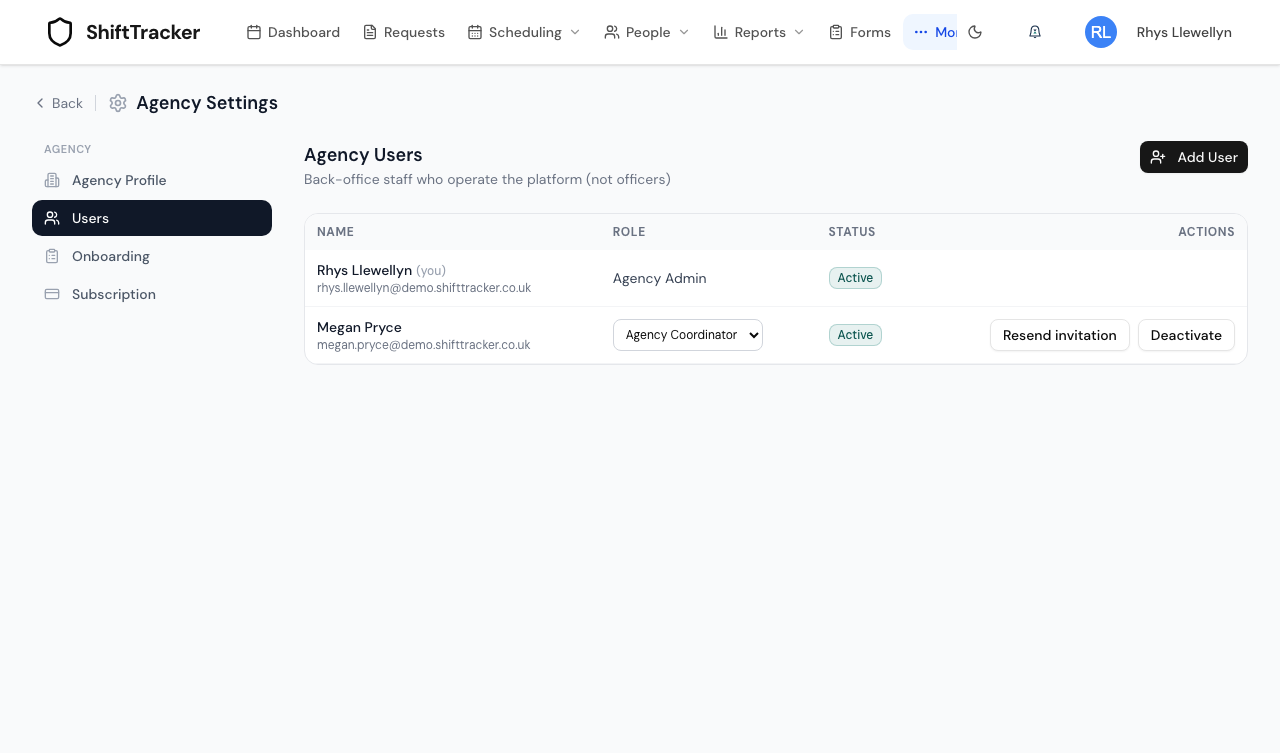
- Open Users and press Add User.
- Give their Name and Email, and choose the Role — Agency Admin or Agency Coordinator.
- Press Create User.
They are emailed a link to choose their own password — It works once and expires in 7 days. If the email cannot be sent, you are told so; press Resend invitation on their row to try again.
An email already used by any ShiftTracker account is refused — A user with this email already exists.
How do I change someone's role or switch them off?
- Role: choose Agency Admin or Agency Coordinator from the picker on their row. It saves straight away.
- Switch off: press Deactivate. They can no longer sign in. Activate brings them back.
- Resend invitation is shown while someone has not yet set their password.
Changing someone's role, or deactivating them, signs them out everywhere at once, and is recorded in your agency's audit trail.
Two guards stop you locking the agency out:
- You cannot change your own role or deactivate yourself — your own row has no controls.
- The last active Agency Admin cannot be demoted or deactivated — This is the agency's last active admin — promote another admin first.
Users are not deleted, only deactivated.
Related
- Add and manage officers
- Register your agency and accept a partnership
- Subscription and billing — the Subscription screen
- Onboard officers — the Onboarding screen
- See your agency's audit trail
Last updated 2026-10-09