See who worked when
Two read-only screens show your own employees' shifts and leave over a period. Timesheet Overview is a grid — one row per employee, one column per day, a short code for each shift coloured by whether it was worked. Timesheets is a calendar you can view by day, week, month or as a list, for everyone or one person. Neither approves anything: hours are agreed in Payroll Arbitration.
Who can use them?
Admin, Manager and Control, from Scheduling → Timesheet Overview and Scheduling → Timesheets. Anyone else reads Access Denied.
Both screens show your own employees only. Agency officers are not on them — see the reporting dashboard for agency cover.
Do I approve timesheets here?
No. Both screens are views. Nothing on them approves, corrects or locks hours. To agree what a shift is paid, use Payroll Arbitration; the calendar then shows the arbitrated times.
How do I read the Timesheet Overview?
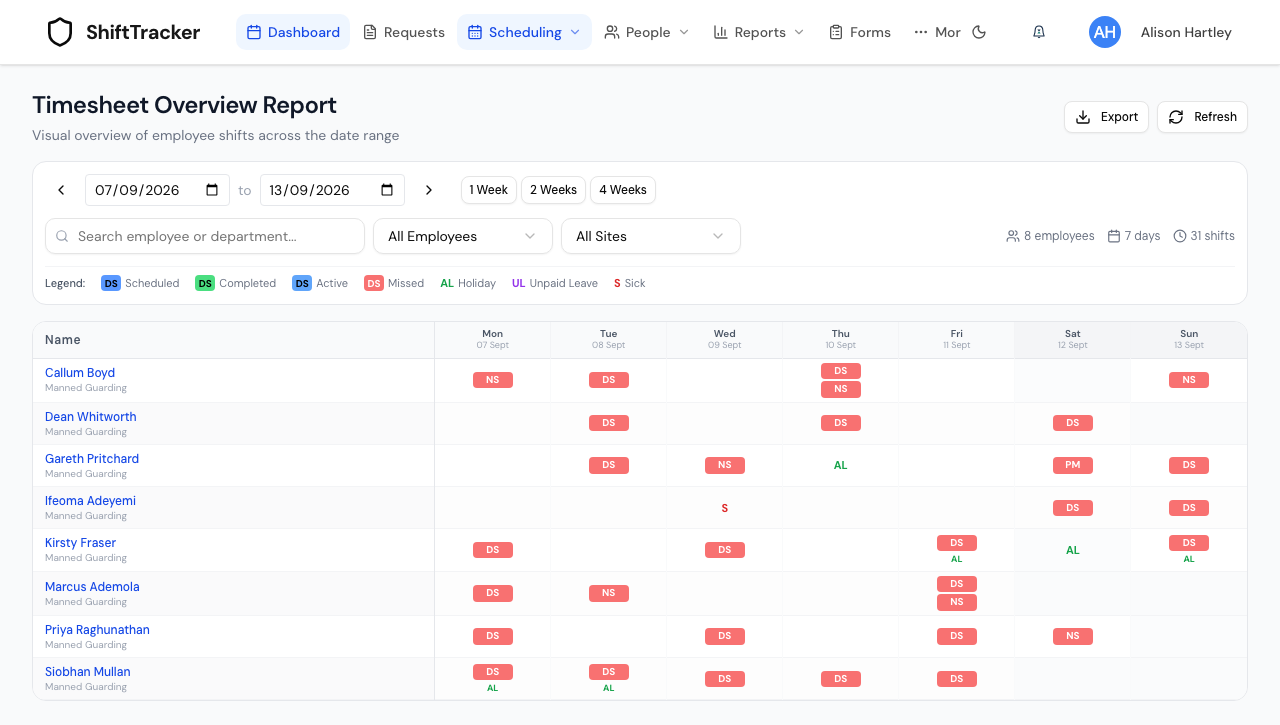
- Open Scheduling → Timesheet Overview. It opens on this week and next, Monday to Sunday.
- Set the two dates, or press 1 Week, 2 Weeks or 4 Weeks to set the end that far from the start. The arrows either side move the whole range back or forward by its own length.
- Narrow it with All Employees or All Sites, or type in Search employee or department....
The panel counts the employees, days and shifts shown. Below it, one row for every employee with a shift or leave in the range, and one column per day.
What do the codes mean?
Each shift is a code for its hours, unless it has a shift type of its own, which is shown instead.
| Code | Shift |
|---|---|
| DS | Day shift — starting 06:00 to 10:00 and ending 18:00 or later, or anything else not listed here |
| AM | Morning — starting 06:00 to 10:00 and ending before 17:00 |
| PM | Afternoon — starting 12:00 or later and ending 18:00 or later |
| NS | Night — ending at or before the time it starts, so overnight |
Leave is shown by its type's code — for example AL for annual leave, S for sickness, UL for unpaid leave — in place of a shift, or under one when the employee also has a shift that day. Both approved and pending leave show; hover to see which.
What do the colours mean?
| Colour | Status | Meaning |
|---|---|---|
| Blue | Scheduled | Still to come, or confirmed |
| Green | Completed | Booked off, or marked completed |
| Lighter blue | Active | Booked on, not yet off |
| Red | Missed | Its start time has passed and nobody booked on |
| Pale red | Cancelled | Cancelled |
| Gold | No Show | Marked a no-show |
A shift reads Missed as soon as its start time passes without a book-on, unless it is confirmed. That is a reading of the clock, not a decision anyone has made: a shift worked but never booked on through the app — paper timesheets, say — reads Missed too.
Click an employee's name to open their profile. Hover over a shift to see its Location, Service, Status, Shift Start, Shift End, and the Book On and Book Off times if there are any.
How do I export it?
Press Export. You get a CSV with one row per employee shown and one column per day, each cell holding that day's shift codes — two shifts read DS/NS — or the leave code.
How do I use the Timesheets calendar?
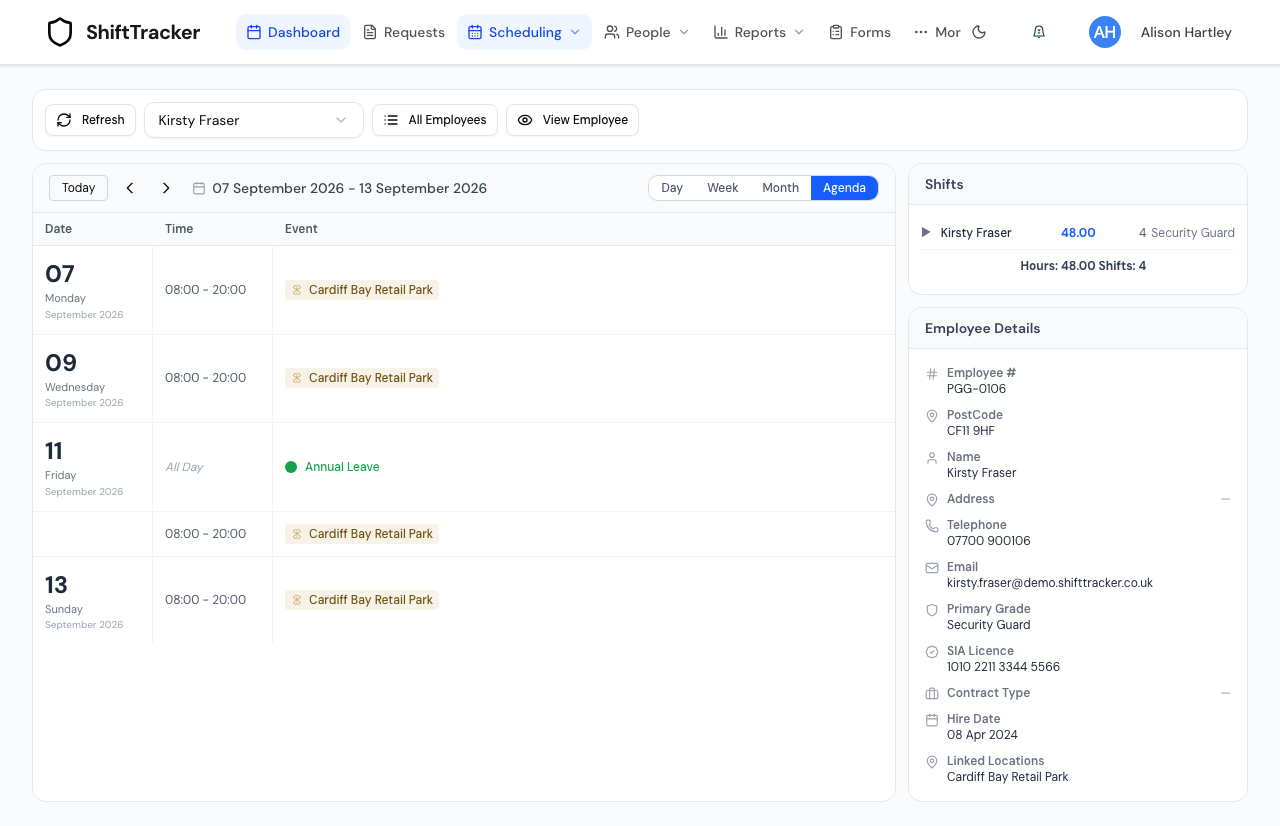
- Open Scheduling → Timesheets. It opens on this week.
- Choose Day, Week, Month or Agenda. Today comes back to the current day; the arrows step one day, week or month.
- To see one person, choose them in the employee menu. All Employees goes back to everyone, and View Employee opens their record.
With one employee chosen, the right-hand side fills in: Shifts totals their hours and shifts in the period, and Employee Details gives their number, contact details, grade, SIA licence, hire date and the sites they work at.
What times does the calendar show?
The agreed ones. Where a shift has been arbitrated, the calendar shows the arbitrated start, end and hours rather than the rostered ones, and colours the shift amber so you can tell. Otherwise:
| Colour | Shift |
|---|---|
| Green | Completed |
| Bright blue | Booked on |
| Grey | Cancelled |
| Purple | Suspended |
| Blue | Anything else |
Leave is coloured by type. Hover over anything for its details.
In Agenda, an overnight shift is listed again on the morning it ends, marked 🌙 and (cont.), and leave lasting several days is listed once, on its first day. A 📱 beside a shift means the employee has booked on.
If it goes wrong
| What you see | What it means |
|---|---|
| Access Denied | Your role is not Admin, Manager or Control. |
| Every shift in a past week is red | Nobody booked on through the app. If staff worked on paper, record their hours in Payroll Arbitration. |
| No employees found for this period | No shifts or leave in the range for the filters chosen. |
| Could not load the overview or Could not load the calendar | The read failed. Press Try again. |
| An employee is missing from All Employees | The menus list active employees only. |
Related
Last updated 2026-10-09