Set an employee's pay rate and breaks
An employee's pay comes from two tabs on their record. Payroll holds the hourly Pay Rate, the Charge Rate billed to the client, the payroll reference the export uses, and tax and bank details; only an Admin can see or change it. Break Payments decides whether a recorded break is paid. Arbitration reads both when it writes each shift's pay record.
Who can change pay settings?
| Tab | Admin | Manager | Control |
|---|---|---|---|
| Payroll — rates, tax and bank details | View and change | Sees Payroll and bank details is restricted. It is visible to administrators only. | Same as Manager |
| Break Payments | View and change | View and change | View only |
An Admin also sees the Pay Rate as a chip under the employee's name at the top left of the record — £13.4/hr in the picture below. For everyone else the rate is withheld, so the chip does not appear.
How do I set an employee's pay rate?
- Open the employee from People → Employees and choose Payroll.
- Under Salary Information, set Pay Rate (£) — the hourly rate the employee is paid — and Charge Rate (£), the hourly rate charged to the client for their time. Both are required.
- Under Tax Information, fill in Payroll Number, National Insurance Number and Tax Code. The payroll number is the reference the payroll export puts on this employee's rows, so it must match their record in your payroll software; it is not their check-call PIN.
- Fill in Bank Details if you hold them here: Bank Name, Account Number (8 digits) and Sort Code (
XX-XX-XX). - Press Save Changes.
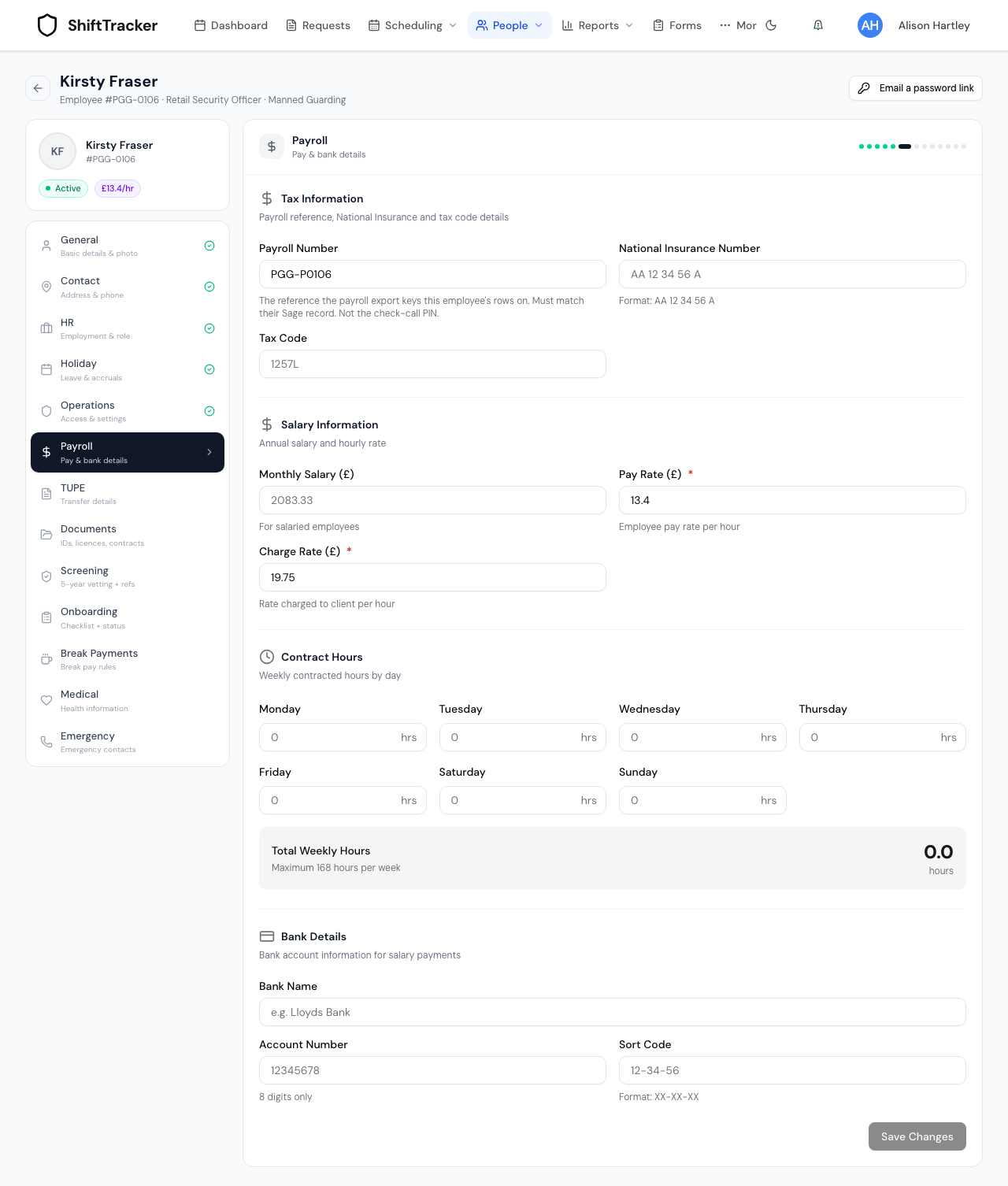
There is one hourly rate per employee: this Pay Rate. Every screen that shows a rate — the employees list, the site's people, the shift panel and the reports — reads it from here.
When does a new rate take effect?
On the next pay record written. Arbitration copies the Pay Rate and Charge Rate onto each shift's record when it first writes it, so:
- shifts not yet arbitrated are paid at the new rate;
- records that already exist keep the rate they were written with. Change a single one from its Arbitrate Shift dialog on Arbitration;
- records marked paid or invoiced cannot change at all.
If an employee has no Charge Rate, arbitration falls back to the site's standard rate.
What do the other payroll fields do?
Monthly Salary (£) and Contract Hours are recorded for your reference. Arbitration does not read them: every shift is paid as hours × Pay Rate, whether or not the employee is salaried. The National Insurance number and bank details are stored encrypted, and the whole tab is shown only to Admins.
How do I decide whether breaks are paid?
- Choose the Break Payments tab.
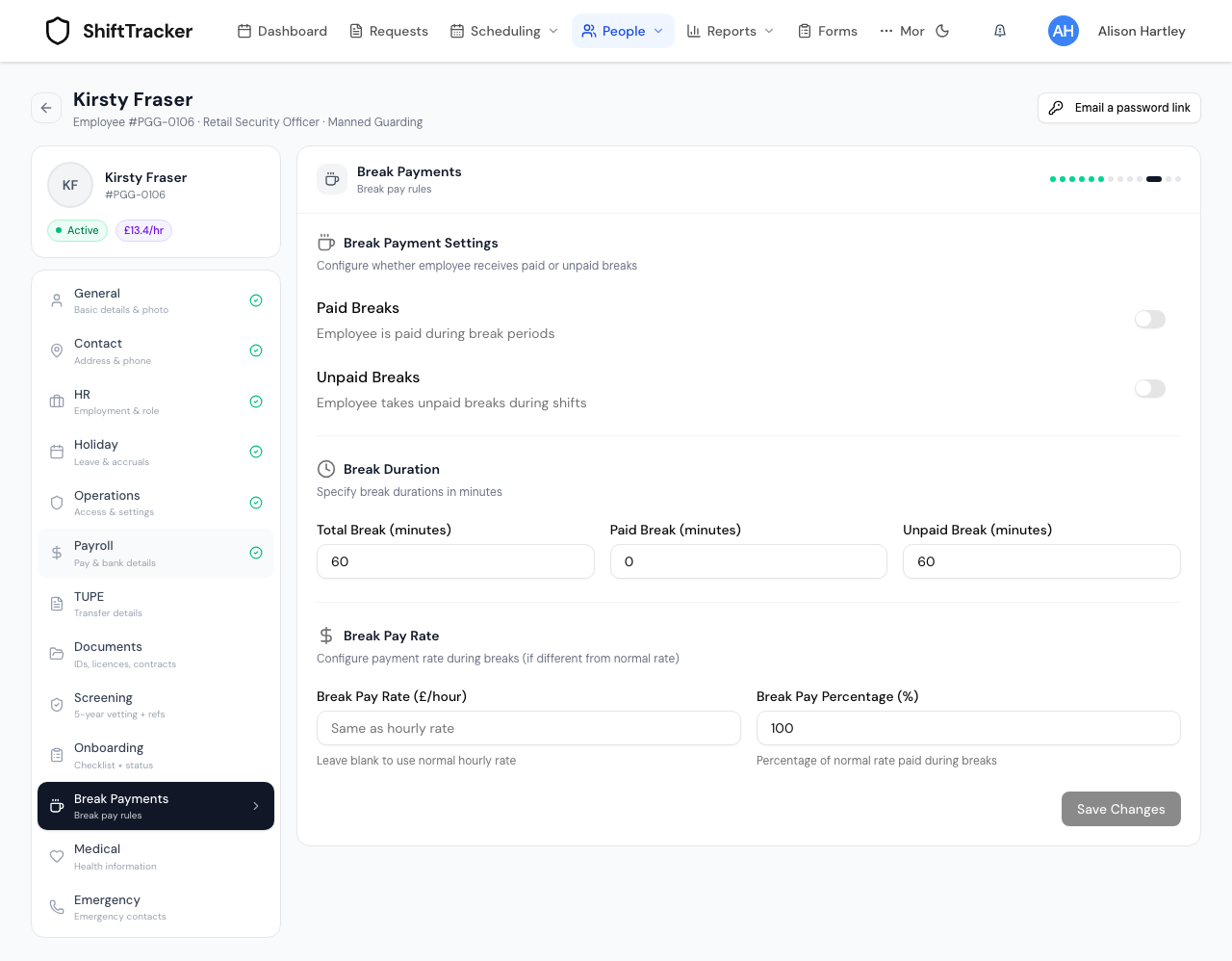
- Under Break Payment Settings, use the two switches:
- Paid Breaks — Employee is paid during break periods;
- Unpaid Breaks — Employee takes unpaid breaks during shifts.
- Press Save Changes.
A recorded break is unpaid only when Unpaid Breaks is on and Paid Breaks is off. Every other combination — both off, as a new employee starts, Paid Breaks only, or both on — pays the break.
What happens to an unpaid break?
The shift's arbitrated hours stay the whole span from start to end. The break the employee recorded comes off their pay — and off the client charge — once. Pay reports then show the paid hours, so hours × rate matches the pay.
The answer is fixed on each pay record when it is first written. Changing the switches later does not alter records that already exist.
Do the break minutes and break pay rate do anything?
Not yet. Break Duration (Total Break, Paid Break and Unpaid Break) and Break Pay Rate (Break Pay Rate (£/hour) and Break Pay Percentage (%)) are saved with the employee, but pay is calculated from the break the employee actually records on shift and the two switches above. None of these fields changes what a shift pays today.
If it goes wrong
| What you see | What it means |
|---|---|
| Payroll and bank details is restricted. It is visible to administrators only. | You are a Manager or Control. Ask an Admin. |
| Pay rate is required or Charge rate is required | Both rates must be filled in before the tab saves. |
| Sort code must be in format XX-XX-XX | Use two digits, a hyphen, two digits, a hyphen, two digits. |
| A new rate does not show on last week's pay | Those records were written before the change. Edit them on Arbitration, or leave them if they are already paid. |
| Unpaid breaks are still being paid | Check both switches: Unpaid Breaks on and Paid Breaks off. Records written before the change keep the old answer. |
Related
Last updated 2026-10-09