Use the roster
The roster is a week of one site's shifts, row by shift pattern. Click an empty seat to fill it, click a shift to open its panel, or right-click for everything you can do to it — confirm, change times, book an absence, copy, cancel. What the menu offers depends on the shift's status, and anything it cannot do says why. Admins, Managers and Control use it; only Admins can add or change shifts in the past.
Who can use it?
Admin, Manager and Control, who hold roster.view.dashboard, from Scheduling → Roster.
| To | Needs | Default roles |
|---|---|---|
| Add or assign a shift, copy a week, publish or discard drafts | shifts.create or shifts.assign.employee |
Admin, Manager, Control |
| Change a shift | shifts.edit or shifts.assign.employee |
Admin, Manager, Control |
| Delete a shift | shifts.delete |
Admin, Manager, Control |
| Restore a cancelled shift or undo a no-show | role | Admin, Manager, Control |
| Add a shift dated in the past, or book an absence on one | role | Admin only |
| Arbitrate a completed shift | role | Admin, Manager |
How do I find a site's week?
- Choose the site in the picker at the top — search by name, address or postcode — or step between sites with the arrows either side. The cog opens that site's settings.
- Move between weeks with the arrows; Today comes back to this week.
- Choose Week or Month, and in week view Patterns (a row per shift pattern) or Employees (a row per person).
- Narrow it with Search pattern or employee..., or tick Hide cancelled. Reset clears both.
The panel counts the patterns and shifts on screen and, in amber, the gaps — seats a pattern needs that nobody fills. When there are gaps, Coverage shows each day green (all filled), amber (half or more) or red.
What does a shift show?
The employee's name and the shift's status, its times, and their working hours — their average and this week's total, amber when they are high (see Overtime and the Working Time Directive). Other things you will see in a cell:
| In the cell | Means |
|---|---|
| Open shift | A shift with nobody on it |
| Slot 2, dashed | A seat the pattern needs that has no shift yet |
| Awaiting agency | Sent to agencies; none has offered an officer |
| An agency's name with Proposed | An agency has offered an officer, not yet confirmed |
| An officer's name above the agency's, in violet | An agency officer is confirmed on it |
| Cover Required with Off: name | The employee was taken off by approved leave |
| Draft, on faint stripes | Not published yet, so staff cannot see it. See Publish the roster |
| Draft with Start passed | A draft that was never published before it started. Reassign or discard it |
| B · 6/16 | The shift is a rotation's own: crew B, day 6 of a 16-day cycle. Compact rows keep this as a tooltip. Change the officer or the times and it leaves the rotation |
| 📝 | The shift has a note |
How do I fill an empty seat?
- Click the empty seat. A quick picker opens with Suggested at the top: people who have been rostered at this site before and are free that day, most familiar first. Anyone with a working-time warning is listed after the others, with the warning shown. Each name shows their hours for that week across every site (for example 16h this week); a heavy week or an average near the 48-hour limit adds a warning with the average. Suggestions never include someone the roster would refuse anyway. Below that are the site's linked employees and a search box; pick a name to assign.
- For status, notes or an agency request, press Advanced Options. The Create/Assign Shift dialog opens: pick someone from Linked (employees linked to this site) or Search, set the Status — Scheduled, Confirmed or Pending — and add notes if you want.
- Press Assign Shift. With nobody chosen, the button reads Create Open Shift and creates the shift unfilled.
The same Suggested list heads the picker when you change the employee on an existing shift from the shift panel.
To ask an agency instead, use From Agency: choose the Role / Grade * and the agencies under Send to Agencies *, then press Create & Request. See How a request becomes a rostered shift.
What can I do to a shift?
Right-click it. The menu leads with the job the shift needs next, and anything you cannot do is shown greyed with the reason underneath.
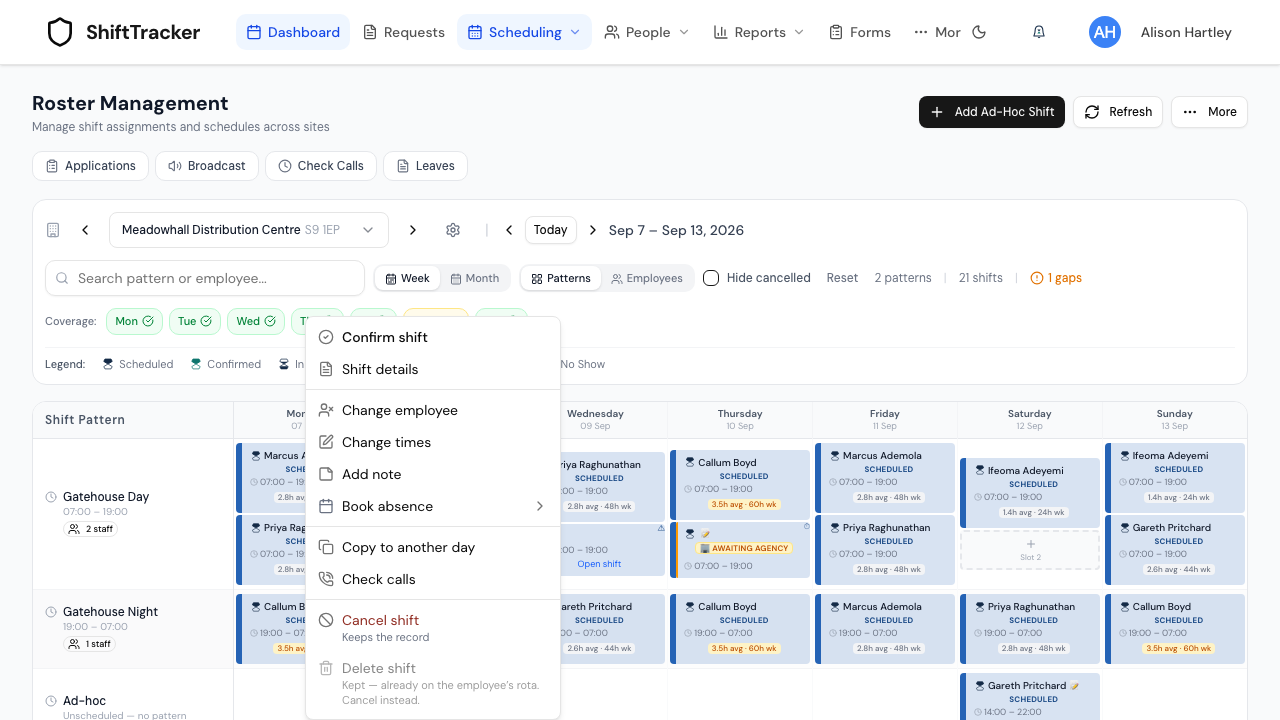
| Status | Leads with | Also |
|---|---|---|
| Scheduled, with someone on it | Confirm shift | Change employee, Change times, Add note, Book absence, Copy to another day, Cancel shift |
| Scheduled or confirmed, nobody on it | Assign employee | Request agency cover |
| Confirmed | Shift details | Mark in progress and Mark no-show — both greyed with Opens … until the book-on window opens — and Change employee |
| In progress | Check calls | Mark completed, Adjust actual times, Audit history |
| Completed | Adjust actual times — Affects pay | Arbitrate shift, which opens it on Payroll Arbitration |
| Cancelled | Restore shift — Returns it to scheduled | Audit history |
| No-show | Undo no-show | Request cover |
Click a shift instead and its panel opens on the right, with the same actions as buttons across the top — here Confirm shift, Change employee and More — and four tabs.
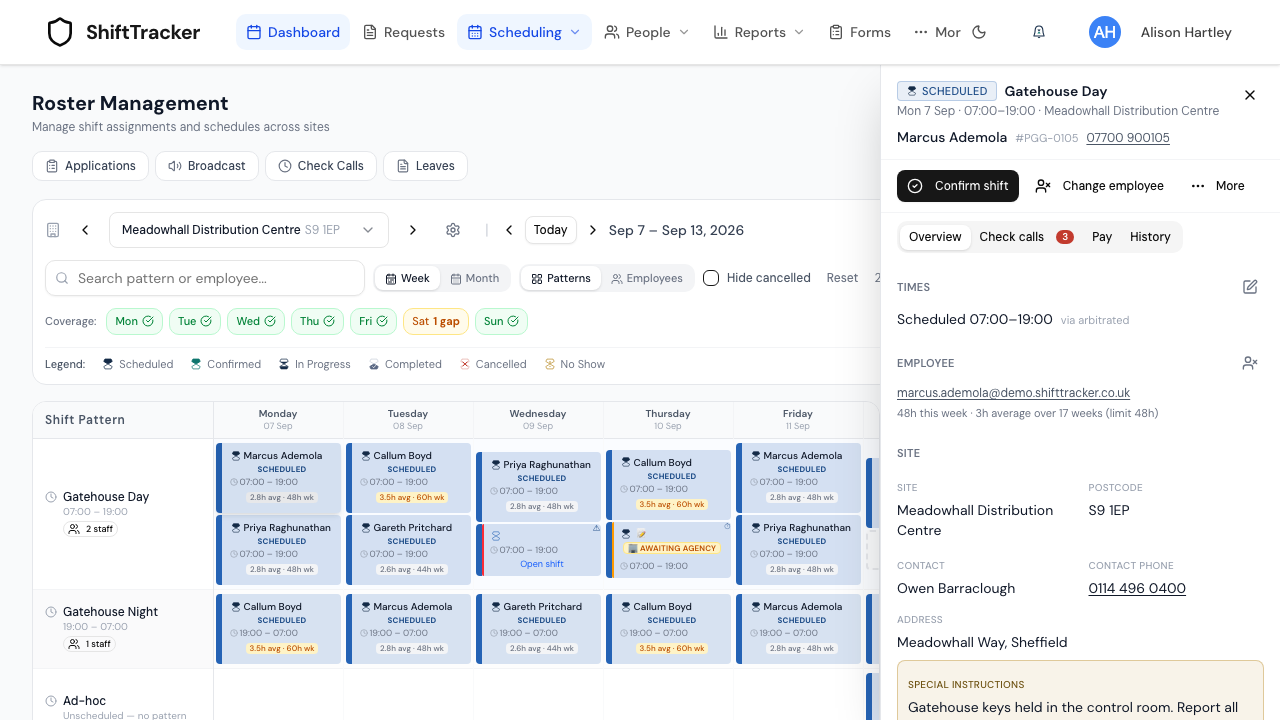
| Tab | Shows |
|---|---|
| Overview | Times, the employee and their working time, the site and its contact, special instructions, any applicants |
| Check calls | The shift's check calls; the red number counts those missed |
| Pay | Its rates and arbitration. Only shown once there are figures to show |
| History | Every change made to the shift |
Cancel or delete?
| Cancel shift | Delete shift | |
|---|---|---|
| The record | Kept, marked cancelled | Removed entirely |
| Can be undone | Yes — Restore shift | No |
| Allowed when | It is scheduled, confirmed or in progress | It is scheduled or confirmed, nobody is on it, no agency holds it, it is not in the past, and pay has not been run |
A shift on someone's rota can only be cancelled: they can already see it. One an agency has booked can only be cancelled, because the agency holds a record of it too.
How do I fill every gap in a week?
Press Fill gaps above the grid (week view). A list opens with every open seat in the week, day by day, and the best free person for each: people who know the site first, spread across the week so nobody is given two shifts that cannot both be worked, and nobody pushed past 48 hours. Each name shows why they were chosen and their hours for that week.
- Assign all N fills every seat that has a clean suggestion. Assign on a row fills just that seat.
- A seat where everyone has a warning (for example, too little rest) is listed as Needs your decision, with the warning. It is never filled for you: close the list and choose in the grid.
- A seat nobody can take says Nobody free who knows this site.
- Seats left open by approved leave are included, marked as cover for the person who is off.
- Days that have already passed are not shown.
If your organisation uses drafts, the filled seats are drafts until you publish them, apart from any starting at short notice. See Publish the roster.
Every seat is checked again as it is saved. If a colleague filled one in the meantime, or the roster would now refuse it, that seat is skipped and the list says why. Pressing Assign all twice never creates a second shift.
In the month view, Fill gaps (top right) does the same for the whole month, but lays the suggestions on the grid as unsaved changes: look them over, change any you like, then press Save Changes. It fills pattern seats only. Seats left open by leave, or shifts that already exist with nobody on them, are done from the week view.
How do I book an absence?
- Right-click the shift and choose Book absence.
- Choose the type — for example Sickness, Annual Leave, Compassionate or AWOL.
The employee is taken off the shift and the absence is recorded for that day — Sickness booked for Marcus Ademola. Shift is now open for assignment. The shift stays, open, showing the absent employee's name with (on leave) until someone else is assigned. Not possible once the shift has started.
To cover it, click the amber Cover Required seat. The same quick picker opens with Suggested at the top, and picking a name swaps them onto the shift. Advanced Options still opens the full dialog.
For leave the employee asks for, use Approve and manage leave.
How do I add a one-off shift?
- Press Add Ad-Hoc Shift — Create a one-off shift that isn't tied to a recurring pattern.
- Choose the Site, Date, Start and End, an employee or Open Shift — No Employee, and the Status.
- Press Create Shift, or Create Open Shift if nobody is on it.
It appears on the Ad-hoc row. See Patterns, seats and ad-hoc shifts.
Can I add a shift in the past?
Only an Admin. Anyone else is told Only an Admin can add shifts in the past. An Admin is asked Add a shift in the past? — It will affect timesheets and pay. It is created as completed, at the scheduled times — and must give a Reason *, which is recorded in the audit trail.
What else is under More?
| Item | Does |
|---|---|
| Applications, Broadcast, Check Calls, Leaves | Open those screens — also shown as buttons under the title |
| Copy Week → Next | Copies this week's shifts to next week. Shifts already there are not overwritten, and anyone on leave or already booked in that week is left out of it rather than stopping the copy |
| Copy week to… | Choose the next one to four weeks and copy this week onto each. The result lists every week, names the shifts that were left out and why, and flags a week with Working Time warnings so you can copy it on its own and give a reason |
| Discard drafts… | Removes the drafts in view, once any exist. See Publish the roster |
| Export CSV | Downloads this site's week |
| Email schedules… | E-mails each person who holds a shift at this site, in the week or month on screen, their own schedule. See Email staff their schedule |
| Print Roster | Prints the week |
| Settings | Opens organisation settings |
To copy a single shift, right-click it and choose Copy to another day — Shift copied! Right-click another cell to paste. — then right-click an empty cell and choose Paste shift.
If it goes wrong
| What you see | What it means |
|---|---|
| Only an Admin can add shifts in the past | The day has passed. Ask an Admin. |
| Kept — already on the employee's rota. Cancel instead. | Delete is not allowed; cancel it. |
| Kept — the agency holds this booking | It came from an agency request; cancel it. |
| Kept — pay has been run | It is on a paid or invoiced pay run. |
| Needs a manager | Restoring or arbitrating needs a higher role. |
| Cannot book absence on completed or in-progress shifts | The shift has started. |
| Add Ad-Hoc Shift is greyed out | Choose a site first. |
Related
Last updated 2026-11-06