Onboarding checklists
An onboarding checklist is the list of tasks to finish for a new starter — contract, badge, uniform, induction. An Admin builds the list once as a template; each employee then gets a copy on the Onboarding tab of their profile, where Admins and Managers tick items off. The template is versioned: you edit a draft and activate it, and checklists already started keep the version they were taken from. Adding or editing items on the organisation's template is broken today; this page says how to work around it.
Who can do what?
| Task | Who | Permission |
|---|---|---|
| Build and activate the template | Admin | MANAGE_ONBOARDING_TEMPLATE |
| Start a checklist and tick items off | Admin, Manager | EDIT_ONBOARDING |
| See a checklist | Admin, Manager, Control — and the employee, on their own Screening page | VIEW_ONBOARDING |
Agencies have their own template and checklists — see Onboard officers.
Where is the template?
Settings → Onboarding Template. On the left, Versions lists every version with its item count and the date it was made; the one in use is marked Active. On the right are the items of the version you select.
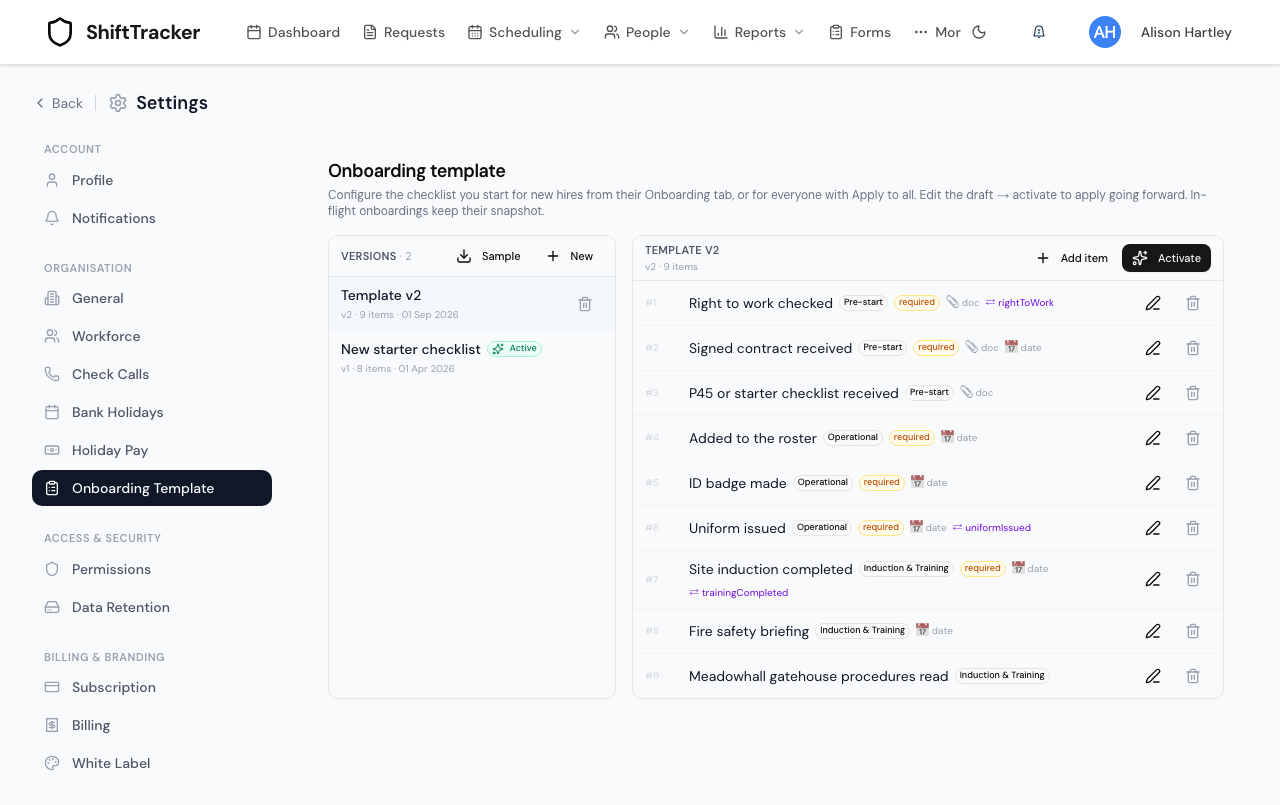
Each item has a Label, an optional Category that groups it on the checklist, a Sort order, optional Help text, and three ticks: Required, Doc upload and Completed date. Doc upload and Completed date are markers on the template only — the checklist does not ask for a file or a date. The date an item was done is stamped when it is set to Done.
An item can also have a Linked roster column — rightToWork, uniformIssued or trainingCompleted. Setting the item to Done on someone's checklist then ticks that column on their employee record.
How do I set up the template?
The active version cannot be changed. You work on a draft and then make it active.
- Go to Settings → Onboarding Template.
- Start a draft:
- Sample (or Import sample, when there are no versions) creates a draft from the built-in new-starter list: 26 items in four categories — Documents & Identity, Pre-start checks, Operational, and Induction & Training.
- Clone, shown while the active version is selected, copies it into a new draft.
- New (or Start blank) creates an empty draft. Drafts are named Template v2, Template v3 and so on; they cannot be renamed.
- Change the draft's items: Add item, an item's edit button, or its bin button to remove it.
- Press Activate. The draft becomes the active version, and the one before it stops being active.
Activating changes nothing for checklists already started — In-flight onboardings keep their snapshot. It applies to checklists started from then on.
A version that is not active can be deleted with its bin button, unless someone's checklist was made from it — Template in use by one or more employees and cannot be deleted…. The active version cannot.
How do I add or change an item?
Add item, or an item's edit button, opens the item with the fields described above. Change what you need and press Add or Save.
How do I start someone's checklist?
Nothing creates a checklist automatically — not adding the employee, and not activating a template.
For one employee:
- Open their profile from People → Employees and choose the Onboarding tab.
- Press Initialise from active template.
For everyone at once, select the active version on the template page and press Apply to all. It starts a checklist for every Admin, Manager, Control and Employee in the organisation who has no onboarding items yet, and tells you how many it started. People who already have a checklist are left alone.
How do I tick items off?
On the employee's Onboarding tab, each item has a status:
| Status | Means |
|---|---|
| Pending | Not done yet |
| Done | Finished; stamped with the date |
| N/A | Does not apply to this person. Counts towards the required items |
| Blocked | Held up — add a note to say why |
Change it with the picker beside the item. The note button opens a box for a note, saved when you click away. The top shows how far through they are — complete items, required items done, and a percentage — and All required items complete once every required item is Done or N/A.
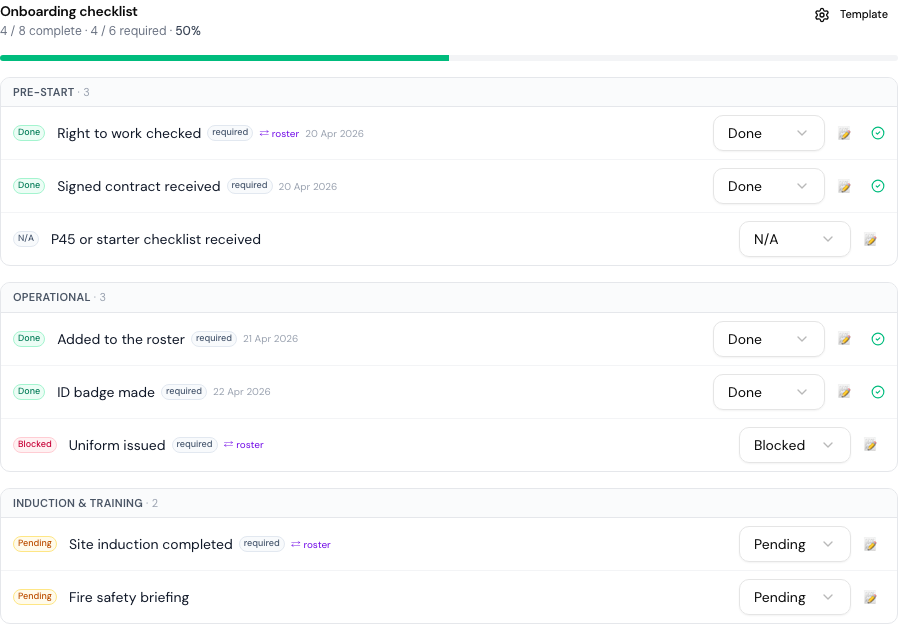
Control see the checklist without the pickers. The employee sees their own, read-only — under Onboarding on the portal's Screening page, and in My Screening in the app.
What happens when everything is done?
When an employee's required items are all Done or N/A and their employment screening is complete, ShiftTracker marks them active — Employee activated — Screening + onboarding both complete. Admins and Managers are notified, and so is the employee. It happens once, whichever of the two finishes last. See Screen staff to BS 7858.
If it goes wrong
| What you see | What it means |
|---|---|
| No Add item or Activate | You have the active version selected. Clone it first. |
| No active onboarding template — Admin must activate one first | Nothing is active yet. Activate a version. |
| Apply to all started nobody | Everyone already has a checklist. |
| A version will not delete | It is active, or someone's checklist was taken from it. |
Related
- Manage employees
- Screen staff to BS 7858
- Onboard officers — the agency's side
Last updated 2026-10-09