Arbitrate shifts for payroll
Payroll Arbitration turns each worked shift into a pay and charge record. Run it over a week, let it accept the shifts that ran to time, review the ones it flags, correct times or rates where needed, then mark records paid and invoiced, which locks them. It is open to Admin and Manager, and covers your own employees; agency officers only where your deployment has switched that on.
What do I need before I start?
An Admin or Manager login. Arbitration is under Scheduling for those two roles only; anyone else who opens it reads Arbitration requires Admin or Manager role.
Shifts that have finished. A shift still to come, or one booked on but not yet booked off, is skipped and picked up by a later run. Cancelled shifts and no-shows never get a pay record.
Pay and charge rates. Each record takes the employee's pay rate and charge rate from their Payroll tab at the moment it is written, falling back to the site's standard rate where the employee has no charge rate. Set them before you run.
How do I run arbitration for a week?
- Go to Scheduling → Arbitration. The page opens on the last seven days.
- Move the range with the arrows either side of the dates, and choose 7 days, 14 days, 28 days or 31 days from the menu beside them. Reset goes back to the last seven days.
- Press Run Arbitration and choose Use Actual Times or Use Expected Times:
- Use Actual Times pays what book-on and book-off recorded, and flags any shift more than 15 minutes out at either end.
- Use Expected Times pays the scheduled times for every shift that finished. A shift booked on or off more than 15 minutes out is still flagged for review.
- A message reports what the run did, and the table fills with one row per shift.
Running again over the same range does not overwrite records that already exist, so you can run it as often as you like. The rules it applies — what counts as on time, what is skipped and what is dropped — are set out in Scheduled vs actual vs arbitrated times.
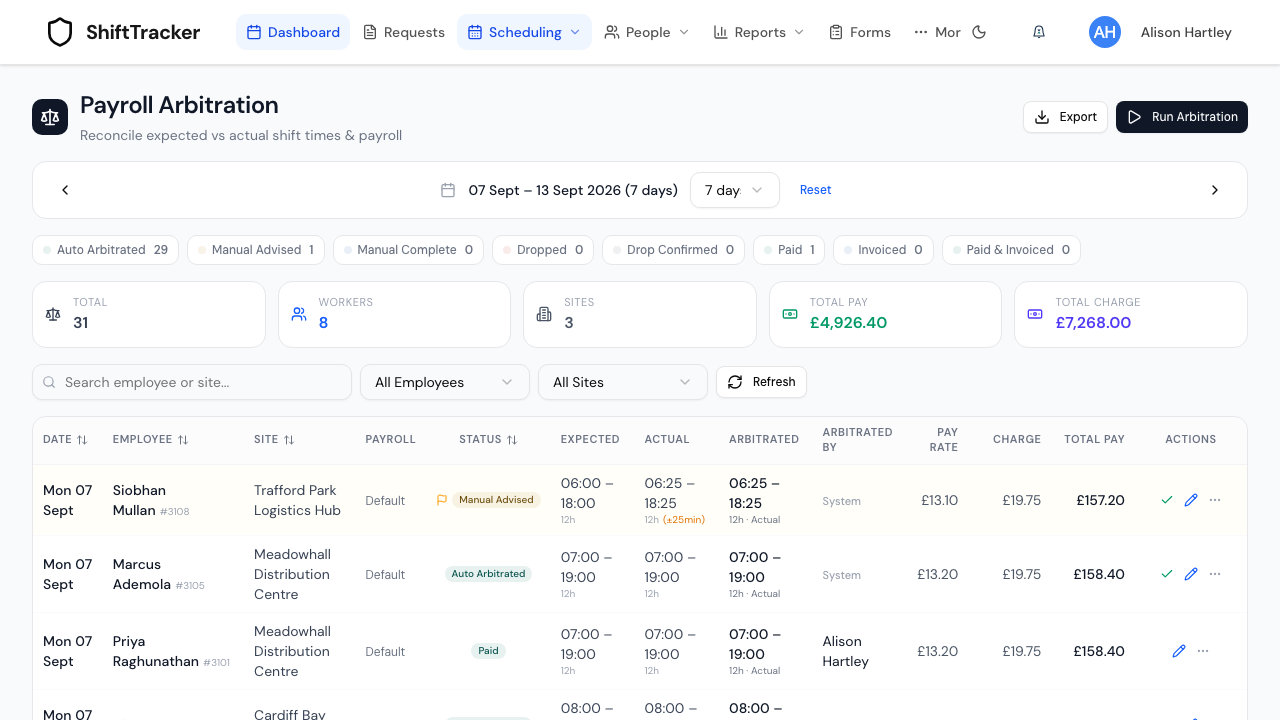
What do the statuses mean?
| Status | What it means | What you can do |
|---|---|---|
| Auto Arbitrated | Ran within 15 minutes of schedule, or had no times and was paid as scheduled | Accept, change times, drop, mark paid or invoiced |
| Manual Advised | Flagged — book-on or book-off more than 15 minutes out | Accept, change times, drop |
| Manual Complete | Somebody has reviewed it | Mark paid or invoiced |
| Dropped | Will not be paid: the employee declined it, or you dropped it | Confirm the drop |
| Drop Confirmed | The drop is final | Nothing |
| Paid | Exported to payroll — locked | Mark it invoiced |
| Invoiced | Billed to the client — locked | Mark it paid |
| Paid & Invoiced | Both — locked | Nothing |
The status chips above the table count each status in the range; the tiles total the workers, sites, pay and charge.
How do I review a flagged shift?
Work down the Manual Advised rows. For each one, either:
- press the tick (Accept) to accept the record as it stands, or
- open the ⋯ menu and choose Use Actual Times or Use Expected Times, or Drop Shift if it should not be paid at all.
Accepting, or choosing either set of times, moves the record to Manual Complete and clears its flag. A dropped record needs Confirm Drop before it is final.
How do I correct one shift by hand?
- Press the pencil (Edit Shift) on its row. The Arbitrate Shift dialog opens.
- Change what needs changing:
- Pay Rate and Charge Rate for this shift only;
- Minimum Hours Paid and Minimum Hours Charged;
- Override Multiplier, if this shift should not use the usual pay multipliers;
- Break Time To Be Paid and Break Length In Minutes;
- Include In Payroll and Include In Invoice, to leave the shift out of one or the other;
- the Payroll and Charge start and end times in the table at the bottom. Use Payroll Length For Charging makes the charge times follow the payroll times.
- Set New Status — Manual Arbitration Complete once you are done — and add Notes if the change needs explaining.
- Press Save.
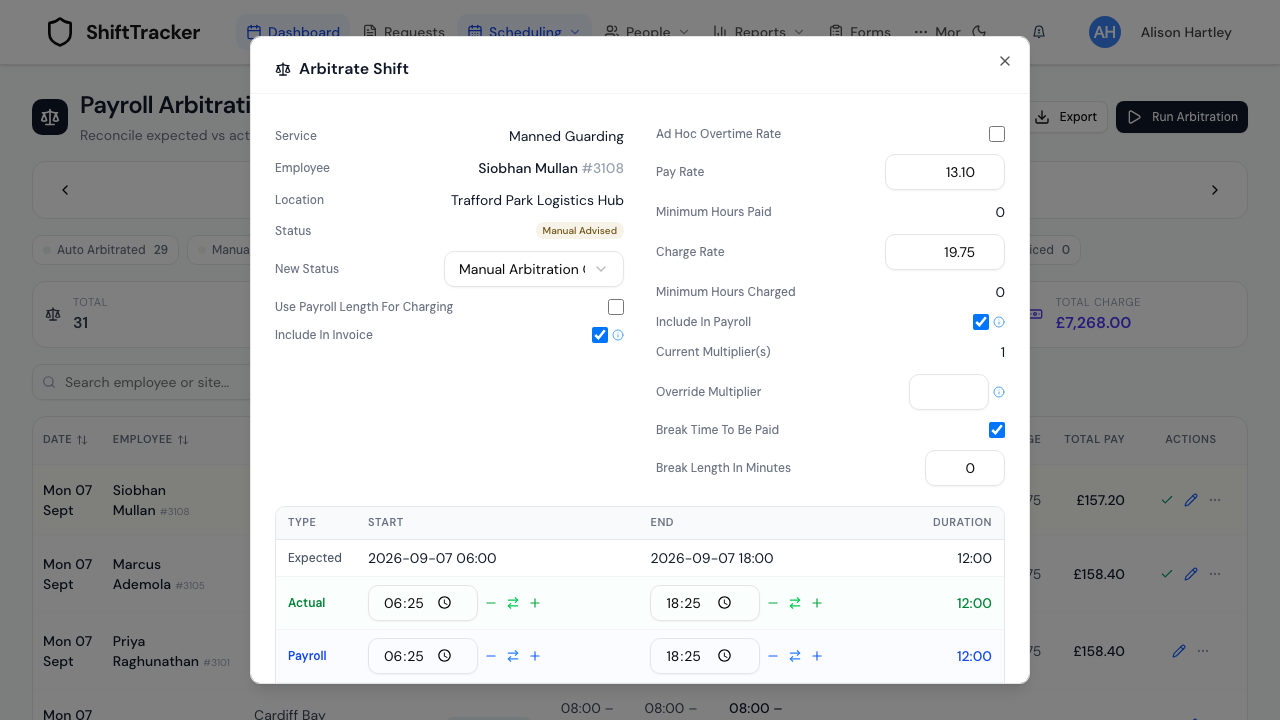
To reach one shift from the roster instead, right-click a completed shift and choose Arbitrate shift. Arbitration opens on that week with the dialog already open.
If somebody else saved the same record while your dialog was open, your save is refused with Record was modified by another user. Reload and make the change again.
How do I close a pay run?
- Arbitrate the range and clear every Manual Advised row.
- Press Export to download the range as
arbitration-<from>-to-<to>.csv, with expected, actual and arbitrated times, hours, rates, totals, variance and notes for each shift. - Once payroll has been run, choose Mark Paid from each record's ⋯ menu. Once the client has been billed, Mark Invoiced. A record marked both reads Paid & Invoiced.
Marking a record paid or invoiced locks it, and writes a permanent snapshot of the record as it was at that moment, so a later correction can never rewrite what a closed pay run said.
Can I change a record after it is locked?
Only an Admin, and only with a reason. Press the pencil on a Paid or Invoiced row: the dialog asks for a Reason for changing a paid record — at least five characters — and Save stays greyed until you give one. The reason is kept in the audit trail. A Manager sees Only an Admin can change it instead. Accepting, changing times from the row, or dropping a locked record is still refused with Record is locked.
Does it cover agency officers?
Only where your deployment has switched on officer arbitration (the ENABLE_OFFICER_ARBITRATION setting, off by default). With it off, a run reads no agency roster shifts and writes no officer records, so the pay run — and any invoice built from it — covers your own employees only.
If it goes wrong
| What you see | What it means |
|---|---|
| Arbitration requires Admin or Manager role. | Your role cannot open the page. |
| The table is empty after a run | No shift in the range has finished yet, or they were all cancelled or no-shows. Move the range back. |
| Total Pay shows – on a row | The record has no pay rate. Set the employee's rate, then run again — a record whose pay never computed is recalculated on the next run. |
| Record is locked | The record is paid or invoiced. Change it from the pencil, with a reason. |
| Record was modified by another user | Someone else saved it first. Reload. |
| No arbitration record for this shift yet. Run arbitration for … to create it. | You came from the roster's Arbitrate shift, and no run has covered that shift. The page is already on its week: press Run Arbitration. |
Related
Last updated 2026-10-09