Approve and manage leave
Leave Management lists every leave request in the organisation, from employees and from managers booking on their behalf. Admins and Managers approve or reject them; approving takes the employee off any rostered shifts in those dates and opens the shifts for cover, and approving annual leave records its holiday pay. Cancelling approved leave puts the shifts back.
Where is it, and who can use it?
Open Scheduling → Roster, then More → Leaves. Back to Roster returns you.
| Action | Needs | Default roles |
|---|---|---|
| Approve, and cancel approved leave | leaves.approve |
Admin, Manager |
| Reject | leaves.reject |
Admin, Manager |
| See the employee's reason | — | Admin, Manager |
Other staff can see the list, but not the reasons, and get no approve or reject buttons. Employees request their own leave from the employee portal — see Request leave.
What does the list show?
Four tiles — Total Requests, Pending (Awaiting review), Approved and Avg. Duration — then Search, Status and Leave Type filters, and one row per request: the employee, the leave type, the dates, the duration, the status and Days Until the leave starts (Started once it has).
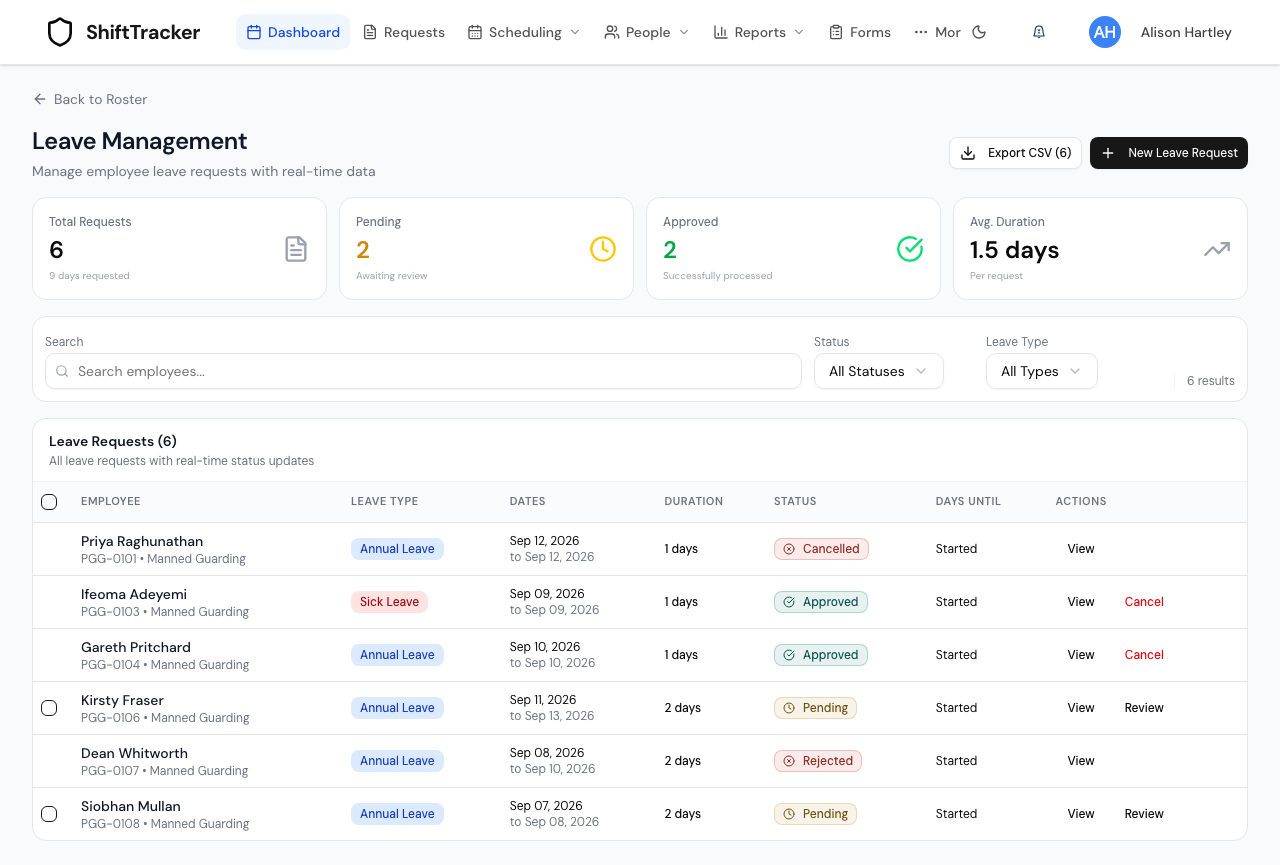
Export CSV downloads the rows the filters show.
How do I approve or reject a request?
- Find the request — Status → Pending narrows the list to those awaiting a decision.
- For a request that takes nobody off the rota, the row has a one-click Approve.
- Otherwise press Review. The dialog shows the request in full; press Approve Request, or Reject and give a Reason for Rejection * (required) before Confirm Rejection.
To approve several at once, tick their checkboxes and press Approve N selected.
You cannot approve your own leave while another Admin or Manager could: ask one of them. The only approver in an organisation can approve their own.
Who is told about a request?
When leave is requested, or an absence is booked from the roster, the Managers and Control users assigned to the sites where the employee is rostered over those dates are told, because they have to find cover. If those sites have no manager, the Admins and Managers are told instead. The person who made the request and the employee are never told about their own request. Who may approve is unchanged.
What happens when I approve?
- The employee comes off their shifts. Any rostered shift in the leave dates, scheduled or confirmed, loses its employee, is opened to applications from other staff, and is noted [Leave] Booked off: name (type). The page tells you how many shifts were opened for reassignment. Fill them from the roster.
- Annual leave is paid. Approving annual leave calculates and records its holiday pay with your organisation's method — see Set holiday pay and bank holidays.
- The balance is checked, not enforced. If annual leave would take the employee past what they have earned so far this leave year, the approval still goes through, with a warning: Approving this request will over-allocate annual leave…
Can I undo it?
Yes. Cancel on an approved request — Cancel this approved leave and restore the shift(s)? — gives the employee back the shifts approving took off them. Cancelling a leave that has already ended is refused.
How do I book leave for someone?
- Press New Leave Request.
- Choose the employee and the Leave Type, then Start Date and End Date. Total Days is worked out for you.
- Add a Reason (Optional) and press Create Request.
The request is checked against the employee's earned annual-leave balance and their rostered days as if they had asked themselves. The rules can be overridden with a recorded reason by someone holding leaves.override (Admin by default), but this screen does not offer the override.
If it goes wrong
| What you see | What it means |
|---|---|
| Insufficient permissions to approve or reject leave requests. | You do not hold leaves.approve or leaves.reject. |
| You can't approve your own leave. Ask another administrator or manager. | The request is yours, and another Admin or Manager can approve it. |
| Please provide a reason for rejection | A rejection needs a reason. |
| Cannot cancel a leave that has already ended. | Only leave still to come, or in progress, can be cancelled. |
| No one-click Approve on a pending row | Approving would take the employee off rostered shifts. Use Review. |
| A warning about over-allocating annual leave | The employee has asked for more than they have earned so far. It is your call; the approval has gone through. |
Related
Last updated 2026-10-09