Import employees and sites from a spreadsheet
Bring your staff or your sites in from a spreadsheet instead of adding them one at a time. Download the template, fill it in, upload it, and ShiftTracker creates every row it can. Rows with a problem come back as a file to fix, and invitations can wait until you are ready.
Who can do this?
- Employees: anyone who can add employees. Only an Admin can import pay rates, charge rates and payroll numbers.
- Sites: Admins.
How do I import?
- On Employees or Sites, press Import.
- Press Download template. It opens in Excel or any spreadsheet. The first row is the column headings, the second says what each column takes, and the third is an example. Leave them or delete them: an unchanged notes or example row is never imported.
- Fill in one row per employee or site, up to 500 rows. Save the file as CSV (in Excel, File → Save As, then choose CSV).
- Under Upload the filled-in file, choose the file. Every row is checked, and nothing is created yet.
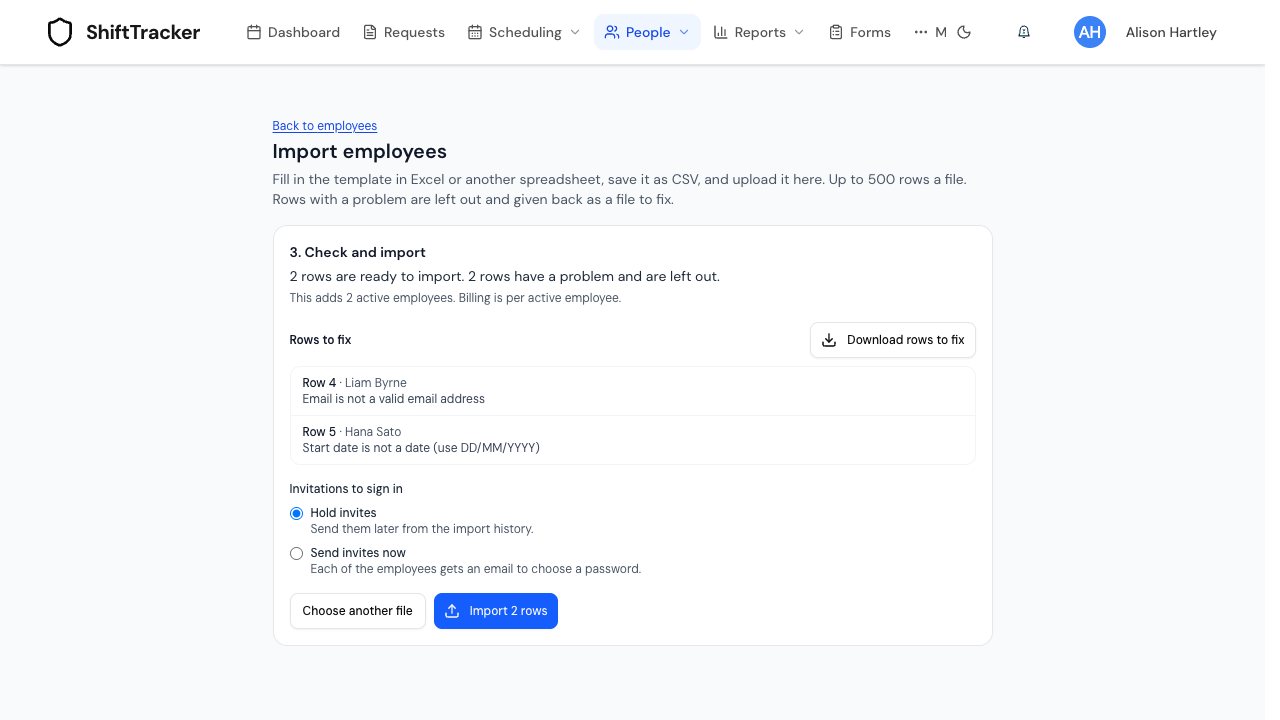
- Read the result: how many rows are ready, and why each of the others is not. For employees it also says how many active employees the import adds, as billing is per active employee.
- For employees, choose Hold invites or Send invites now. See below.
- Press Import. Keep the page open until it finishes.
- If any rows were left out, press Download rows to fix. The file has your rows as you wrote them, with a Problem column at the end. Fix them and upload the same file again.
What does each column take?
The template's second row says it for each column. In short:
- Dates as DD/MM/YYYY, such as 01/12/2026.
- Grade, Home site and Client must match one you already have, by name. A home site can also be its SIN. The import never creates a grade, site or client.
- Email must not belong to anyone already in ShiftTracker, or appear twice in the file.
- SIN for a site is optional. Left empty, the next free one is given.
Key-holding and alarm notes cannot be imported, because a spreadsheet of codes is easily passed around. Add them on each site afterwards.
When do my staff get their invitations?
- Send invites now: each employee gets an email to choose a password as soon as they are created.
- Hold invites: nobody is emailed. When you are ready, go to People → Imports, open the import and press Send held invites. Anyone who has already signed in is skipped, and an invitation that fails to send stays held so you can try again.
Sites have no invitations.
Where can I see past imports?
People → Imports lists every import with who ran it and how many rows were created and skipped. Open one to see each record it created, linked to the record, and whether that person has been invited or has signed in. A record deleted since shows as deleted.
What if the import stops part way?
If the connection drops, the import stops and says so. Every row it had not reached goes into the rows to fix. Before you upload them again, open the import under People → Imports to see what was created: an employee who was created is refused the second time, but a site without a SIN would be created twice.
Last updated 2026-11-08